Course Report
Overview
Upgrading from Forma 4.1.4
This module has been introduced with Forma LMS 4.2. If you are upgrading from older forma versions, this single module will replace all the following teacher area features:
During the upgrade process all these features will be automatically removed both from the course menus and from the menu templates in admin area. A link to the new module will be automatically created in the same menu area both for course menu and menu templates. trying to migrate the same menu permission for administrative roles as the old modules.
Permissions eventually set to users enrolled with the role of student, ghost or guest will be removed.
Check your menus item after upgrade. In case the new module is not present in a course, just re-apply to the course the menu template, making permissions changes if needed. View the menu management documentation for details.
Features
Dashboard
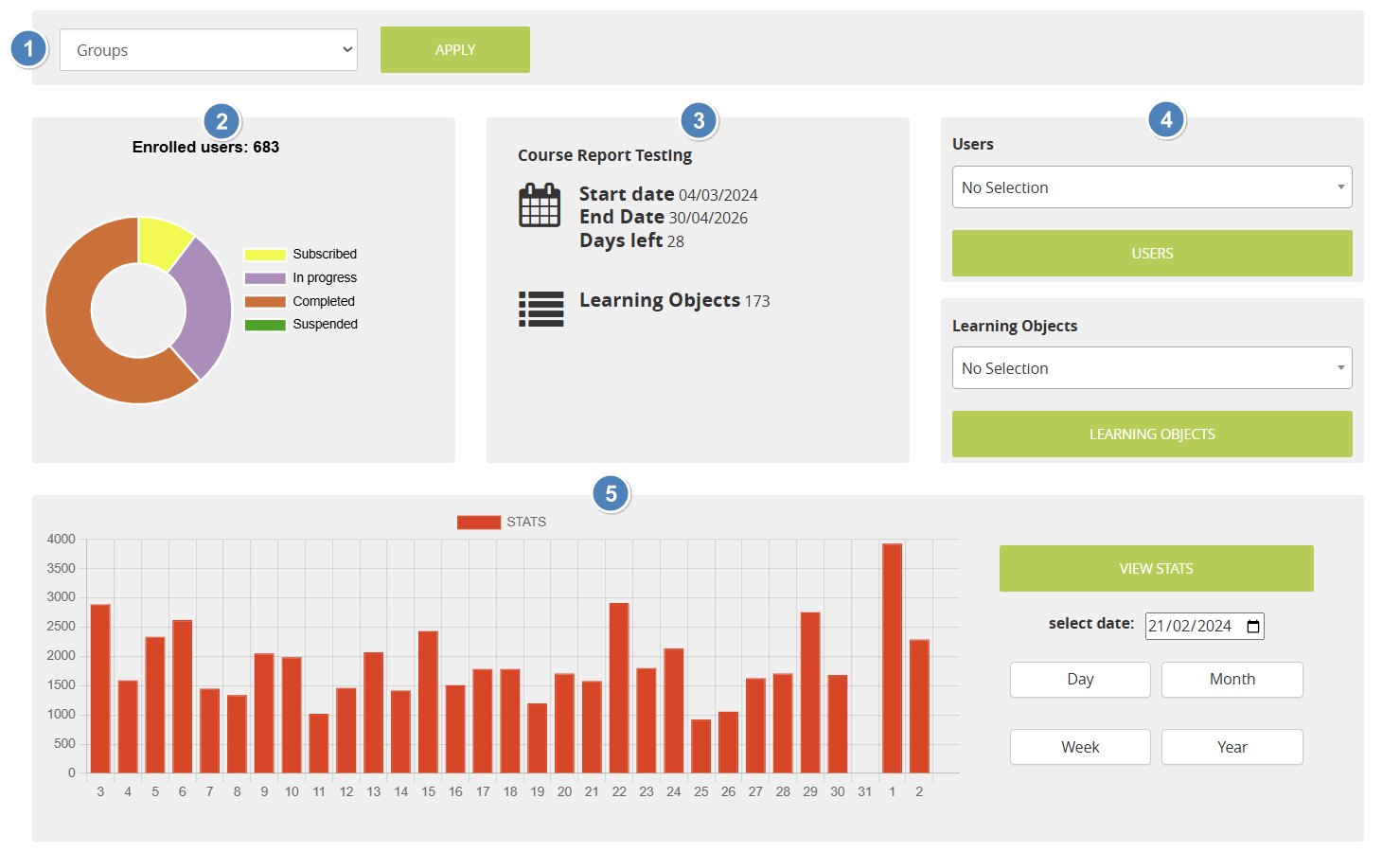
- Filters Bar: allow filtering the below data by edition or course group. Not displayed if groups or editions are not configured for this course
- Users status Chart: Total number of enrolled users, and pie chart showing the amount of users for each status. Mouse over each segment to see the number of users.
- Course Info:
- Start/End date, as set in the main course options. For classroom courses will show the dates set for the master course
- Days Left: counts remainig days from today until the end date of the course. Only shown if the end date for the course is set.
- Learning Objects: total number of LO in this course
- Quick Search by User: select a specific user or just start writing a username, and click the submit button to directly see his report details
- Quick Search by Learning Object: select a specific Learning Objector just start writing its title, and click the submit button to directly see the report details page for this LO
- Usage stats: usage stats for the last period.
User Report
Main Page
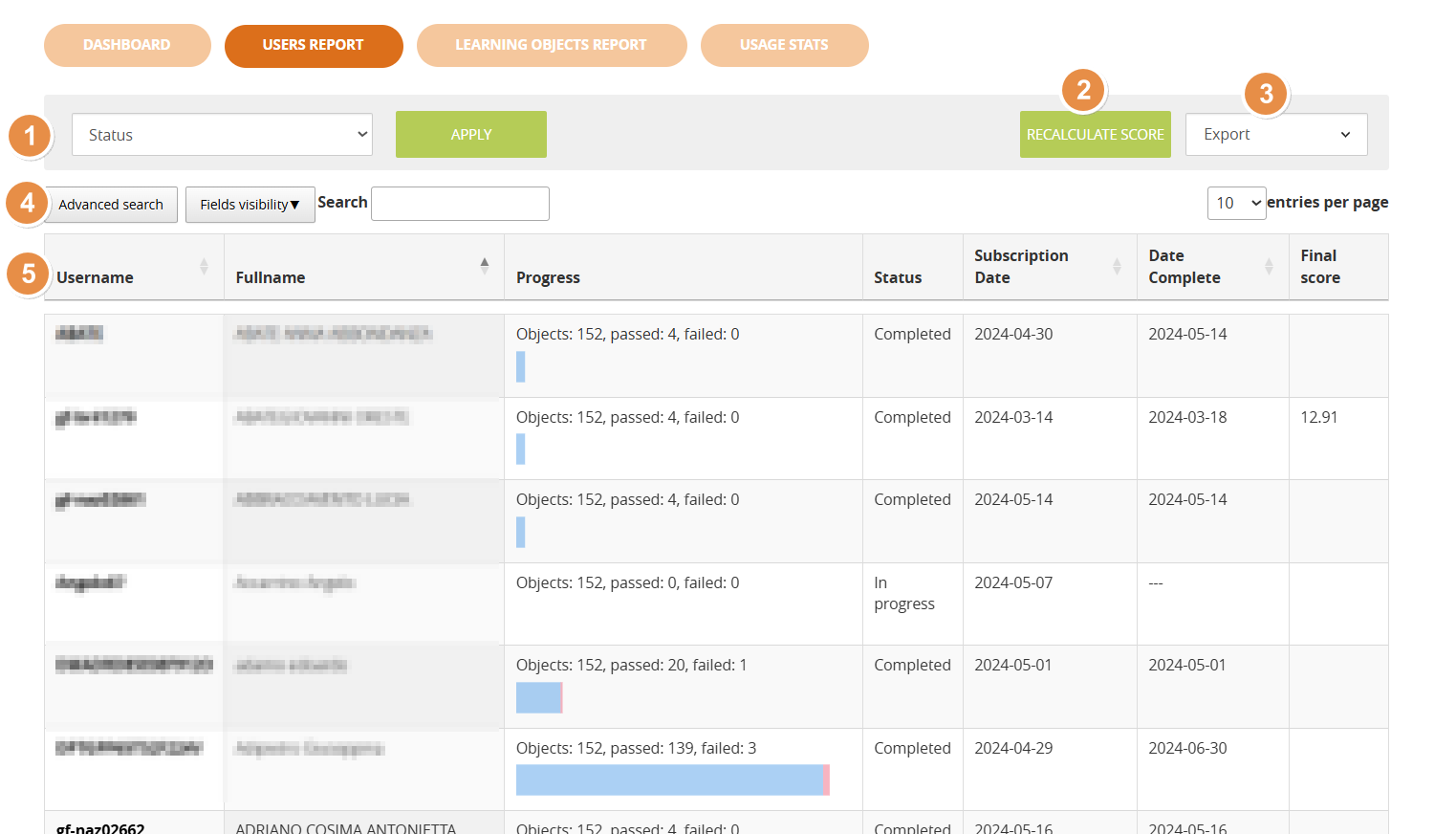
- Filters Bar: allows filtering the data below by edition or course group. Not displayed if groups or editions are not configured for this course
- Recalculate: recalculates the final score for all users
- Export: export the report in CSV or XLS format
- Search: search on the displayed data, enable advanced search, anable visibility of hidden columns
- Username: click on a username to display a detailed report of the status of this user on all the learning objects
User Report
Status and main tracking data for all the LOs for a specific user
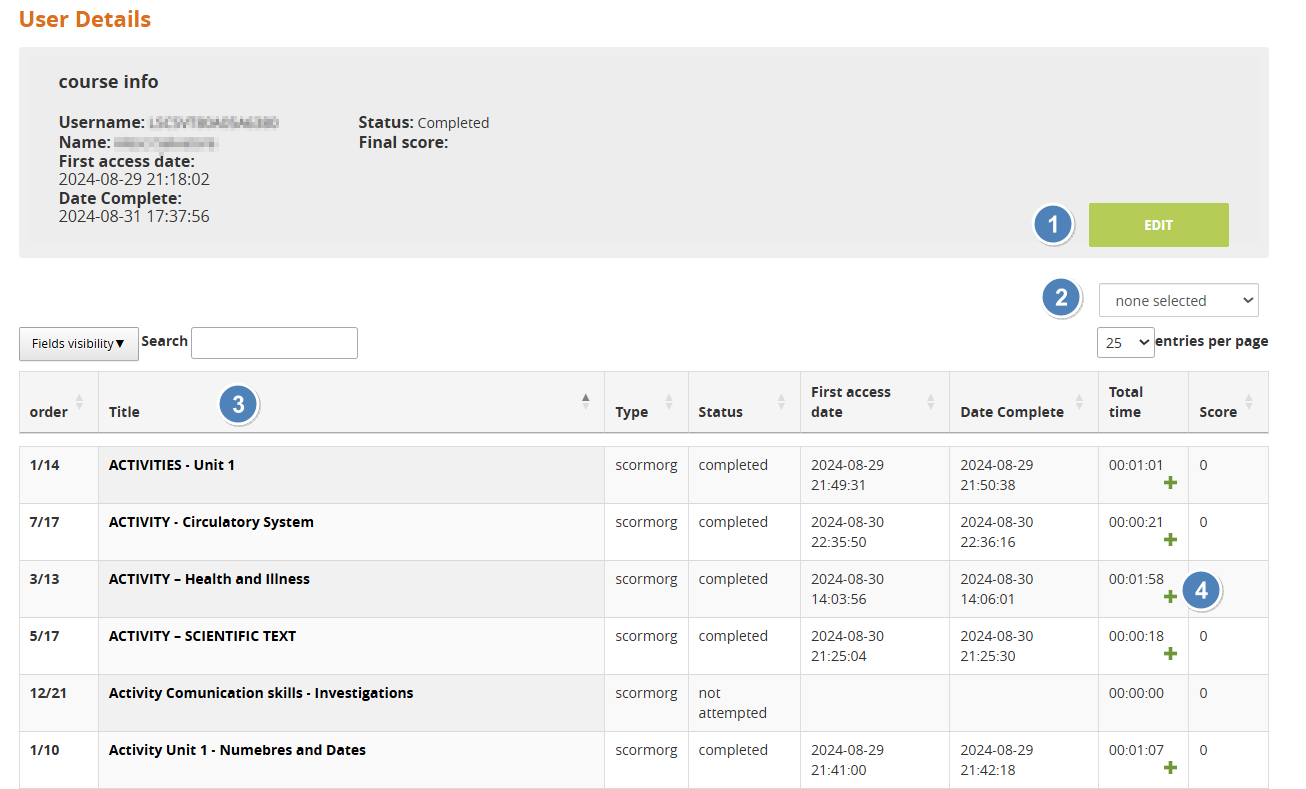
- Edit: edit the main informations for the user status on the course
- Status
- First Access
- Last access
- Export: export the user tracking data in CSV or XLS format
- Learning Objects list: click on the object title to see user details for this learning material
- Scorm time tracking: the colums displays the total time spent by a user in each scorm object. Click on the "+" icon to see a detailed report of all the accesses
Learning Objects Report
Main Page
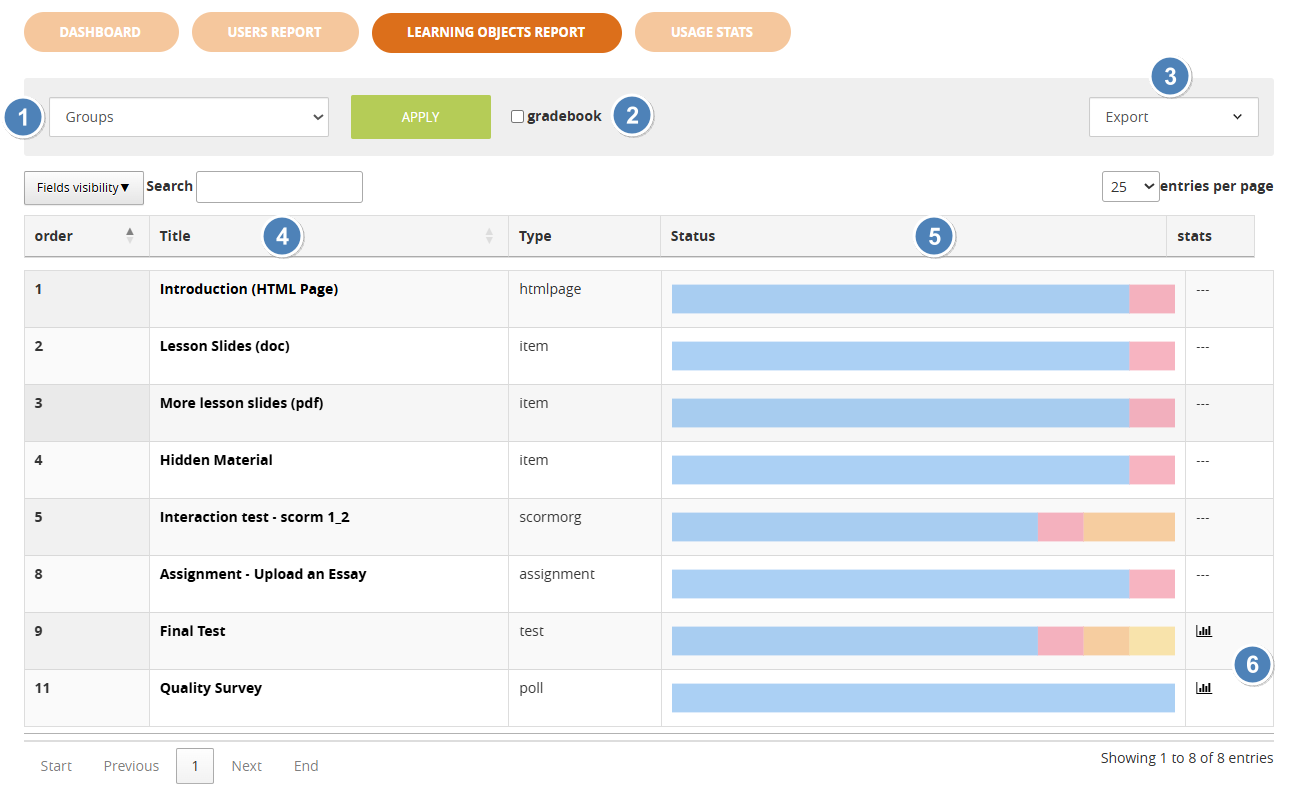
- Filters Bar: allows filtering the data below by edition or course group. Not displayed if groups or editions are not configured for this course
- Gradebook Filter: flag this checkbox to filter the list of learning objects and display only those with scores and marked as "Use for final" in the LO Management - properties section
- Export: export the report data in CSV or XLS format
- LO Title: Click on the title of a learning object for a detailed report
- LO user status chart: this chart represents the progress status of all users on a learning object. Mouse hover a segment of the status bar to see the number of users with that status in a LO
- Answer stats: click on the istogram icon to see statistics for the answers in a test or poll learning object
Learning Object Report
This view features an overview of the status of all users on this learning object, and a list of all the users with their main tracking info
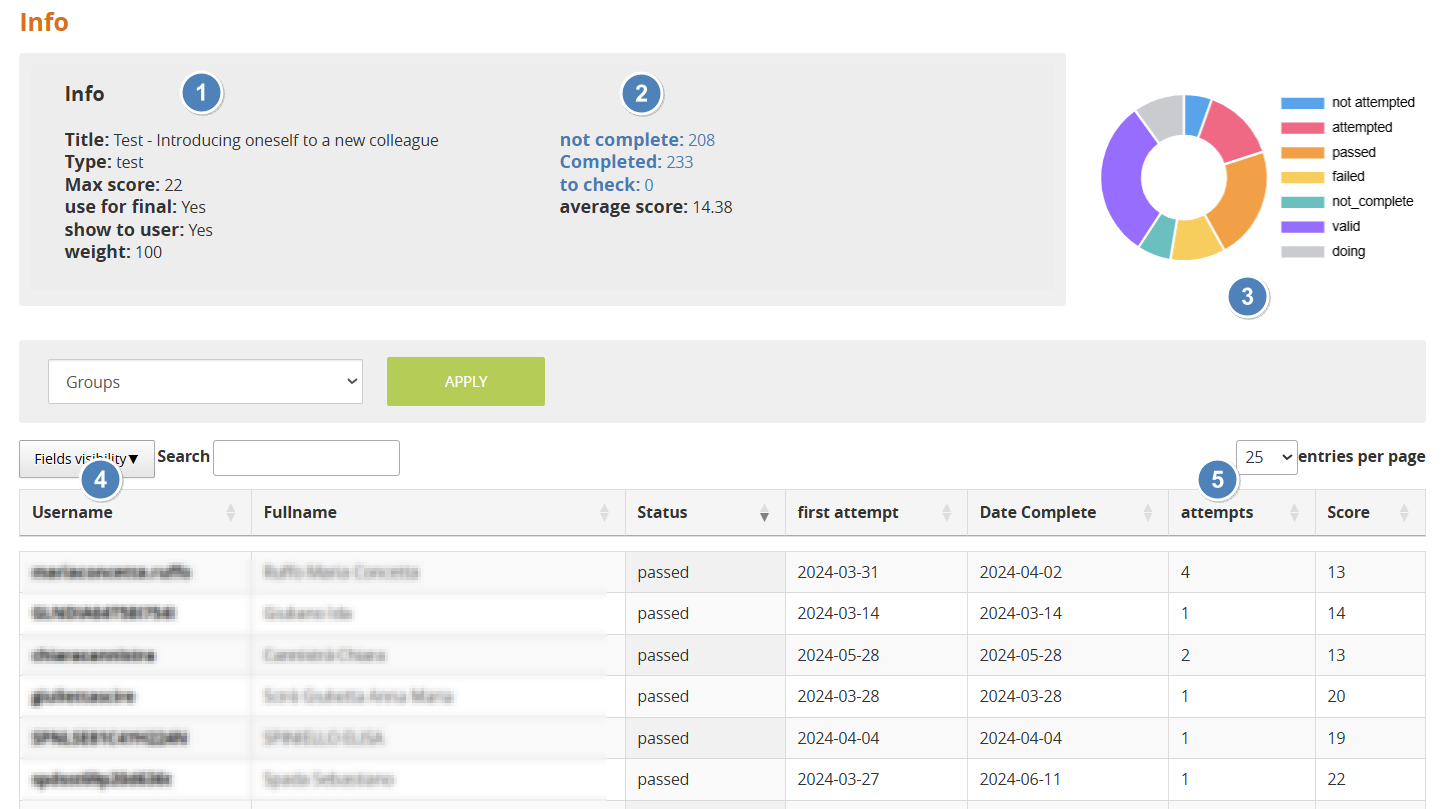
- Learning Object Info: main information about the selected learning objects. Score settings like max score, use for final, show to user and weight can be set and edited by each LO properties and editing sections
- Test Metrics: only displayed for "test" learning objects:
- User status: shows how many users have completed (passed or failed), not completed (not attempted or doing) an assessment, and the number of submissions waiting for a teacher validation (to check). Click on a label to filter the users in this status
- Average score: calculates the average score for all users in this test
- Score status chart: pie chart displaying the score status of all users. Mouse hover a segment of the status bar to see the number of users with that score status in this LO
- User tracking details: click on a username to see the user status and tracking details for this LO
- Attempts: number of attempt of the users in a test
User Details
Usage Stats
Main Page
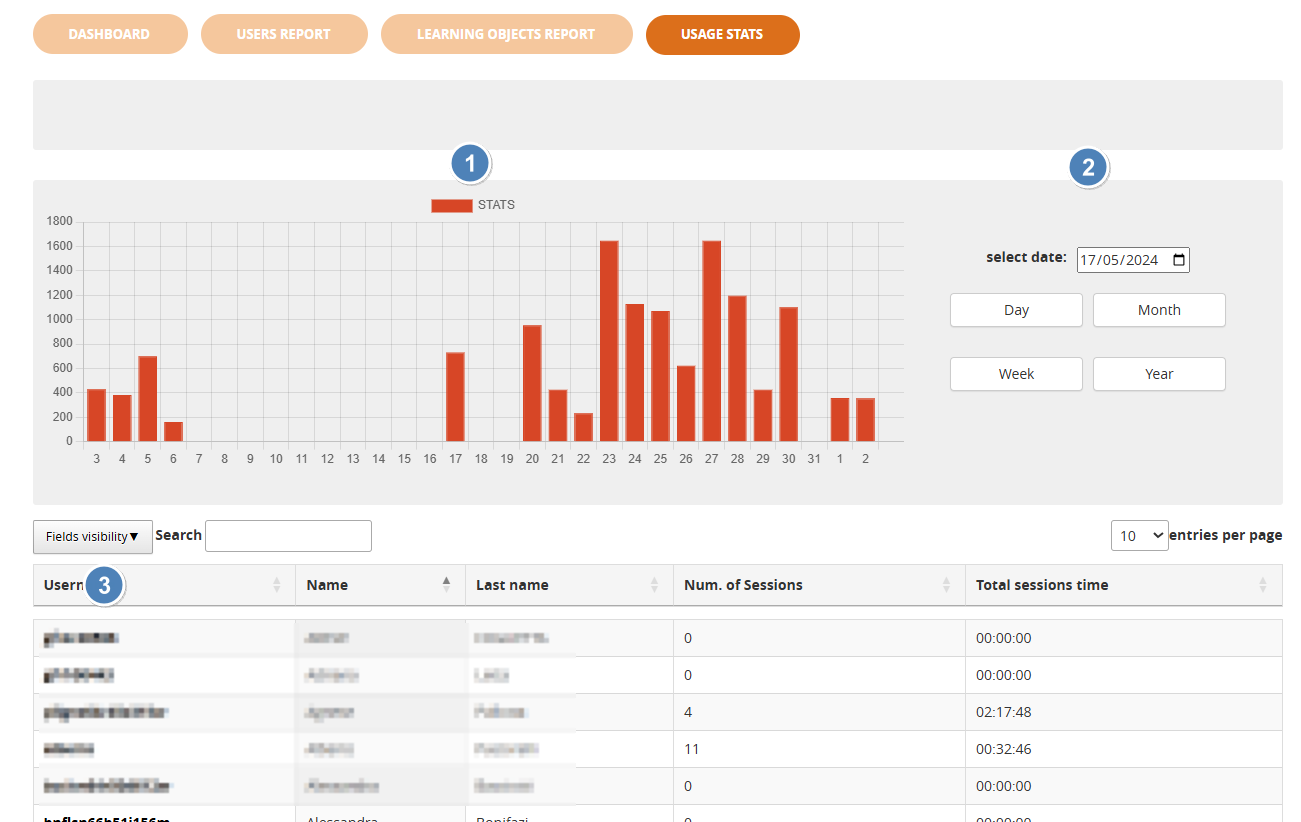
- Usage stats chart: volume of browsing activity of the users in this course for a selected time period
- Time filter: choose time range and start data for the usage chart
- Users list: click on a username for a detailed list of browsing sessions and actions
Usage Stats by user
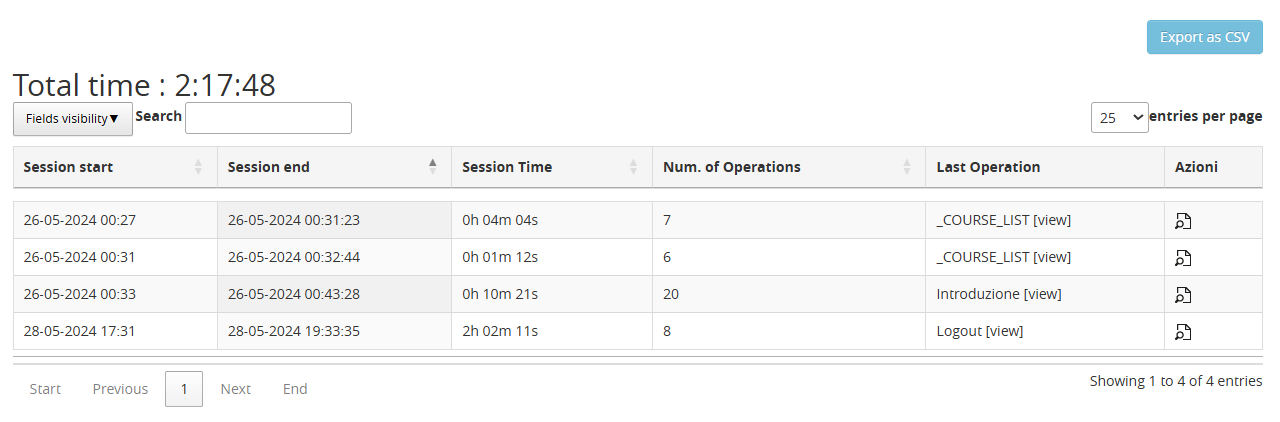
List of all the browsing sessions of the selected user in this course:
- Total time: sums the browsing time of all the sessions
- Actions: click on the icon for a list of the actions performed by the user in a session