
Learning Materials Management
The Learning Objects management page is made by three tabs:
- Course Objects: list of actual LO of the course, available for students. They can be directly created from this area or imported either from MyObjects or Shared Objects areas.
- Shared Objects: a repository of LO shared among all the courses and users with permission to access this tab
- My Objects: personal materials' repository for the logged user. A private area for teachers in which they can store their own objects, create new objects or import objects from other teachers. It is an inter-course area in the sense that the objects placed there can be viewed from any of the courses managed by the teacher.
In all the tabs, LO Objects can be organized into folders/subfolders.
Course Objects
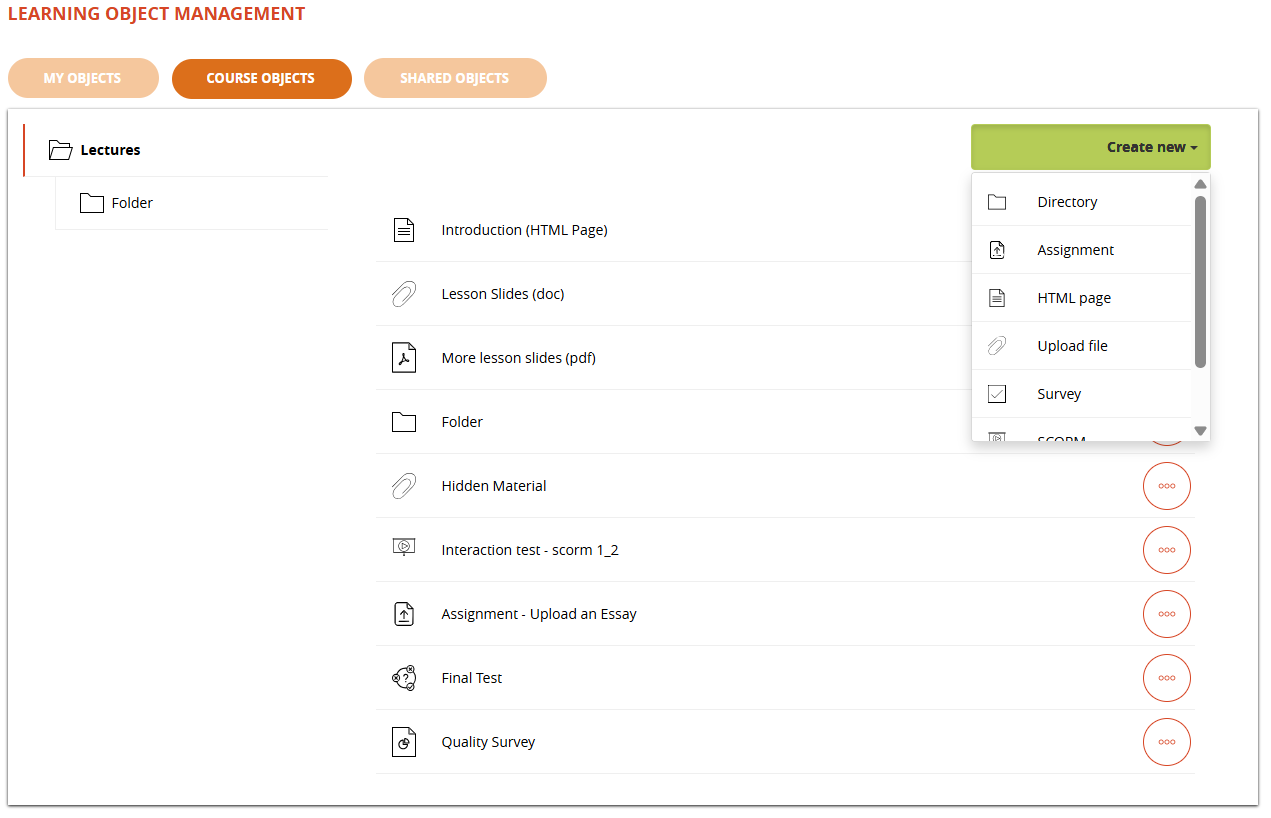
LO types
- SCORM
- TEST
- Upload file
- HTML page
- Survey
- Assignment (since Forma 4.2)
The following LOs are available until Forma 4 and REMOVED SINCE FORMA 4.1 and it won't be possible to create new ones. Previously created LOs will keep working but may be removed in feature releases.
- FAQ
- Glossary
- Links
LO actions and features
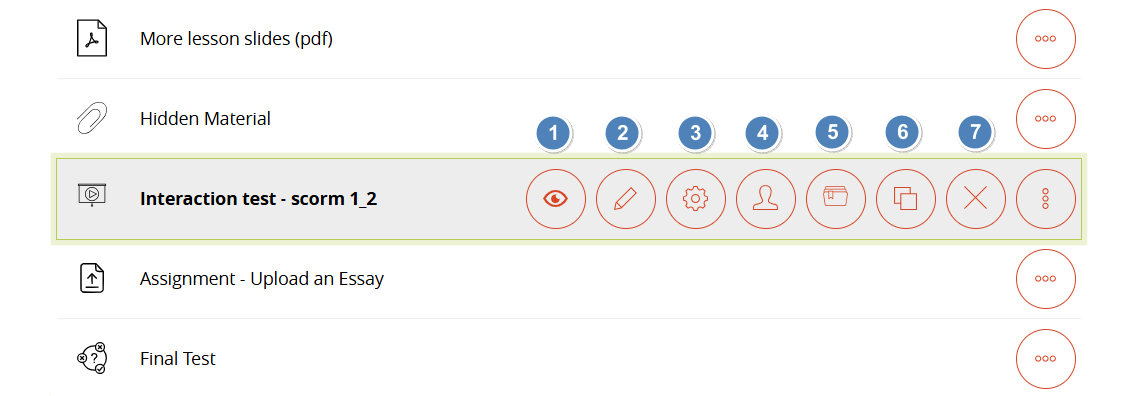
- View: open and launch the learning object. Actions will be tracked as for normal fruition
- Edit: access the edit page for this of learning object. Each type of learning object has a different edit mode.
- Properties: edit object properties for:
- Prerequisites
- LO Properties
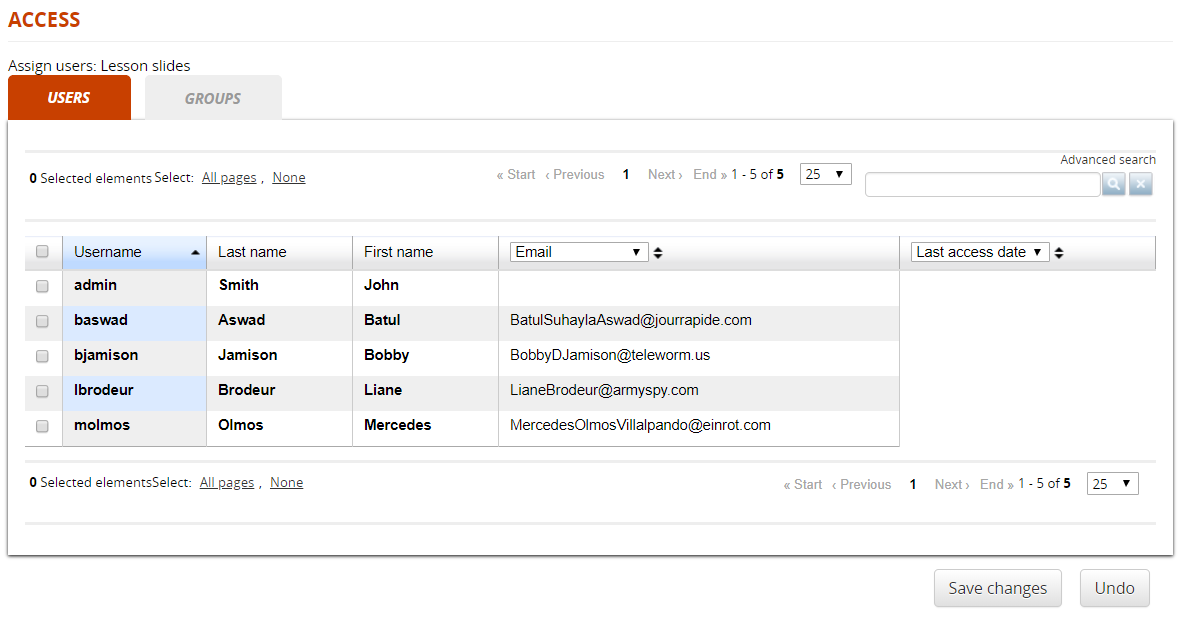
- Assign: assign this LO only to specific users
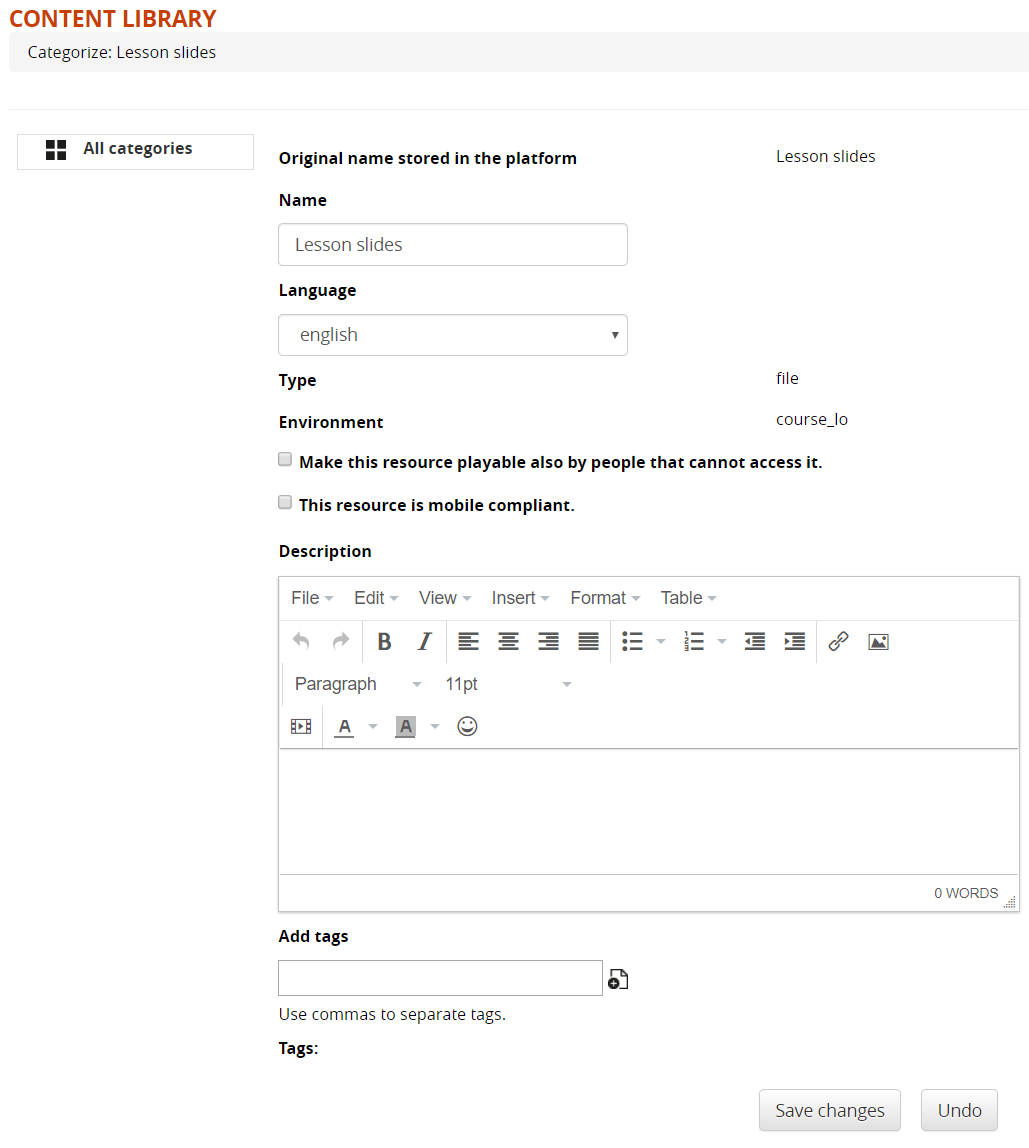
- Categorize: Add description, category, and tags for the knowledge base
- Copy: duplicate the object
- Delete: Delete the object
Properties: Prerequisites
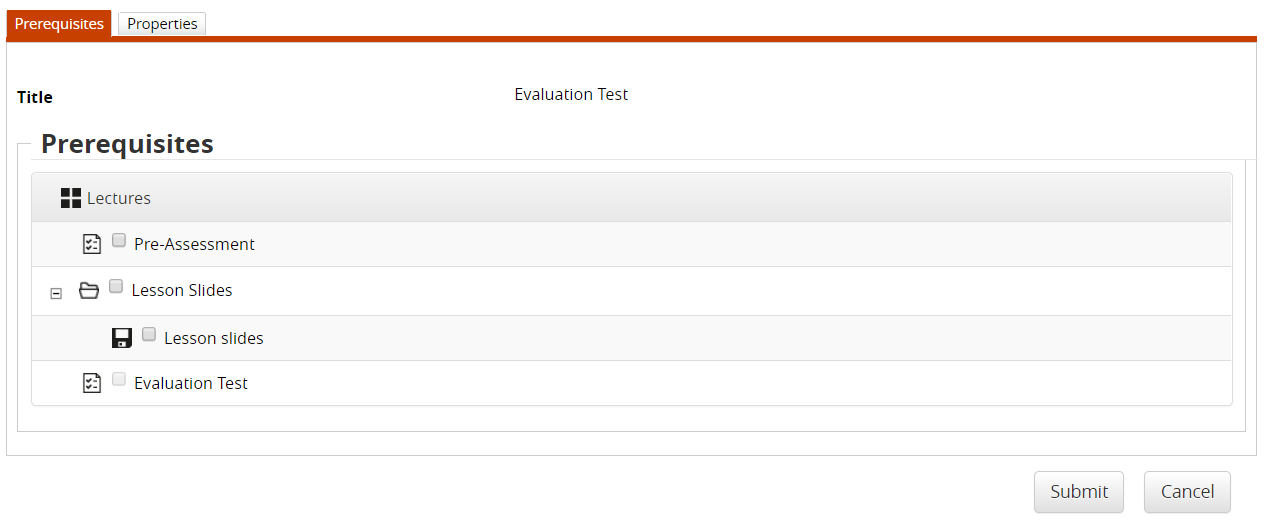
Click on the “Properties” icon to open the Properties > Prerequisites tab.
Here you can select the LO in the course that need to be completed for the object to be unlocked
Properties: Properties
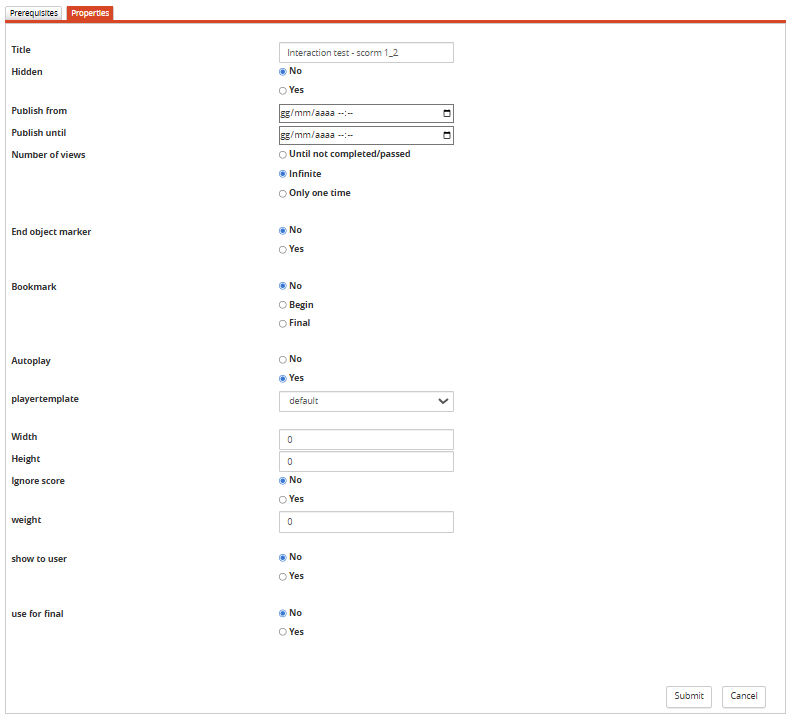
Here you can set the general configuration settings for this object. Different LO types might have different option sets.
General options, available for all types of objects:
- Title: display LO name. Editable only for SCORM objects, for other types use their edit page
- Hidden: decide whether this object must be visible or not for students (default: yes)
- Publish from/until: the object will be visible only between the selected dates. Leave empty for unlimited
- Number of Views: define how the object must be accessible based on its completion status
- End Object Marker: if set to yes, completing this object will set the user status on the whole course to “complete”.
Score Options
The following options are available only for LO types involving scoring logics:
- Bookmark: this object's score will be reported as separate start score or final score for the course
- Ignore score: score will be ignored
- Weight: weight of this LO's score in final vote calculation
- Show to user: the score obtained for this LO will be listed in the user's Report Card
- Use for Final: this score is considered or not in the final score calculation
The options weight, show to user and use for final have been migrated in this position since Forma 4.2. In prior versions they were set from the gradebook module
Assign to selected users
Here you can assign the LO only to selected users or groups. Other users won't see the object.
Categorize
Use this form to categorize the object within the Forma Content Library
Shared Objects
This is the area where teachers can share teaching objects with other teachers, can import them to their own homepages or directly to the courses section.
Note:
- Importing entails making a new copy of the imported object, which will therefore be treated as a completely new object
- Teachers can create, copy and move any shared LO, but can delete only their own. Only administrators can delete LO by other users.
My Objects
Materials in this area can be viewed and managed only by the logged user, and are shared among all the courses where he has teacher permissions.