**NOTE:** If you need a way to assign groups of courses to specific users, check the catalog feature
### What is a course A course is a logical container, you can manage administrative features from this backend section: - Description and categorization - Subscription modes and user enrollment - Course scheduling - Certificate assignment Training features will be managed from the platform frontend instead: - Learning Materials - Course features - Training stats ## Categories You can: - **Create** an unlimited number of categories and nested categories - **Move** a category under another category: click on its name and drag'n'drop the folder - **Delete** a category only if it is empty ### Filter and Search Courses Options that apply to the course list below: - **Classroom**: show only courses of type “classroom” - **Show also children content**: list also courses from the child categories - **Waiting users**: show only courses with users waiting to be approved ## Courses [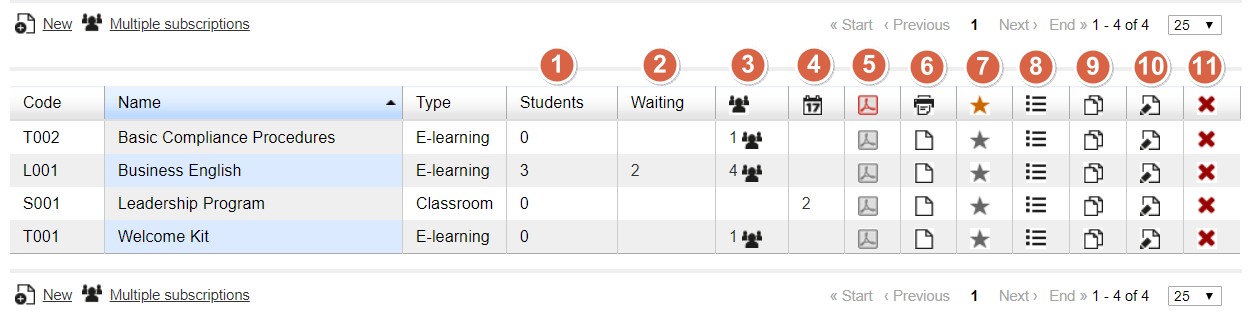](https://docs2.formalms.org/uploads/images/gallery/2024-02/CVOimage.png) This list shows courses from the selected category, ordered by code, name or type. Here, you can control and manage the following features for each course: ### Students Simply shows the number of users enrolled to this course with level “student” ### Waiting Number of user subscriptions to be approved when “moderated” registration is active. Click on the number to manage the waiting users: [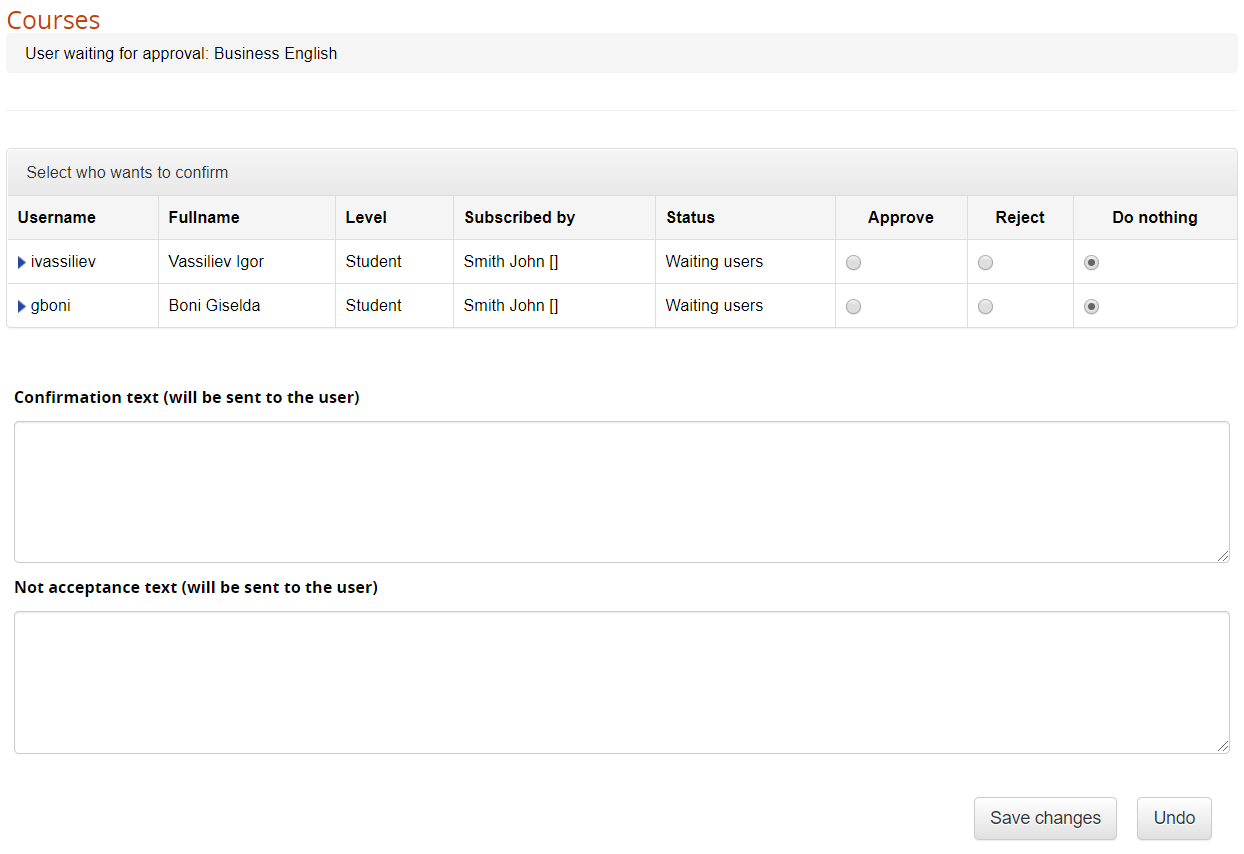](https://docs2.formalms.org/uploads/images/gallery/2024-02/FiWimage.png) ### Subscriptions Number of users subscribed to the course. Check the “subscription management” page of this guide for details ### Editions Number of editions available for a “classroom” or “elearning editions” course. Check the “editions management” page of this guide for details ### Certificates Assign Assign a certificate template to this course ### Certificate Release Check the list of available and released certificate for this course ### Competences Click this icon to set the competences assigned by the course. Each course can assign one or more competences, click on the icon to: - **Select** the competences assigned by the course - **Edit** the competence score assigned to the user when the course is completed**Manage Competences** Check the [Competences Guide](https://docs2.formalms.org/books/reference-guide/page/competences) to learn how to create and manage competences in Forma LMS.
### Menu Assign a different menu template to this course ### Copy Duplicate this course. You will be able to select which elements of the course to copy: [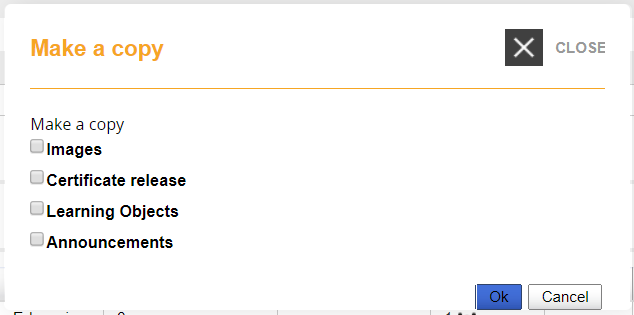](https://docs2.formalms.org/uploads/images/gallery/2024-02/bxtimage.png) ### Edit Edit the selected course information and settings ### Delete Delete the course.Caution! This operation can't be undone!