# Catalogs
## Global Catalog
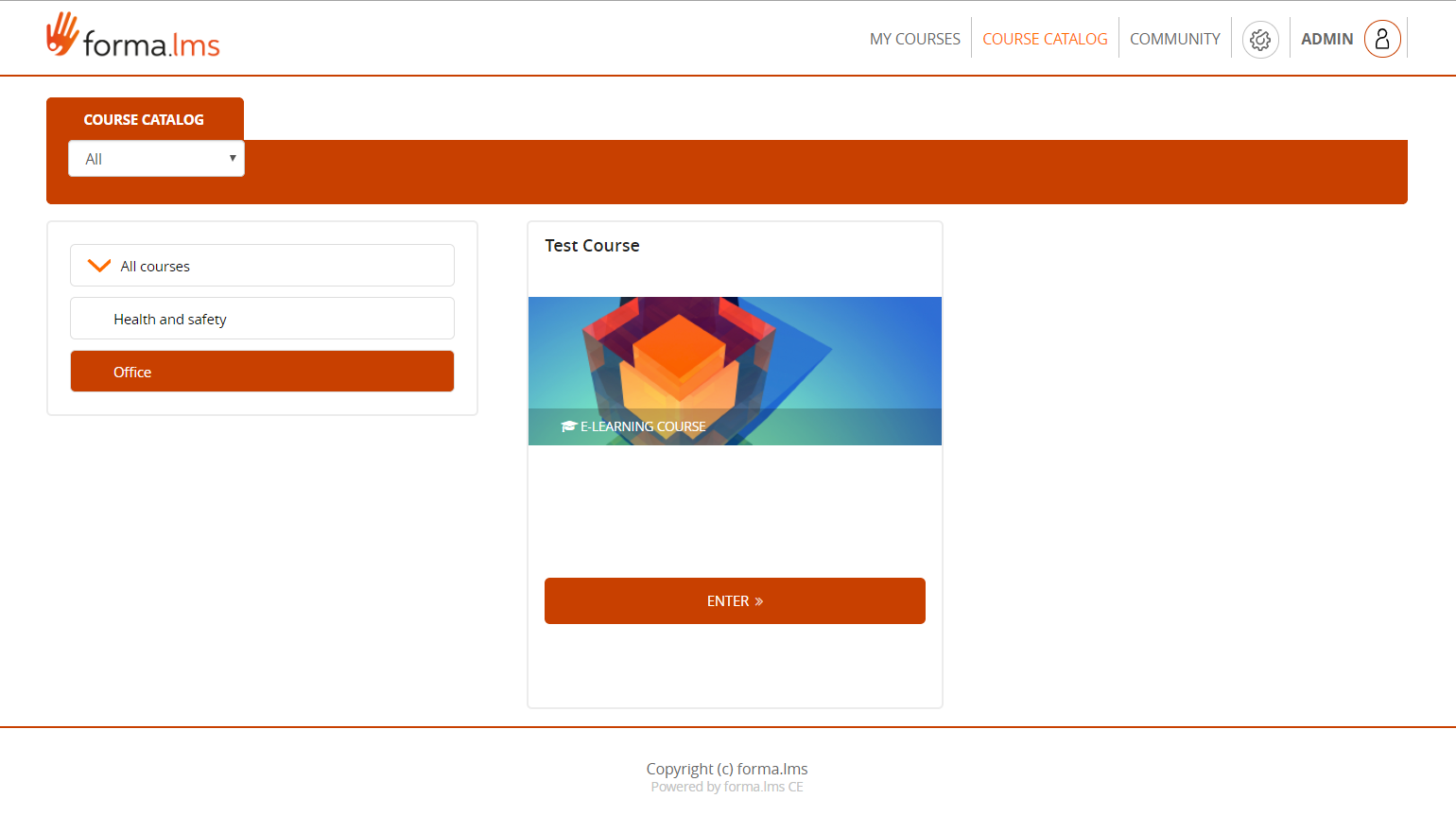
By default, the catalog module will display a frontend list of all the available courses, and users will be able to self-subscribe or buy courses, depending on each course status and settings.
### Activate the catalog
You can activate the catalog view by enabling the “Course Catalog” label in:
*Admin > Settings > Elearning Configuration > User Area LMS*
### Catalog Settings
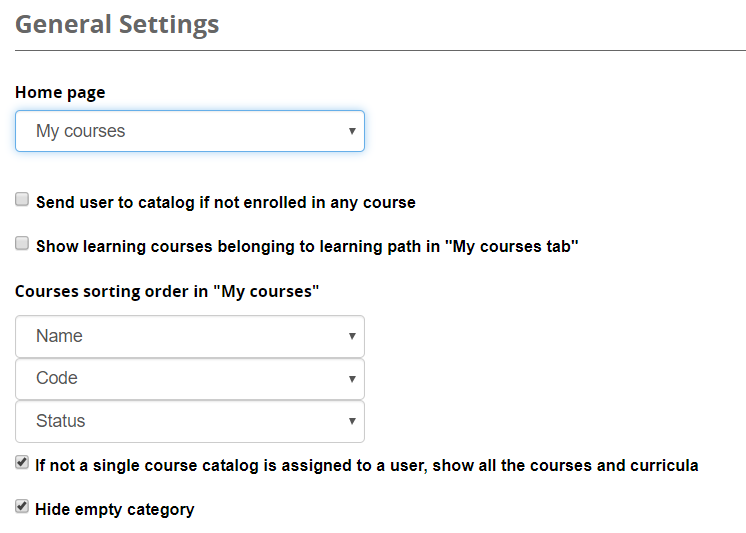
The behavior of the catalog module can be configured in
*Admin > Settings > System Configuration> Settings > Elearning*
[](https://docs2.formalms.org/uploads/images/gallery/2024-02/gMXimage.png)
### Frontend View
[](https://docs2.formalms.org/uploads/images/gallery/2024-02/vhkimage.png)
## Multiple Catalogs Management
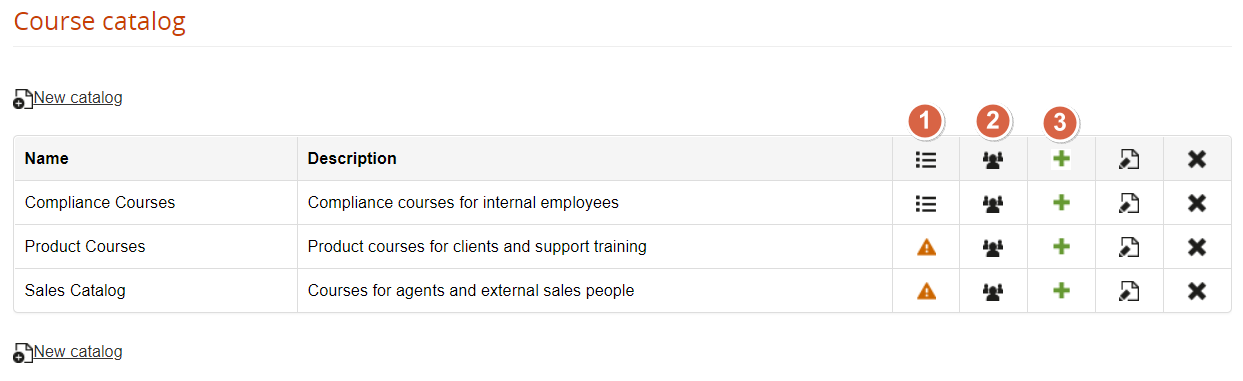
Multiple catalogs Management features are located under:
*Admin > Elearning > Courses > Catalogs*
[](https://docs2.formalms.org/uploads/images/gallery/2024-02/zaAimage.png)
### Add Courses
Use this feature to assign courses to this catalog
### Assign users
Use this feature to assign users that will be able to view this catalog. You can select:
- Multiple individual users
- Orgchart nodes
- Company roles
### Subscribe users
Select users to be automatically assigned to all the courses in the selected catalog
### Frontend View
If you use multiple catalogs, each assigned to a node or branch, each user will be displayed the catalog related to the node he is assigned to.