**NOTE**: Users with level **Administrator** will be allowed to see and edit onlyy report flagged as “public”, or created by themselves. Within the reports, administrator will see users and courses based on their user assignements. See [Administrators management guide](https://docs.formalms.org/reference-guide-2/user-management/administrators.html) for details
## Create Reports A four-steps wizard will guide you in report creation: 1. Select the report category 2. Select filter on the rows to display or data aggregation mode 3. Select the report type: please note that it won't be possible to change the report type once saved 4. Select column and criteria for the selected report type ## Report Category Forma natively provides three report “categories”, each based on a different logic for data displaying, and providing different report types. Available categories are: 1. Users-Courses: will display different data type for a list of users. 2. Courses-Users: will display different data type for a list of courses. 3. Aggregated: shows aggregated information for selected users and courses [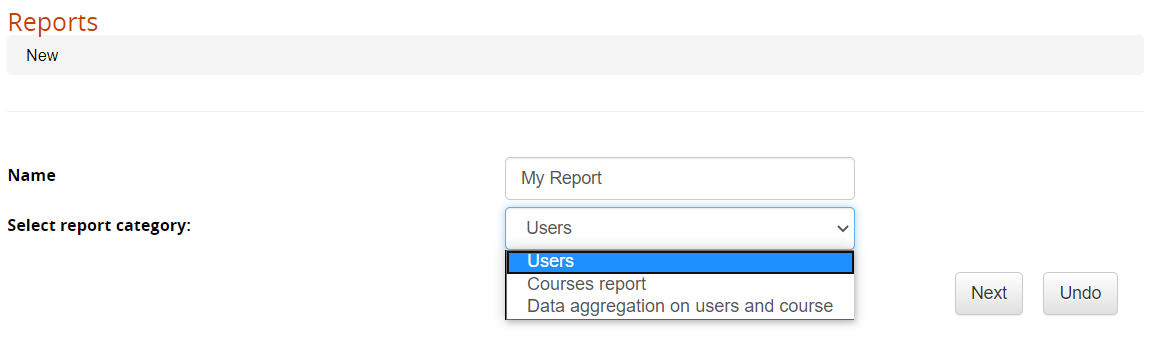](https://docs2.formalms.org/uploads/images/gallery/2024-02/c1kimage.png) ## User Selector For each category, it is possible to select the users to be included in the report. In most cases, the best option is including “all users” and simply filter by course: [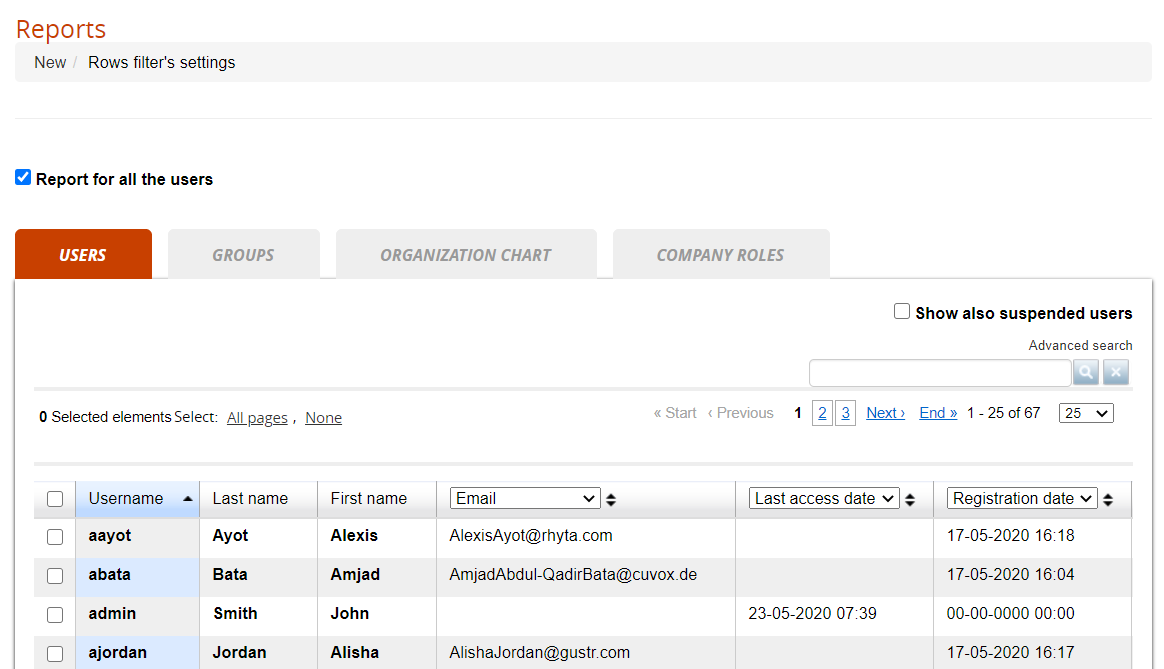](https://docs2.formalms.org/uploads/images/gallery/2024-02/Sokimage.png) ## Report Scheduling Reports can be automatically generated and sent by email to some users You can create an unlimited number of schedules: [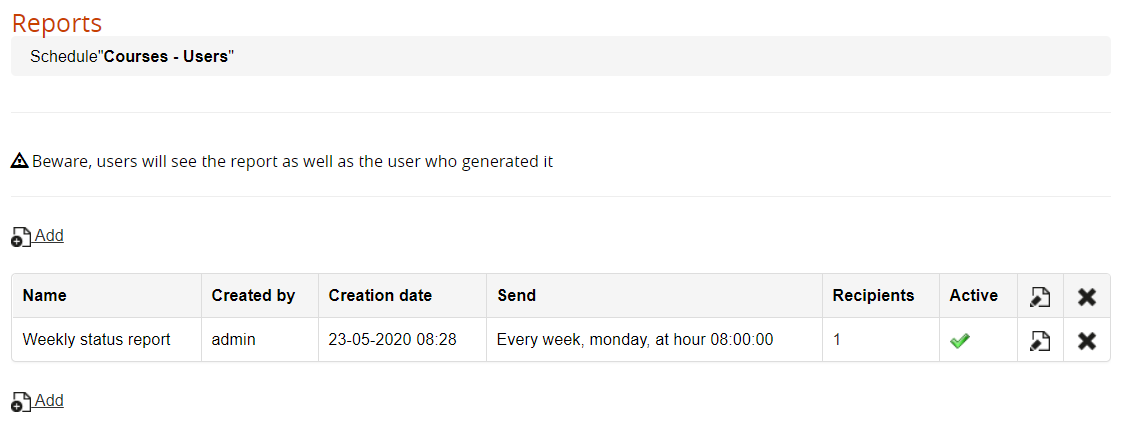](https://docs2.formalms.org/uploads/images/gallery/2024-02/pihimage.png) Upon schedule creation and edit, it will be possible to choose the users that will receive the report and set the date/frequency and time with the following settings: [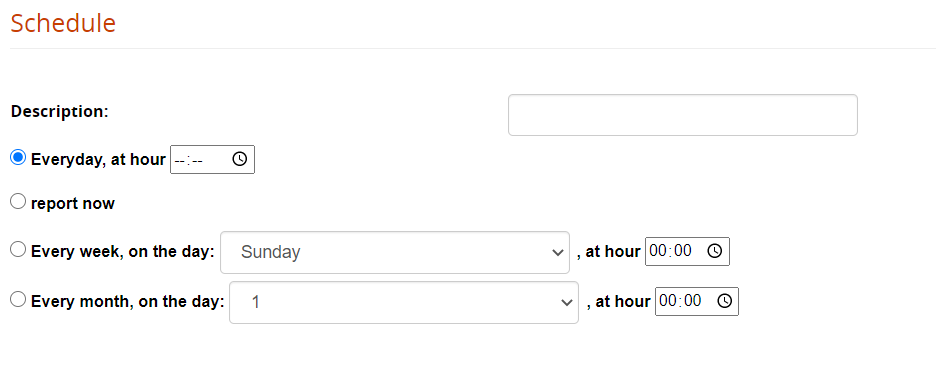](https://docs2.formalms.org/uploads/images/gallery/2024-02/YSLimage.png) ### Advanced Settings (Report Attachment) Further settings to configure how the scheduled report might be attached to the sent email can be configured under: Adm > Settings >System Configurations > Settings > Advanced [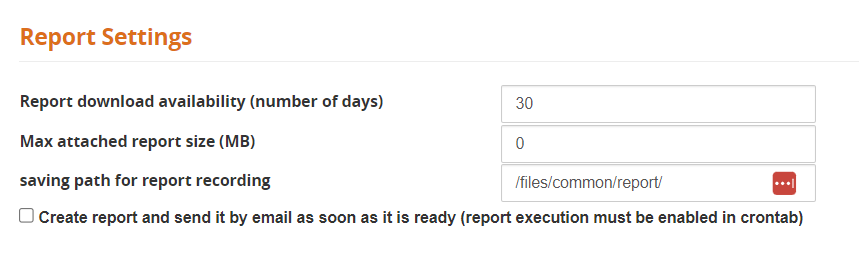](https://docs2.formalms.org/uploads/images/gallery/2024-10/advanced-report-settings.PNG)Set the "Max attached report size" according to your intranet or email account limits. If value is set to zero, users will always receive a link to the stored file.
### Cron setting For the file to be sent, you will need to set up a cron-job on your server, calling the file: *\[root\]/cron/cron.report.php* # User Reports Reports in this category will show a list of users and their status on different items ## Relates users to courses This is the most commonly used report, that shows the status of each user on each course, based on the filters defined for users and courses. [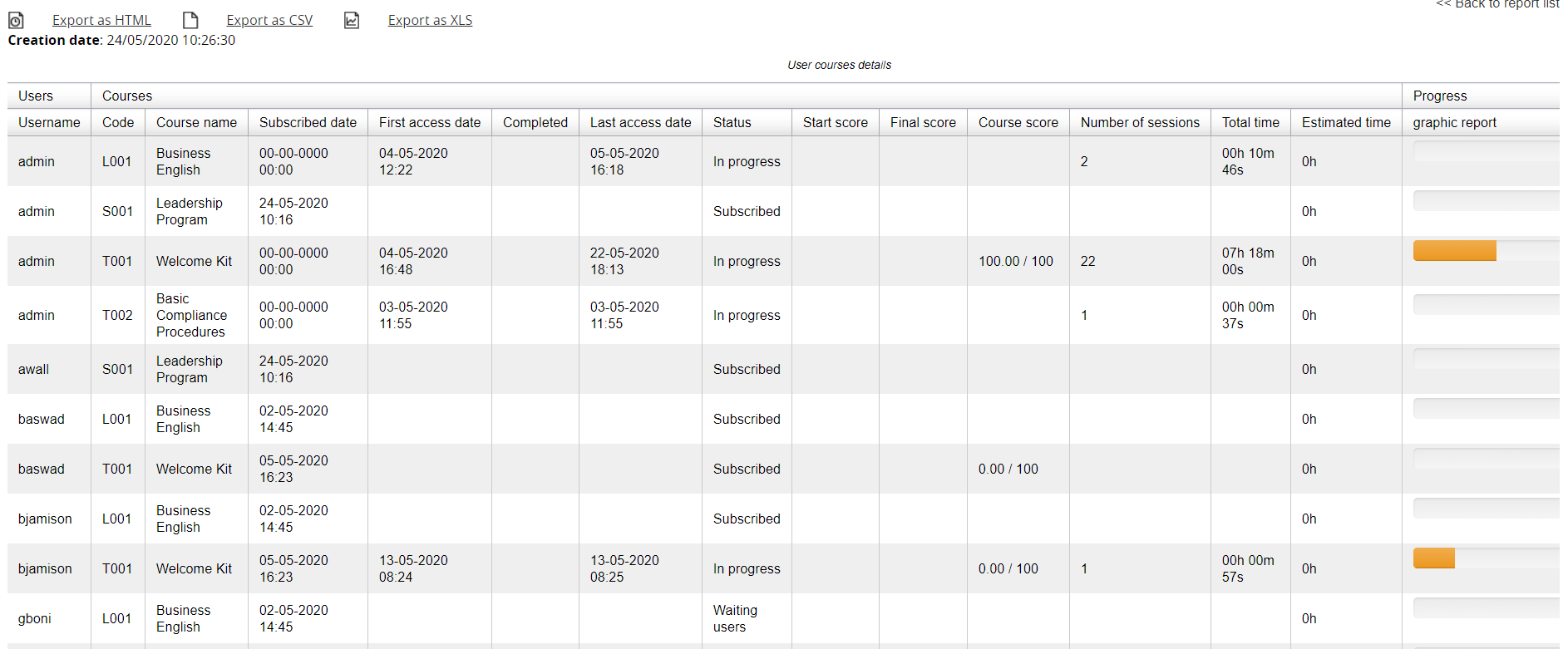](https://docs2.formalms.org/uploads/images/gallery/2024-02/aSYimage.png) Example of report relating users to courses #### #### Report Options **Select Courses**: select to include all courses or only some courses **Conditions on selected courses**: apply filters to display only users with specified conditions date or score conditions (i.e., filter only users subscribed after a certain date) **Show users custom fields**: select which user personal information will be shown in the report **Custom Org**: show data from the user org-chart custom fields **Display courses information**: select which course information to show **Additional fields for courses**: show data from the course custom fields **Classroom fields**: show specific course information for classroom courses **Display user's information** about courses: choose which information display about the user status on the course: status (i.e., completed, in progress), dates, scores, etc. **Progress**: display user progress as percentage or progress bar **Other options**: exclude suspended users, ordering options ## Make delay analysis This report will filter only users with specified completion status in a defined time range, to monitor user delays and send reminders. #### Filter Options It is possible to select users based on their status on the course: - Users that haven't completed the course - Users who haven't started the course - All conditions must be satisfied And based on the time condition of course and subscription: - After (specify number) days from their subscription - Course expiring in (specify number) days - Course expiring on (specify date) ## Relates users to Learning Objects This report displays the status and progress of each user on the learning objects of one or more courses. #### Report Options **Learning Objects types**: choose which types of LO to include in the report **Select milestones**: select to include or exclude milestones LO **Show users fields**: show some information about the user **Display courses information**: show some information about the user **Learning Objects Info**: include information about the LO ## Relates users to tests Like the Learning Objects report, but filtered on test LO ## Relates users to communications Show if users have viewed communications ## Relates users to corporate contests Show user status on corporate contests # Course Reports ## Relates courses to users [](https://docs2.formalms.org/uploads/images/gallery/2024-02/BKuimage.png) Example of Courses Report #### Report Options **Time period**: filter data from a selected period or time range **Other options**: - Group data per orgchart: will produce separate report tables for each orgchart node - Show also suspended users - Show only: Students — Filters count on users with level “student” - Show: Assessments — related to the removed “assessment” feature — don't use **Display courses information**: show information about the course **Additional fields for courses**: show data from the course custom fields **Classroom fields**: show specific course information for classroom courses **Display user's information** about courses: shows further information about the course **Show statistics about courses**: calculate course stats about user status and progress in each course ## Relates courses with the teachers votes ## Relates courses with users votes # Aggregated Report This report will display aggregated data about users and courses The following report types are available: - Relates users to courses - Course categories - Years - Relates users to communications - Relates users to corporate contests