Check also the [Global Newsletter](https://docs.formalms.org/reference-guide-2/contents-and-communication/global-newsletter.html) settings
# Manage Menu This module is generally assigned only to course administrators, with view and edit permissions, and located under *Teacher Area > Manage Menu* This module will let you: - Add new modules to your course - Edit menu item names - Change module permissions Changes made here will affect only the present course specific menu, and won't reflect on general menu templates or any other course: this will give you maximum flexibility with menu management and customization. If you need to apply changes to several courses, consider assigning or creating a menu template from general administration, or ask a god admin to do that. Please refer to the [general menu management](https://docs.formalms.org/reference-guide-2/configuration/menu.html) feature for details. # Course Forum Course forums will be available to all course users, or only selected course users The feature is usually located under the “Collaborative Area” menu, but you can use the [menu management](https://docs.formalms.org/reference-guide-2/course-management-frontend/manage-menu.html) feature to: - move the link - rename the link - assign viev/create/moderate permissions for each subscription role - remove the feature from your courseCheck the global **[community forum guide](https://docs.formalms.org/reference-guide-2/contents-and-communication/community-forums.html)** for details about forum creation and management
# Gradebook**REMOVED**: this feature has been deprecated and removed since Forma LMS 4.2, replaced by the new **[Course Report module](https://docs2.formalms.org/books/reference-guide/page/course-report)**
The gradebook is one of the most important and useful course features, used to manage all the evaluation activities in a course: - Test Learning Objects - SCORM objects with score - Classroom activities ## Overview [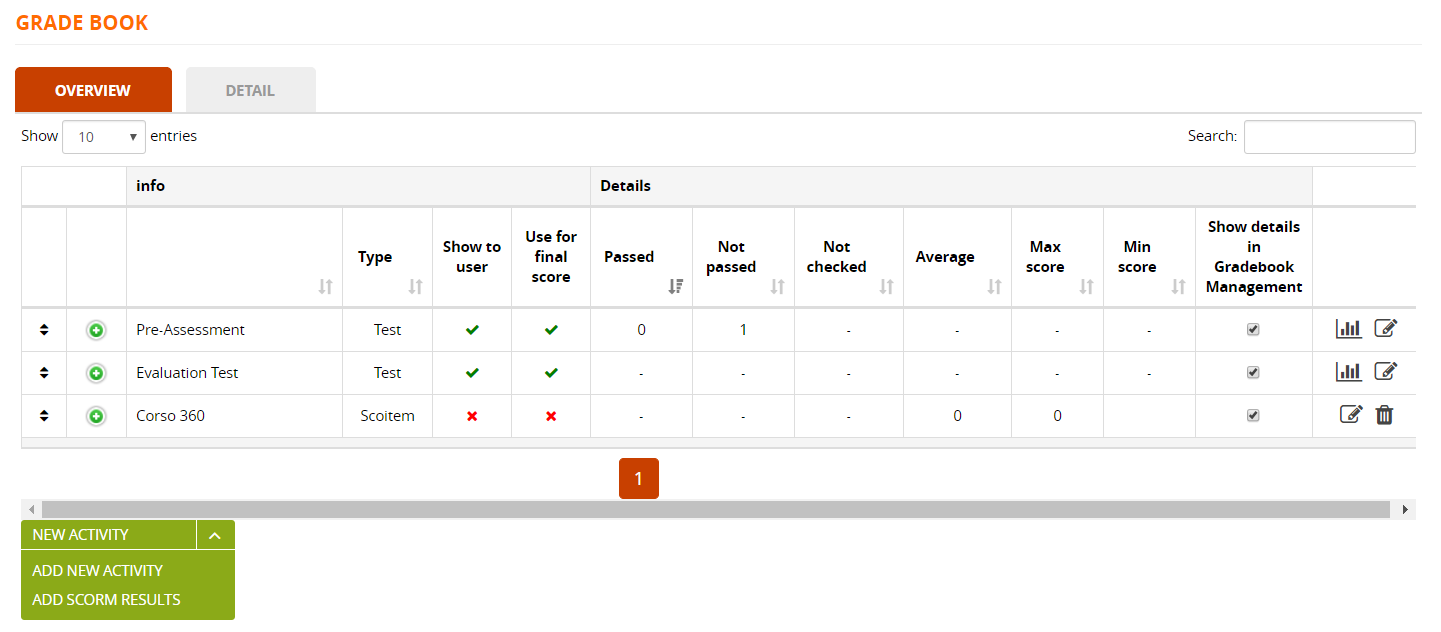](https://docs2.formalms.org/uploads/images/gallery/2024-02/q1mimage.png) ### View Answer stats [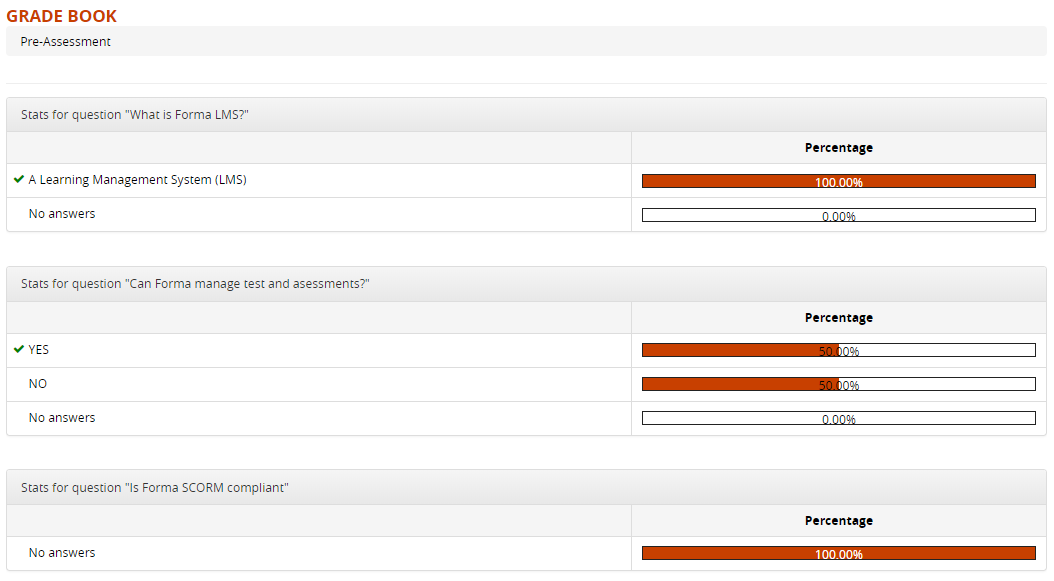](https://docs2.formalms.org/uploads/images/gallery/2024-02/I06image.png) ### Edit test gradebook options Use the “Edit” icon for each test to see a list of the scores for all the user. You will also be able to: Configure: - **Weight** of the test score in the final score calculation - **Show or hide the test score** in user ratecard - **Use or ignore the test score** in the final score calculation Plus, for each user you can - View and edit the final score - View the full test execution (see below) - Edit the execution date - Add a comment to be displayed on user scorecard - Cancel last execution, so the user ca take the test again [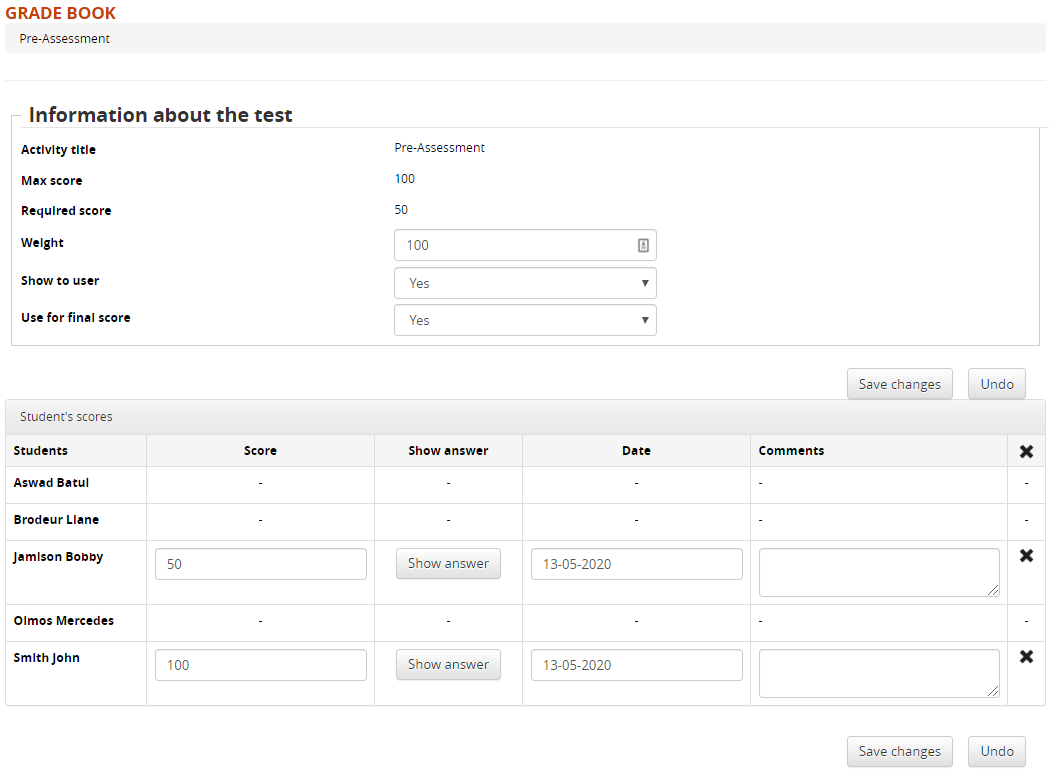](https://docs2.formalms.org/uploads/images/gallery/2024-02/rADimage.png) ### Test execution detail [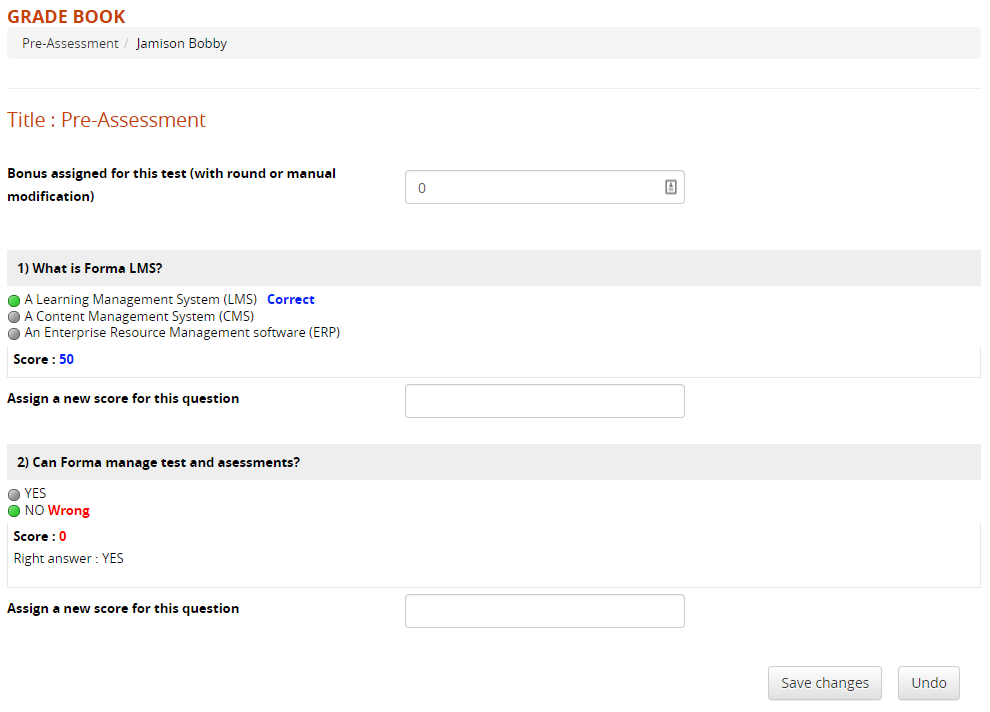](https://docs2.formalms.org/uploads/images/gallery/2024-02/x1pimage.png) ### Add a new activity Here, you can also manually add more scores to be calculated for the final course score: - **Activity**: record user evaluation score for external activities, not done directly in the platform - **SCORM Results**: is a SCORM object has some test, here you can add it to the gradebook [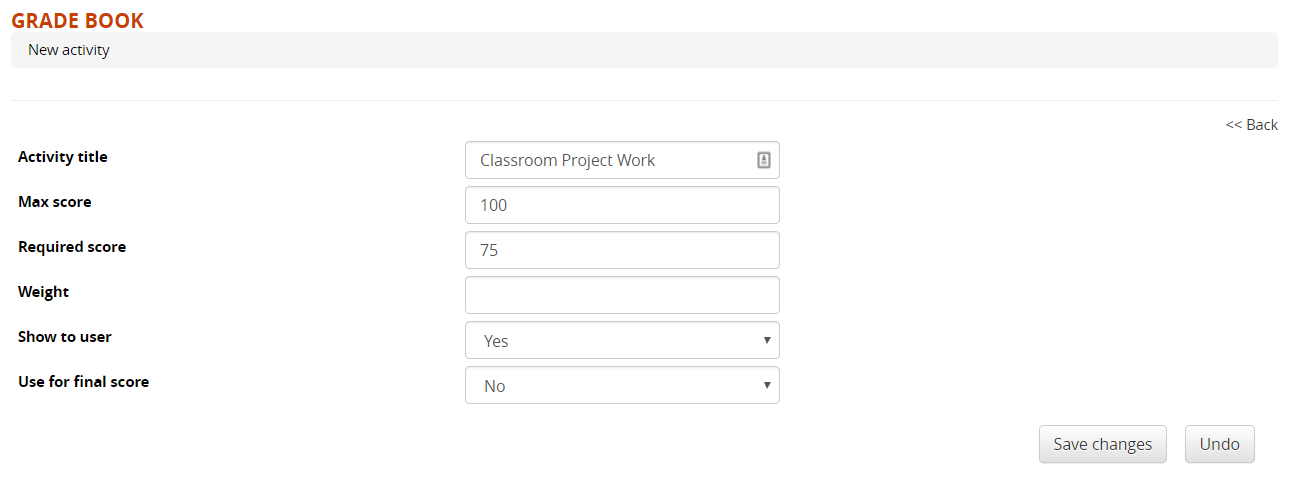](https://docs2.formalms.org/uploads/images/gallery/2024-02/6MCimage.png) --- ## Detail [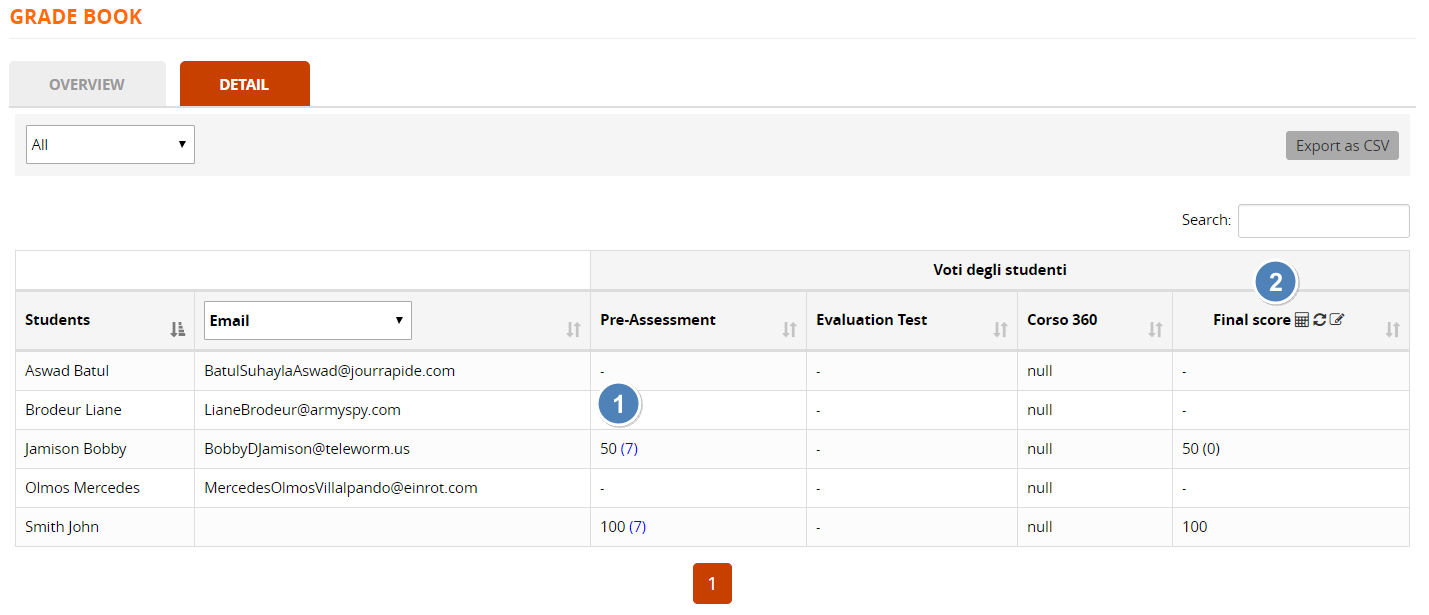](https://docs2.formalms.org/uploads/images/gallery/2026-04/myhimage.png) 1. **Score and Attempts**: vote of each user in the last attempt for each evaluation item. Number of attempts is shown in brackets, click to see the full attempts hisoty 2. **Final Score**: this column lists the final vote for each user. The score is calculated on-the-fly on page loading, manually edited score ar shown in brackets. Check this page for details on [**final score calculation**](https://docs2.formalms.org/books/reference-guide/page/course-final-score) and related behaviours. Click on the icons to: 1. Recalculate final score for all user 2. Round the vote to decimals 3. Edit the final score ### Attempts History [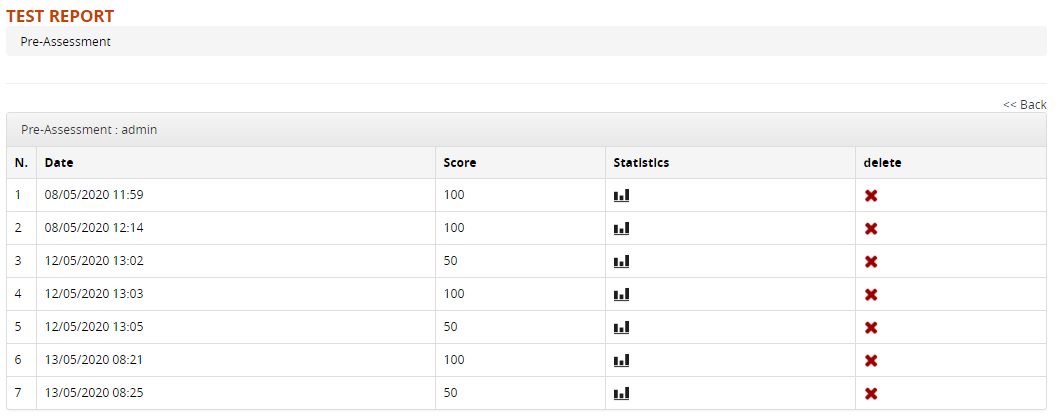](https://docs2.formalms.org/uploads/images/gallery/2024-02/OW8image.png) ### Edit Final score Click on the icons on the “Final score” column to: - Recalculate the final score for all users - Manually edit the final score for all users # Course Stats**REMOVED**: these features have been deprecated and removed since Forma LMS 4.2, replaced by the new **[Course Report module](https://docs2.formalms.org/books/reference-guide/page/course-report)**
Forma provides different stats to monitor course and user progress: - **Usage Stats**: monitors the global course activity, by tracking how many course sessions and operation each user takes - **User Stats**: tracks the progress status of each user on the course learning objects - **LO Stats**: shows at a glance how many users completed each learning object - **User Object Grid**: detailed report of user's status over each LO, with the ability to edit dates and completion status. Check the **[UO Grid page](https://docs.formalms.org/reference-guide-2/course-management-frontend/user-objects-grid.html)** of this guide for details These features are usually located under the “Stats Area” of the course menu ## Usage Stats [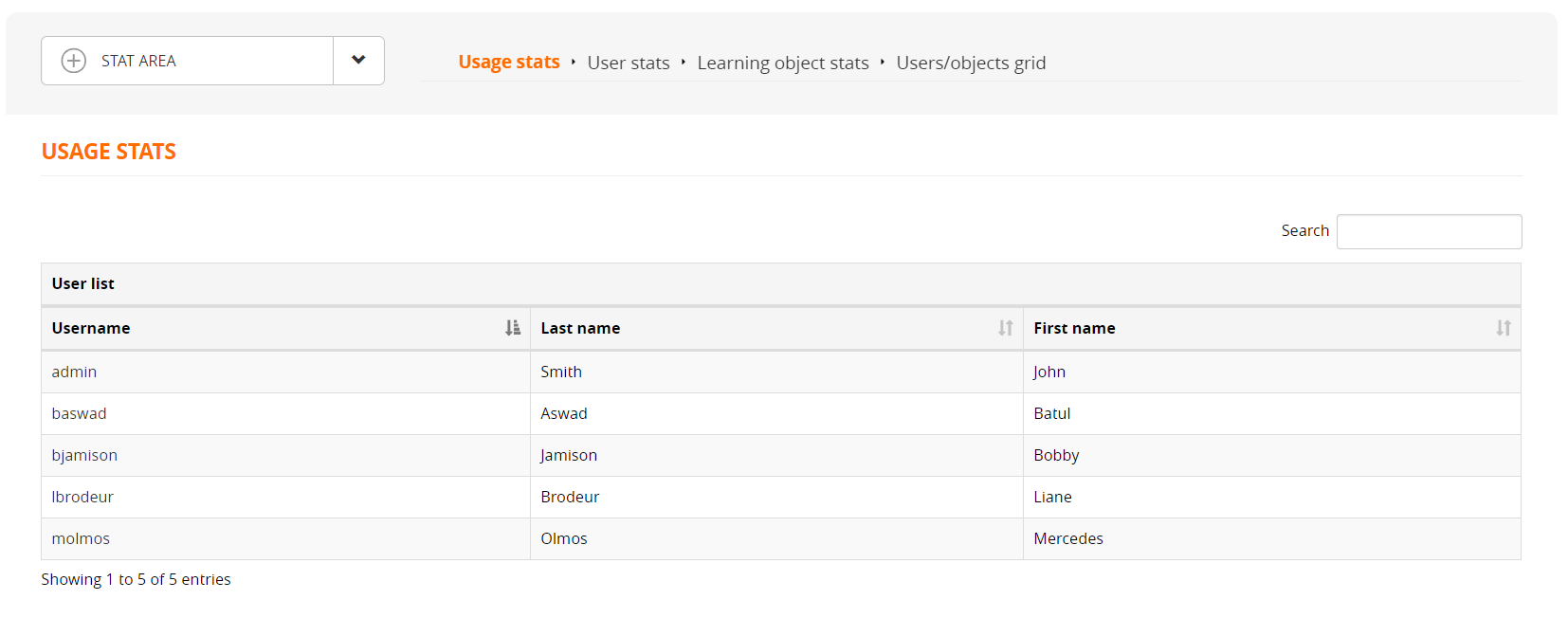](https://docs2.formalms.org/uploads/images/gallery/2024-02/DPPimage.png) Click on the username for a detail of the user's sessions in this course: [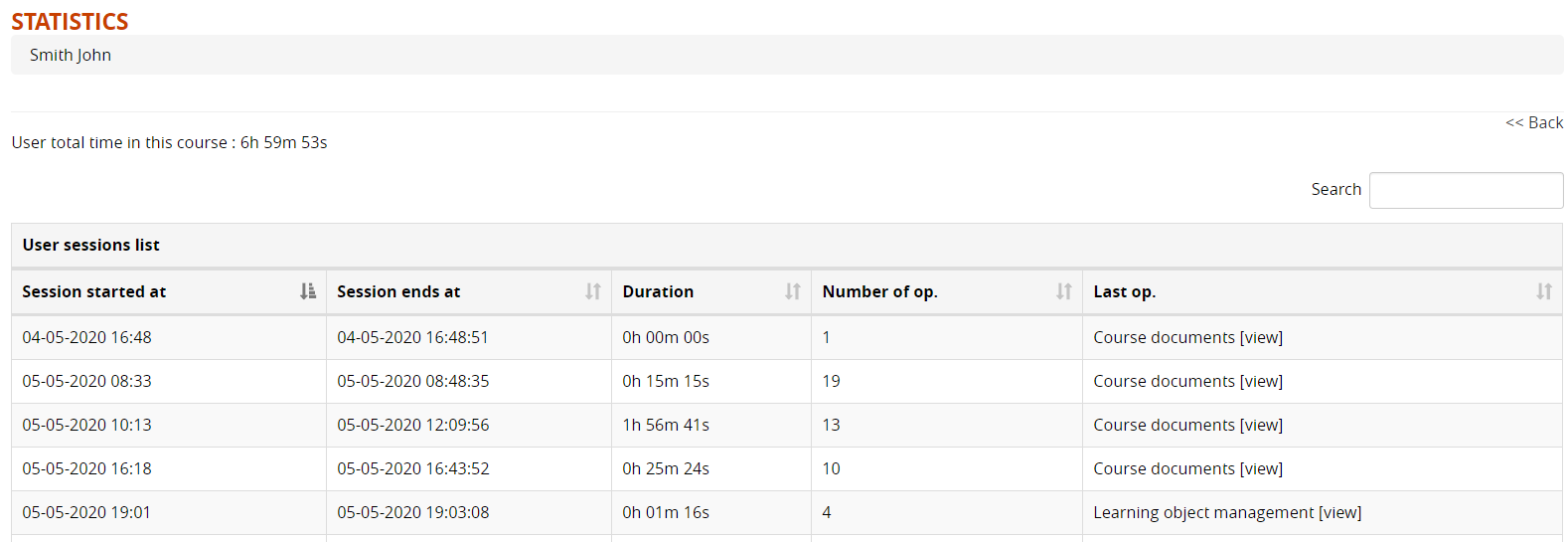](https://docs2.formalms.org/uploads/images/gallery/2024-02/Av2image.png) ## User Stats User statistics provide the teacher with a report on the activities of each individual, highlighting their level of progress in the course. By clicking on the name of each user, their progress status for each course object can be viewed. Displays: - **Filters** - **Status**: click to edit user status on the selected learning objects - **Learning Objects**: number of learning object new / started / completed [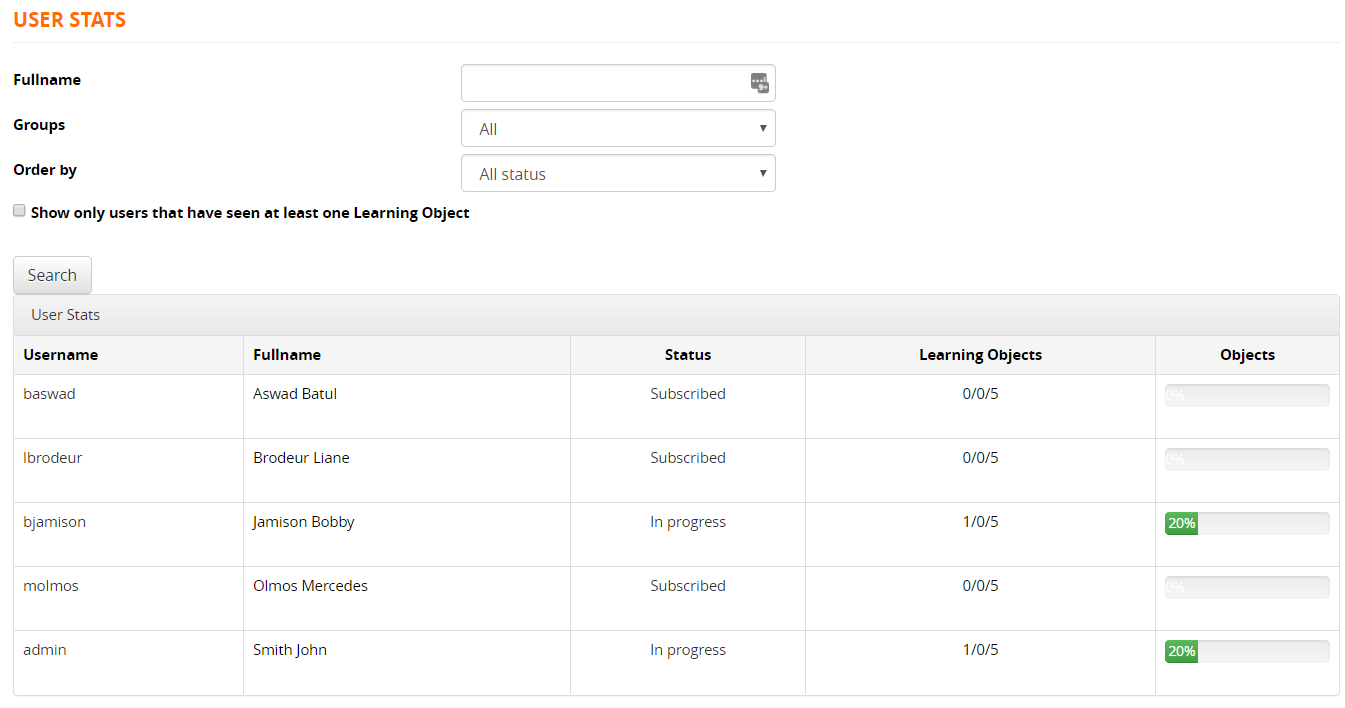](https://docs2.formalms.org/uploads/images/gallery/2024-02/rfMimage.png) Filter for the desired criteria, or click on a username for details: [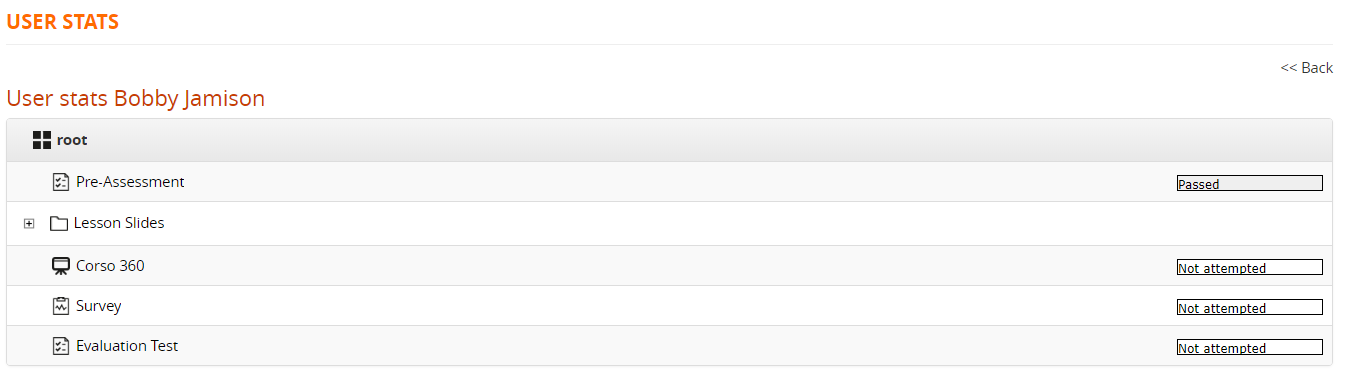](https://docs2.formalms.org/uploads/images/gallery/2024-02/vKyimage.png) ## LO Stats In statistics by object, a comparison can be made regarding the status of all the users in relation to a specific learning object. It is also possible to view the aggregated results of a survey. On the initial screen, the objects for which the comparison is to be made can be selected by clicking on the magnifying glasses. [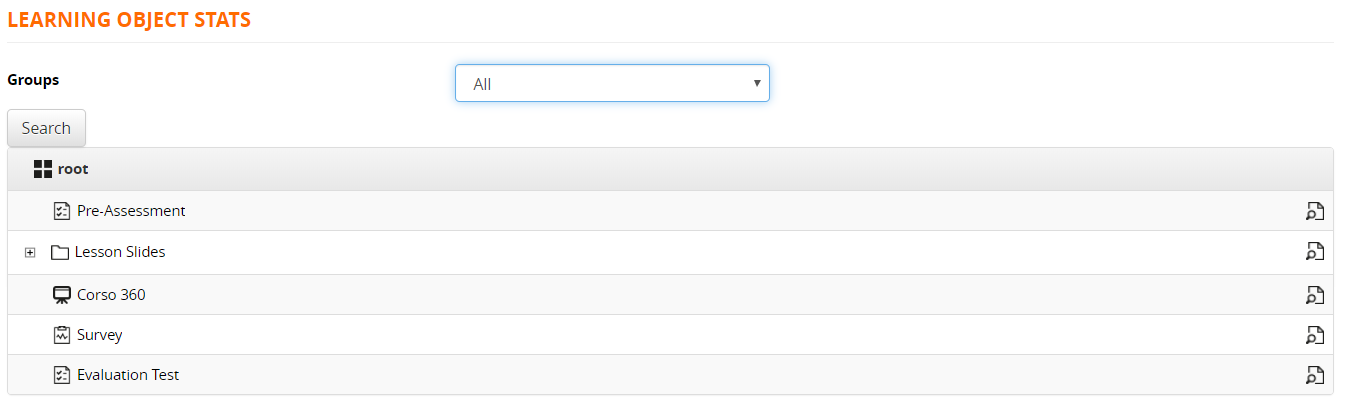](https://docs2.formalms.org/uploads/images/gallery/2024-02/CEbimage.png) # User/Objects Grid**REMOVED**: this feature has been deprecated and removed since Forma LMS 4.2, replaced by the new **[Course Report module](https://docs2.formalms.org/books/reference-guide/page/course-report)**
The “User Object Grid” module allows: - **display** detailed information on user status and scores on each learning object - **edit** user status and completion dates - **reset** user tracks on learning object - **export** detailed reports ## Overview [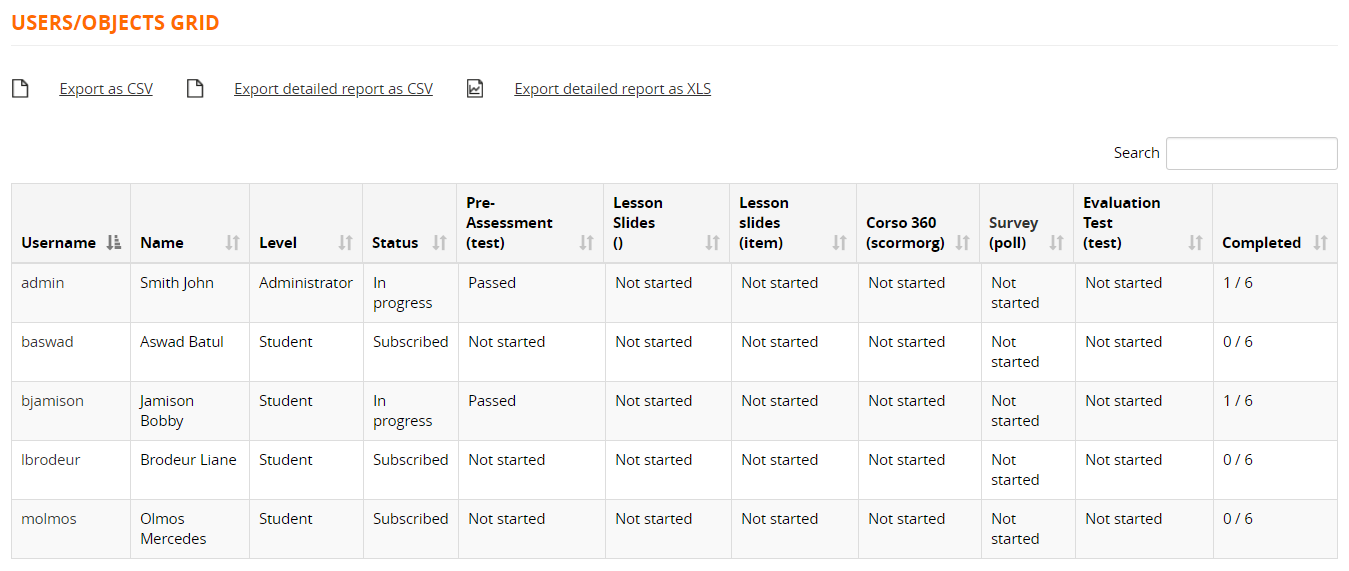](https://docs2.formalms.org/uploads/images/gallery/2024-02/49uimage.png) ## User Report Click on a username to see detailed information: - **Name**: Click to check details on this object and reset user status - **Status**: click to edit - **First / Last access date**: click to edit [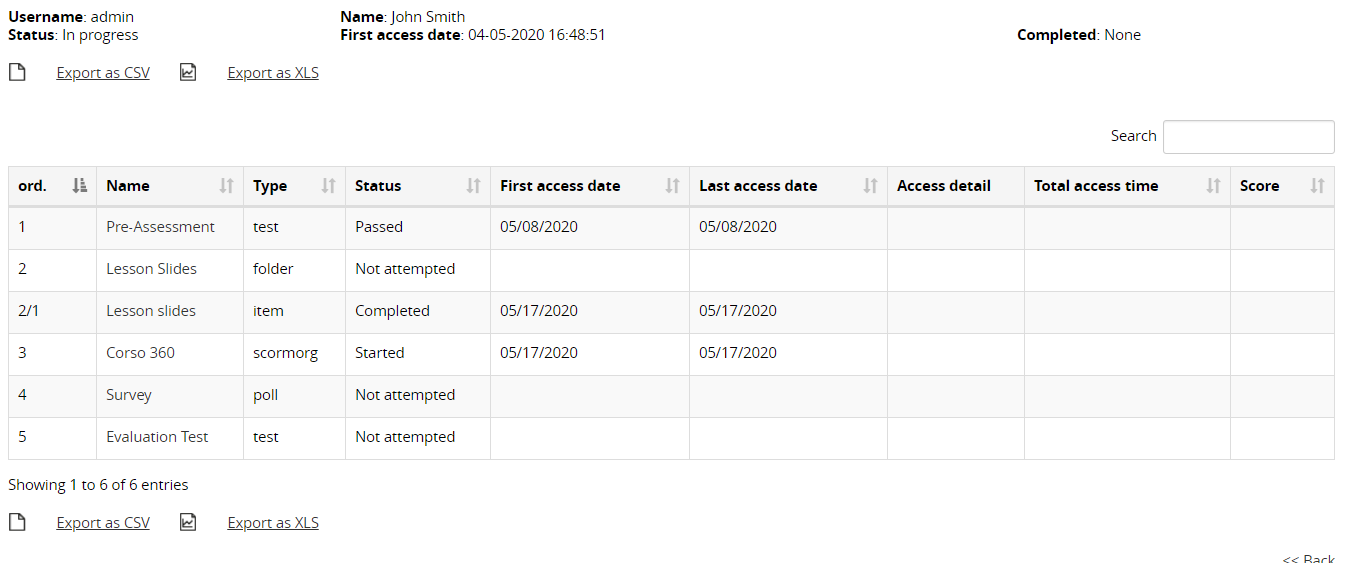](https://docs2.formalms.org/uploads/images/gallery/2024-02/uFrimage.png) ## LO Details [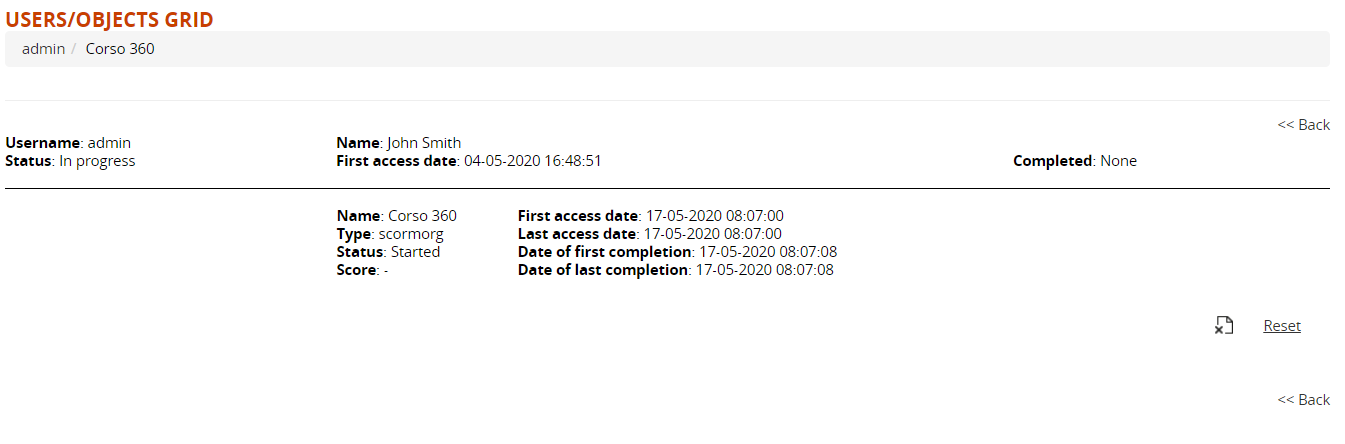](https://docs2.formalms.org/uploads/images/gallery/2024-02/ywsimage.png) # Course Info This module will disply a structured info page for the course: [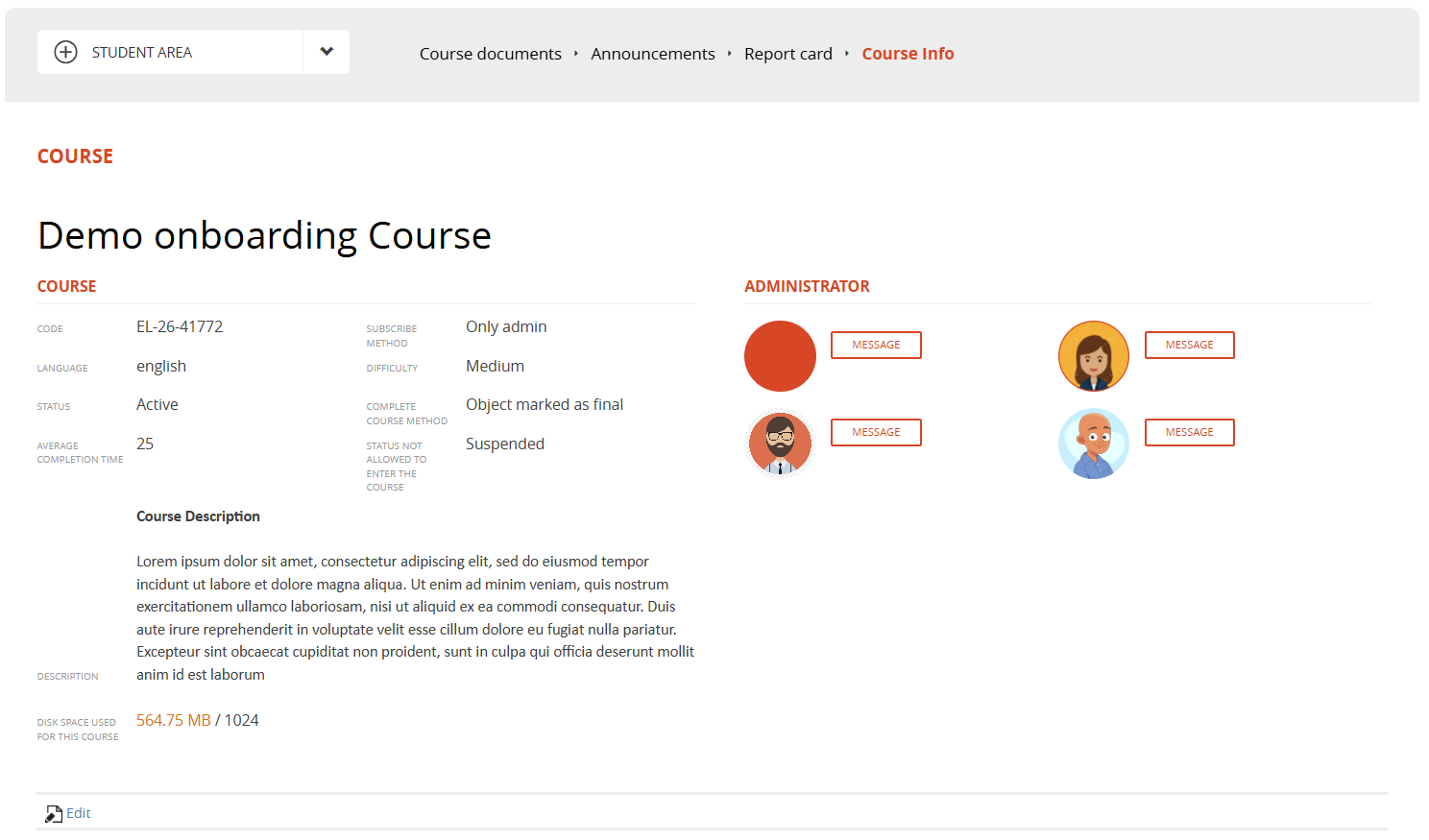](https://docs2.formalms.org/uploads/images/gallery/2026-03/image.png) Users with edit permissions on the menu item will see the "EDIT" button and will be able to change some of the general course settings: [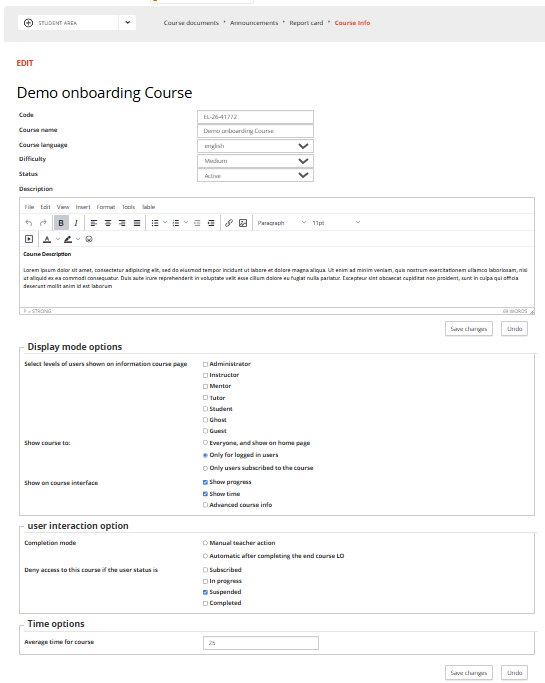](https://docs2.formalms.org/uploads/images/gallery/2026-03/vPximage.png) # Course Report ## Overview The **Course Report Module** extends Forma LMS reporting capabilities by centralizing all course-related tracking data into a single, cohesive view. It enables administrators and trainers to analyze user progress, completion status, and performance at both course and participant level, supporting more informed decision-making. Built on the platform’s flexible reporting system, it allows customizable filters, detailed data selection, and export options. This module is designed to simplify monitoring course activities and improve the efficiency of training evaluation processes. ### Upgrading from Forma 4.1.x This module has been introduced with Forma LMS 4.2. If you are upgrading from older forma versions, this single module will replace all the following teacher area features: - [Gradebook](https://docs2.formalms.org/books/reference-guide/page/gradebook) - [User Stats](https://docs2.formalms.org/books/reference-guide/page/course-stats) - [Learning Objects Stats](https://docs2.formalms.org/books/reference-guide/page/course-stats) - [Usage Stats](https://docs2.formalms.org/books/reference-guide/page/course-stats) - [User/Objects Grid](https://docs2.formalms.org/books/reference-guide/page/userobjects-grid) During the upgrade process all these features will be automatically removed both from the course menus and from the menu templates in admin area. A link to the new module will be automatically created in the same menu area both for course menu and menu templates. trying to migrate the same menu permission for administrative roles as the old modules.Permissions eventually set to users enrolled with the role of student, ghost or guest will be removed.
Check your menus item after upgrade. In case the new module is not present in a course, **just re-apply to the course the menu template**, making permissions changes if needed. View the [menu management documentation](https://docs2.formalms.org/books/reference-guide/page/manage-menu) for details.
## Features ### Dashboard [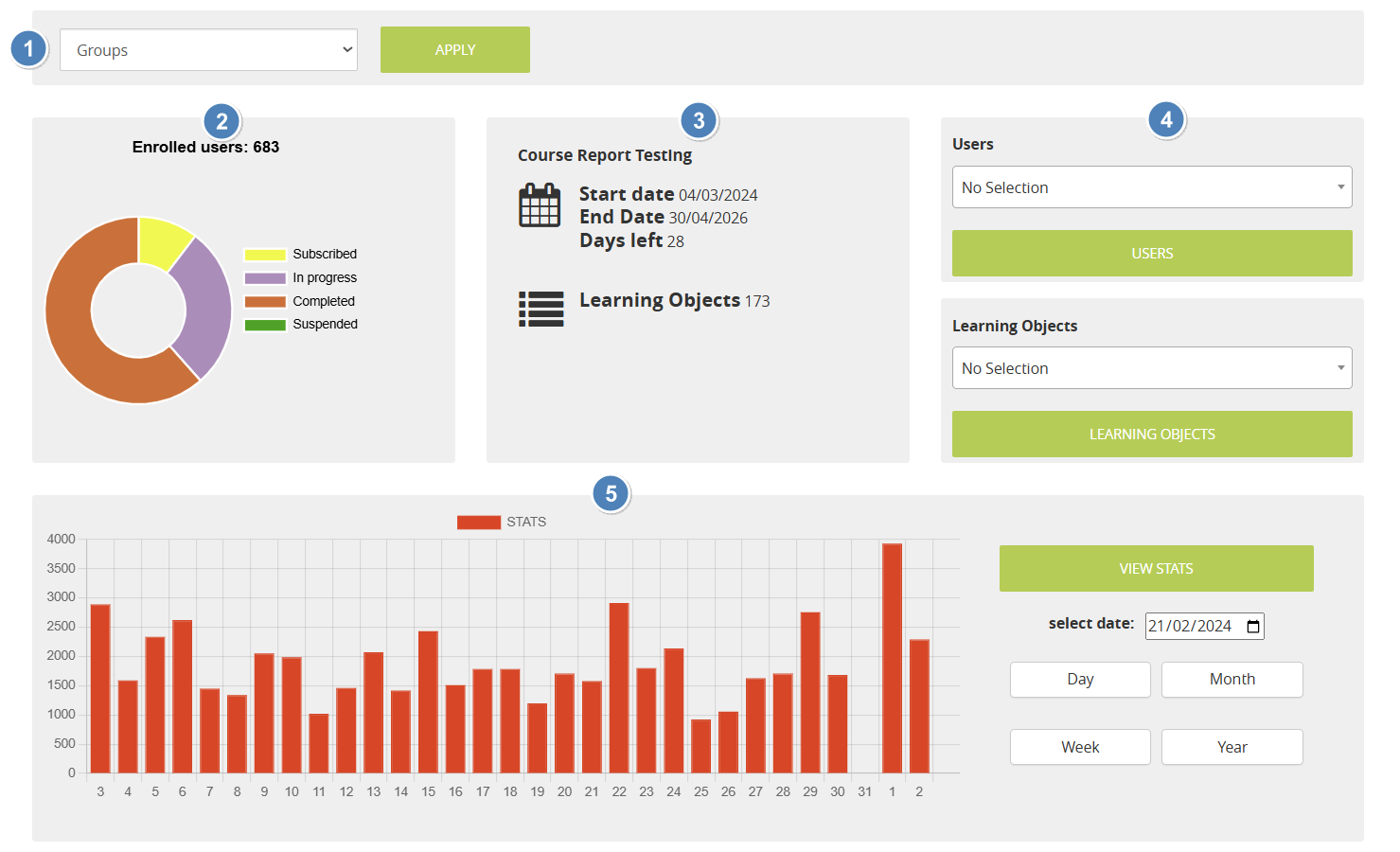](https://docs2.formalms.org/uploads/images/gallery/2026-04/image.png) 1. **Filters Bar**: allow filtering the below data by edition or course group. Not displayed if groups or editions are not configured for this course 2. **Users status Chart**: Total number of enrolled users, and pie chart showing the amount of users for each status. Mouse over each segment to see the number of users. 3. **Course Info**: - Start/End date, as set in the main course options. For classroom courses will show the dates set for the master course - Days Left: counts remainig days from today until the end date of the course. Only shown if the end date for the course is set. - Learning Objects: total number of LO in this course 4. **Quick Search by User**: select a specific user or just start writing a username, and click the submit button to directly see his report details 5. **Quick Search by Learning Object**: select a specific Learning Objector just start writing its title, and click the submit button to directly see the report details page for this LO 6. **Usage stats**: usage stats for the last period. --- ### User Report #### Main Page [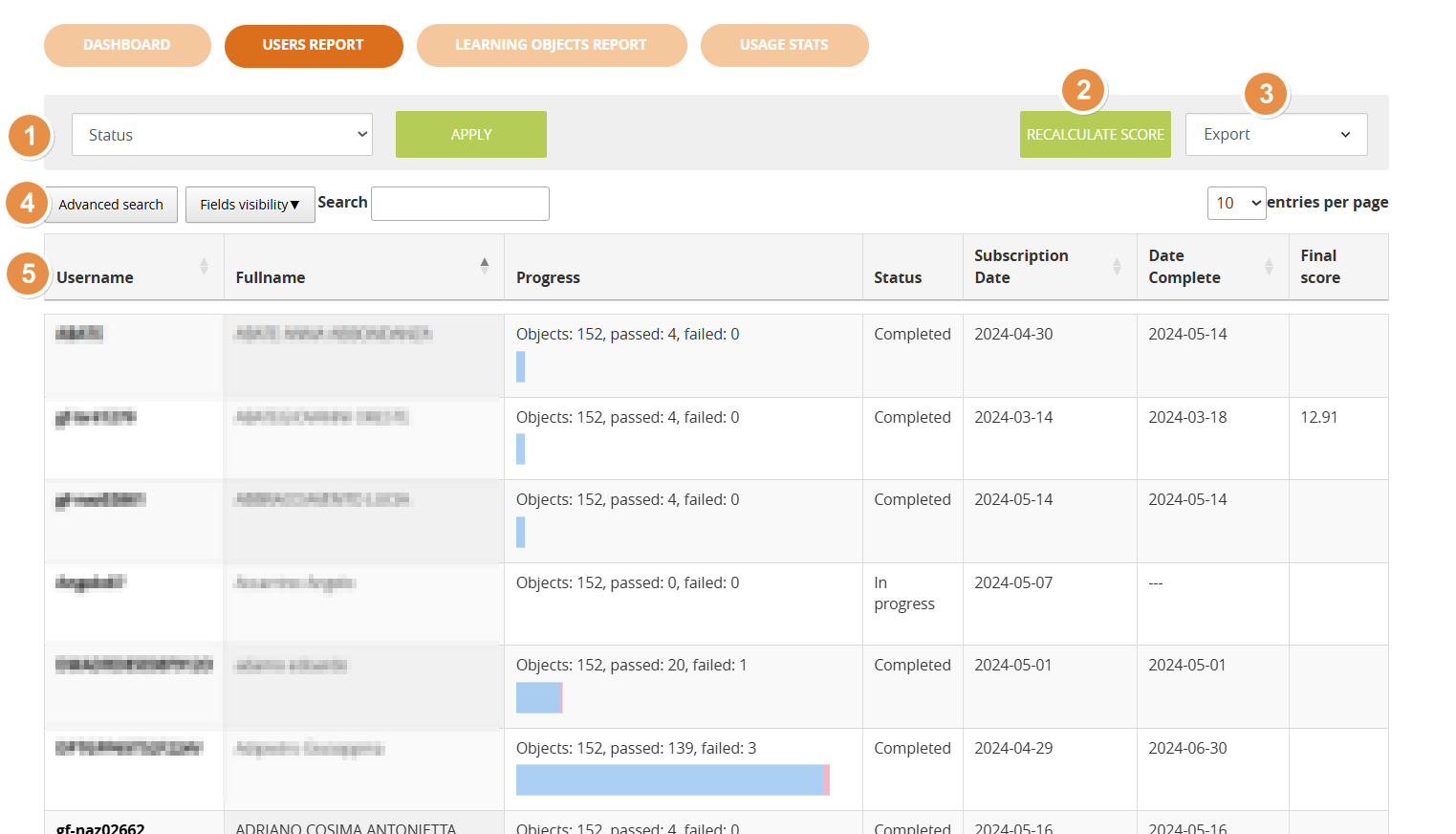](https://docs2.formalms.org/uploads/images/gallery/2026-03/xqHimage.png) 1. **Filters Bar**: allows filtering the data below by edition or course group. Not displayed if groups or editions are not configured for this course 2. **Recalculate**: recalculates the final score for all users 3. **Export**: export the report in CSV or XLS format 4. **Search**: search on the displayed data, enable advanced search, anable visibility of hidden columns 5. **Username**: click on a username to display a detailed report of the status of this user on all the learning objects #### User Report Status and main tracking data for all the LOs for a specific user [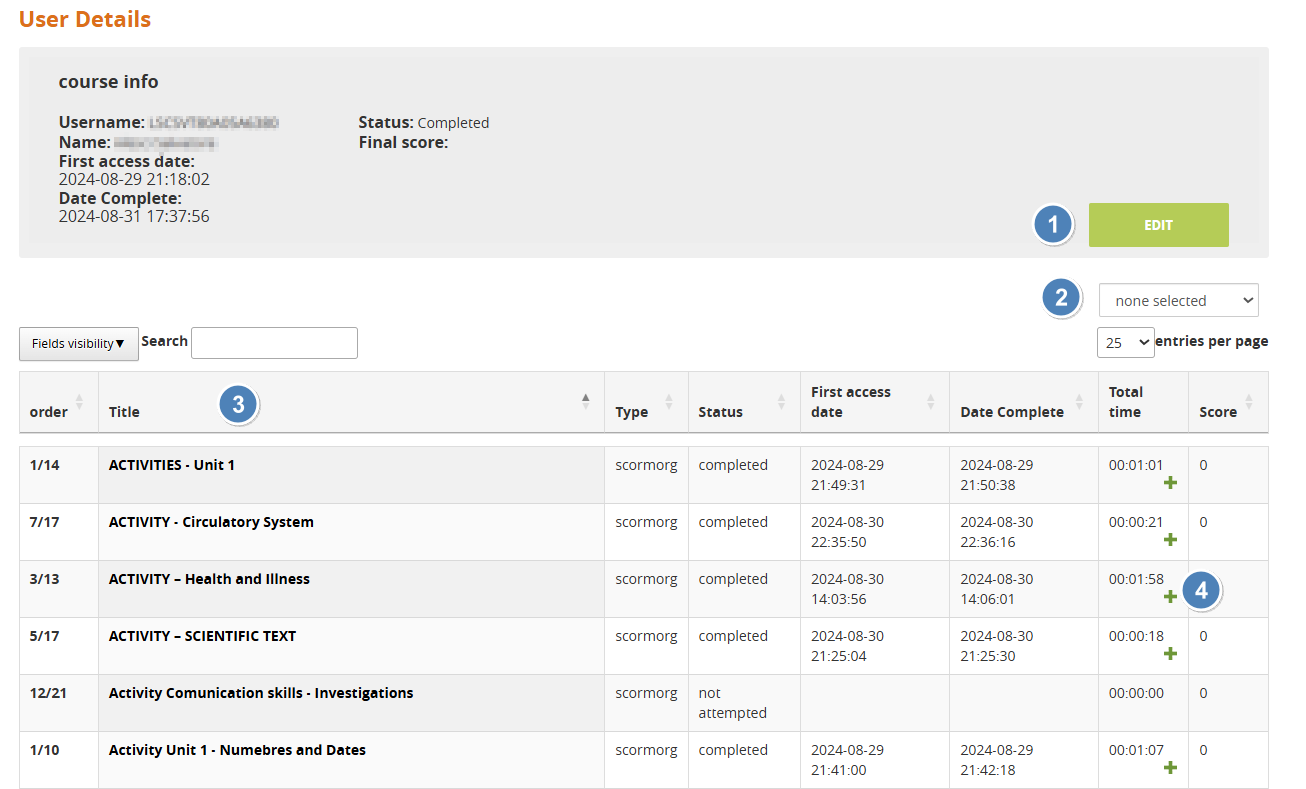](https://docs2.formalms.org/uploads/images/gallery/2026-04/mkXimage.png) 1. **Edit**: edit the main informations for the user status on the course - Status - First Access - Last access 2. **Export**: export the user tracking data in CSV or XLS format 3. **Learning Objects list**: click on the object title to see user details for this learning material 4. **Scorm time tracking**: the colums displays the total time spent by a user in each scorm object. Click on the "+" icon to see a detailed report of all the accesses --- ### Learning Objects Report #### Main Page This page lists all the learning objects in the course with informations about the progress of users in the course [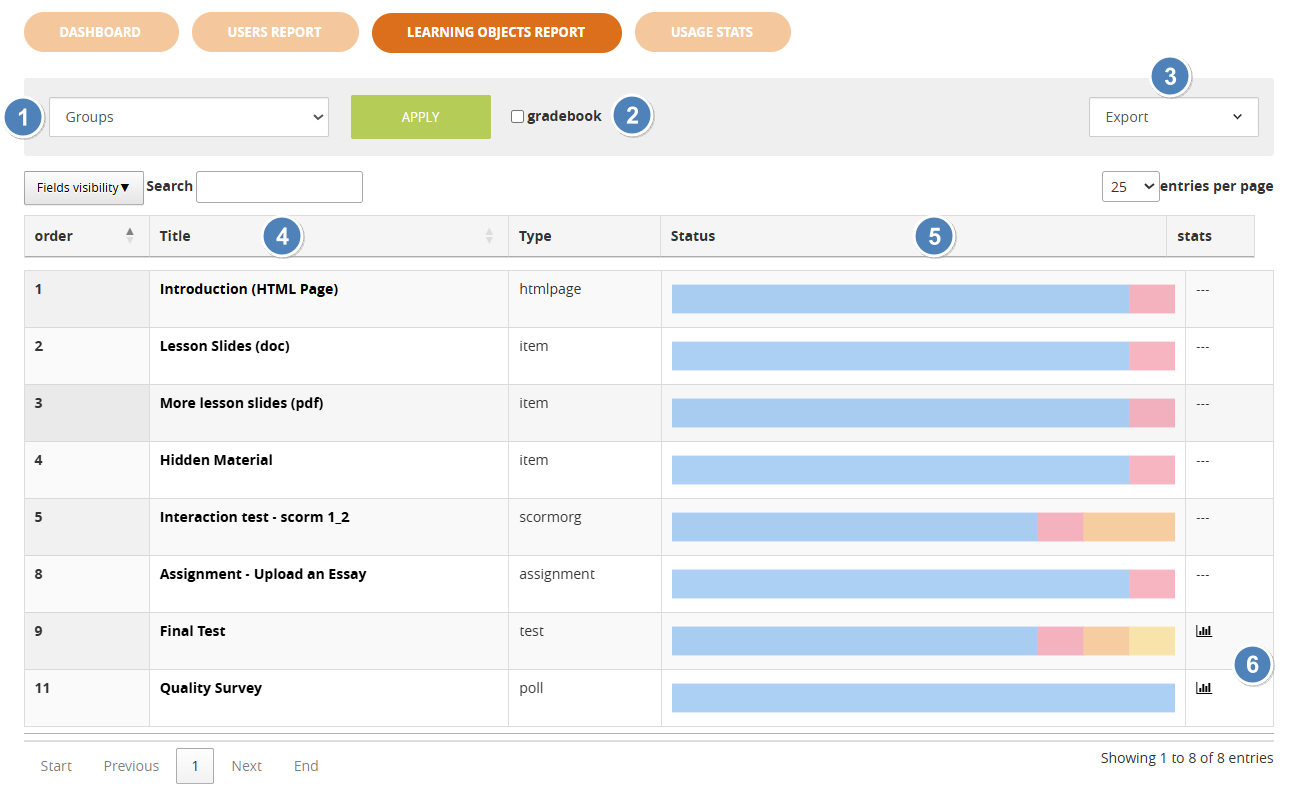](https://docs2.formalms.org/uploads/images/gallery/2026-04/WpJimage.png) 1. **Filters Bar**: allows filtering the data below by edition or course group. Not displayed if groups or editions are not configured for this course 2. **Gradebook Filter**: flag this checkbox to filter the list of learning objects and display only those with scores and marked as "Use for final" in the [LO Management - properties section](https://docs2.formalms.org/books/reference-guide/page/learning-materials-management#bkmrk-properties%3A-properti) 3. **Export**: export the report data in CSV or XLS format 4. **LO Title**: Click on the title of a learning object for a detailed report 5. **LO user status chart**: this chart represents the progress status of all users on a learning object. Mouse hover a segment of the status bar to see the number of users with that status in a LO 6. **Answer stats**: click on the istogram icon to see statistics for the answers in a test or poll learning object #### Learning Object Report This view features an overview of the status of all users on this learning object, and a list of all the users with their main tracking info [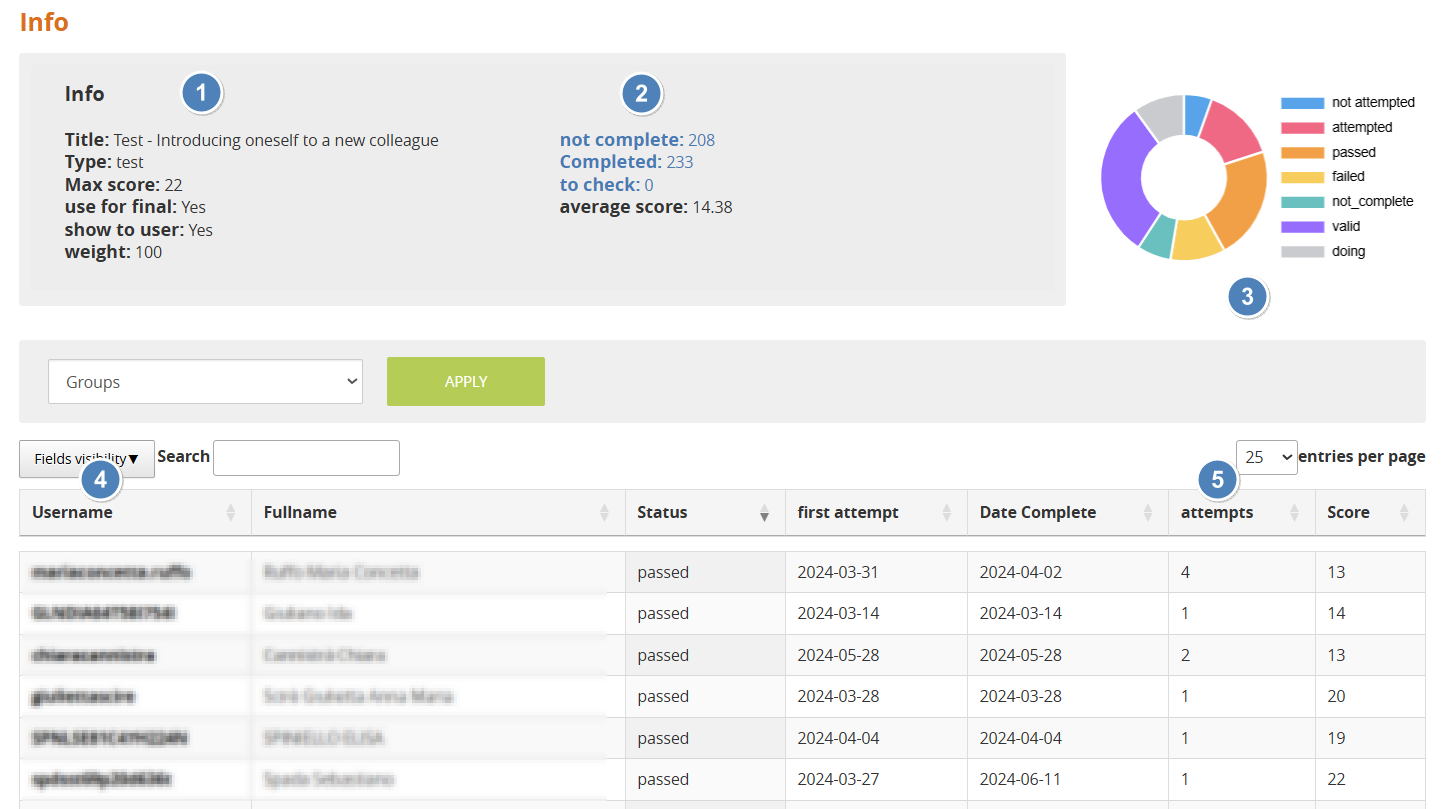](https://docs2.formalms.org/uploads/images/gallery/2026-04/Ukdimage.png) 1. **Learning Object Info**: main information about the selected learning objects. Score settings like max score, use for final, show to user and weight can be set and edited by each LO properties and editing sections 2. **Test Metrics**: only displayed for "test" learning objects: - User status: shows how many users have completed (passed or failed), not completed (not attempted or doing) an assessment, and the number of submissions waiting for a teacher validation (to check). **Click on a label to filter the users in this status** - Average score: calculates the average score for all users in this test 3. **Score status chart**: pie chart displaying the score status of all users. Mouse hover a segment of the status bar to see the number of users with that score status in this LO 4. **User tracking details**: click on a username to see the user status and tracking details for this LO 5. **Attempts**: number of attempt of the users in a test --- ### User Details This page displays the available details and features for the tracking of a user on a specific Learning Object, and can be reached by navigating either the user report or the learning objects report. The page features the following info panel, while the content will vary based on the type of learning object displayed: [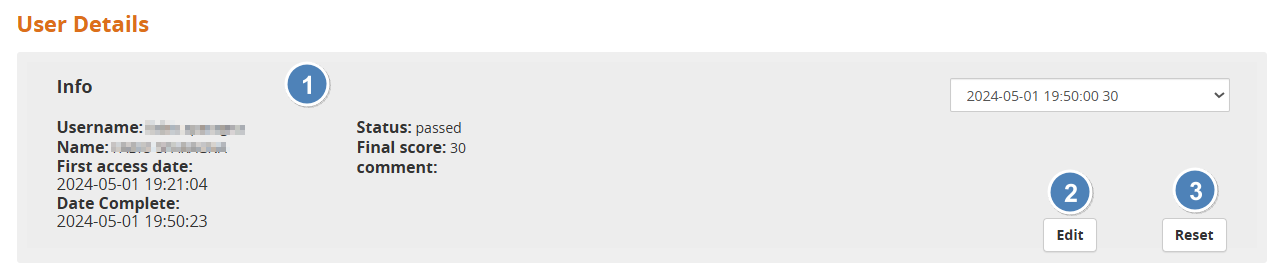](https://docs2.formalms.org/uploads/images/gallery/2026-04/JWHimage.png) 1. **Info**: main tracking information for a user on this learning object. Some details may slightly vary depending on the type of LO 2. **Edit**: click to edit the status, dates and status of this user on this LO[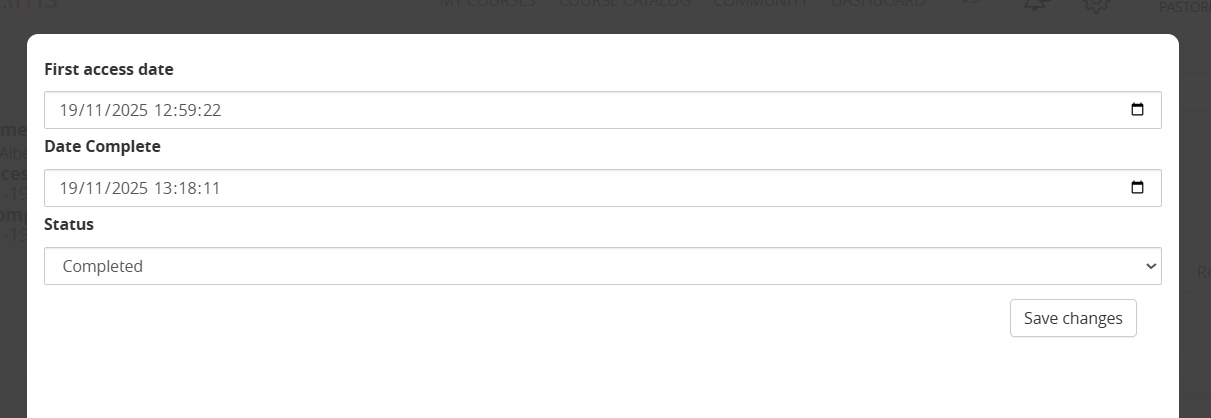](https://docs2.formalms.org/uploads/images/gallery/2026-04/cMyimage.png) 3. **Reset**: delete all the tracking for this user on this LO. **Warning: can't be undone!** #### #### Test tracking details page For learning objects of type "TEST" this page displays the last test submission made by the users, with the given answers and scores 1. **Submissions** History: if the user made multiple attempts to complete the test they will be listed in this dropdown. The page will open by default from the last attempt 2. **User's Answers**: display all the test questions answered by the user, for the selected attempt 3. **Edit**: click this button to edit the user score for an answer and add a comment [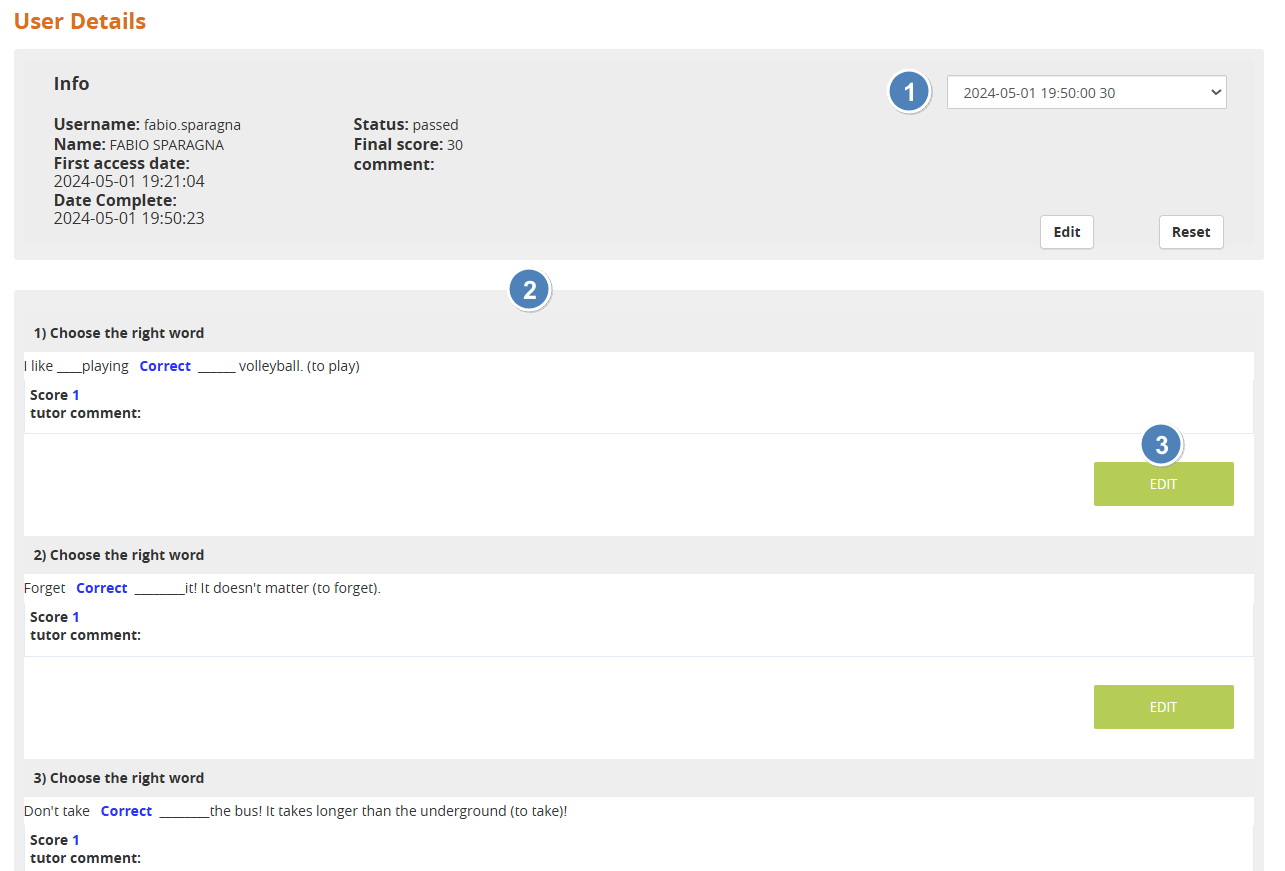](https://docs2.formalms.org/uploads/images/gallery/2026-04/1azimage.png) ##### Edit a test tracking For each user test attempt, it is possible to edit the tracking info including: - Score Status: in addition to the generic LO status, it will be possible to set a score status specific for test LOs - Comments: add teacher comments, visible to the user if set in test options - Bonus score: increase the score achieved by the user [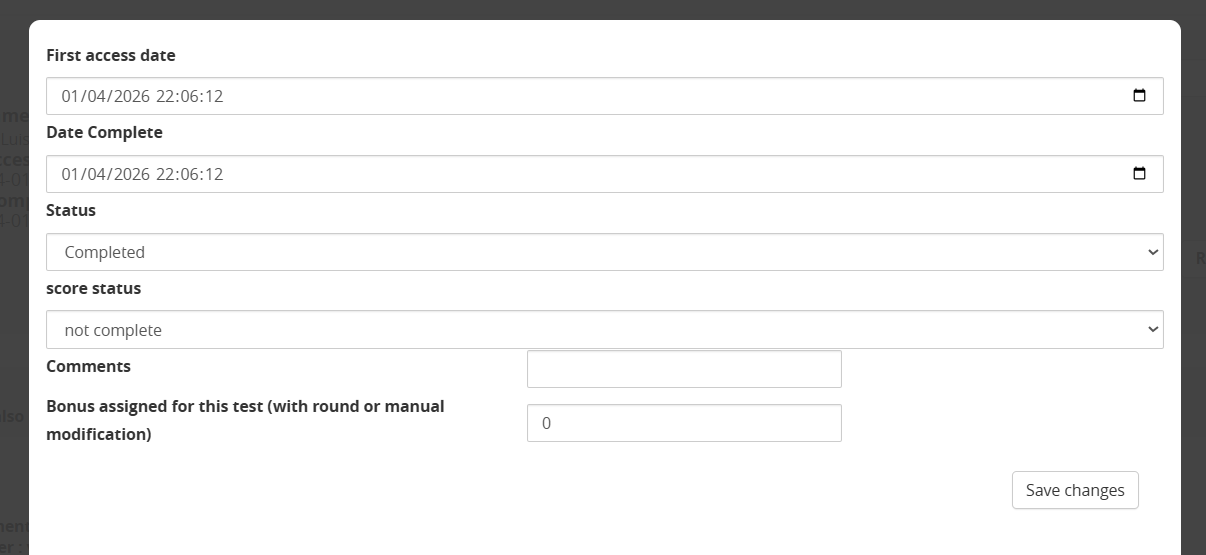](https://docs2.formalms.org/uploads/images/gallery/2026-04/oN4image.png) #### SCORM Tracking details page It the object type is SCORM, this page will display available info about user's sessions [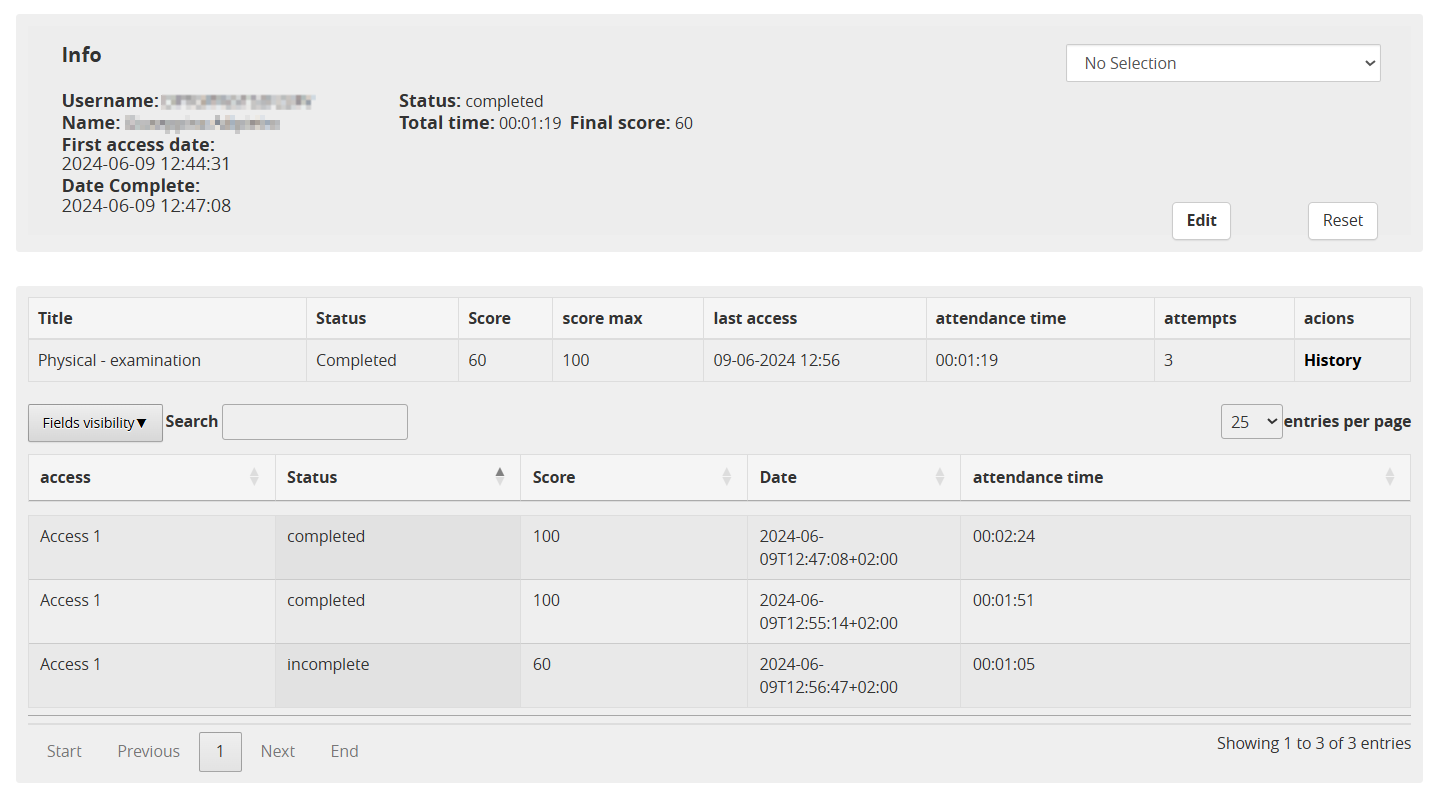](https://docs2.formalms.org/uploads/images/gallery/2026-04/V9dimage.png) --- ### Usage Stats #### Main Page [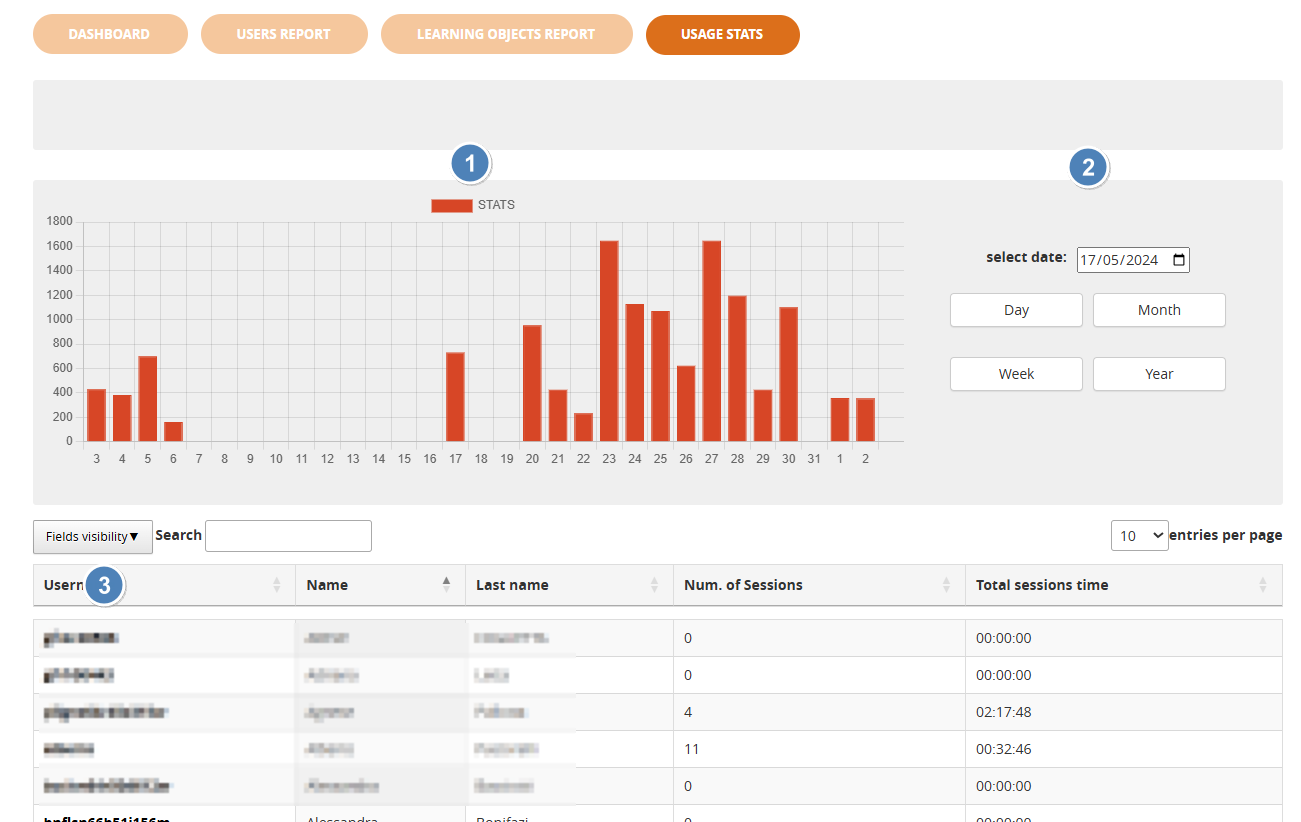](https://docs2.formalms.org/uploads/images/gallery/2026-04/7Bwimage.png) 1. **Usage stats chart**: volume of browsing activity of the users in this course for a selected time period 2. **Time filter**: choose time range and start data for the usage chart. Start date defaults to the first available tracking. 3. **Users list**: click on a username for a detailed list of browsing sessions and actions #### Usage Stats by user List of all the browsing sessions of the selected user in this course: - **Total time**: sums the browsing time of all the sessions - **Actions**: click on the icon for a list of the actions performed by the user in a session [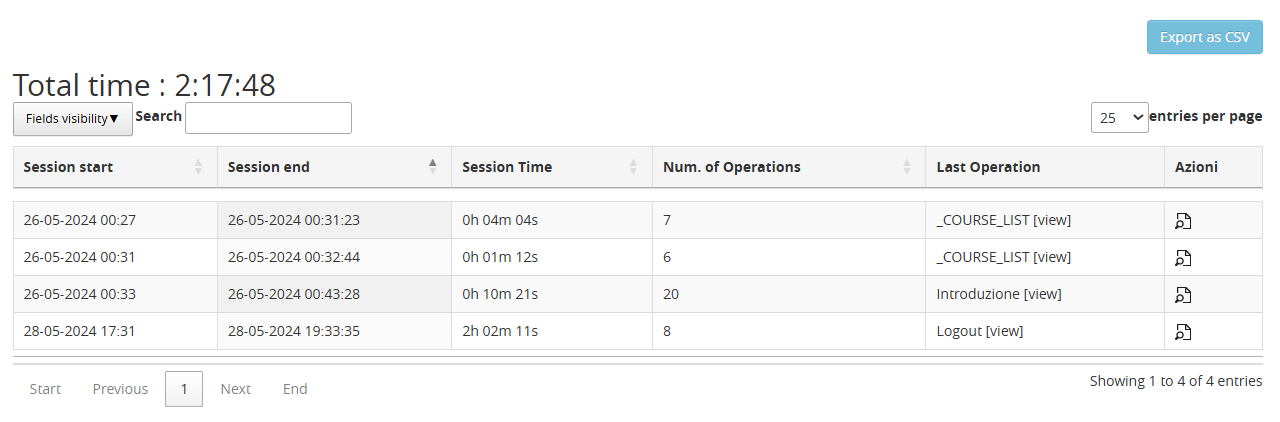](https://docs2.formalms.org/uploads/images/gallery/2026-04/rtKimage.png) # Course Final Score ## Overview The **Final Vote** represents the overall score achieved by a user within a course. It is automatically calculated based on specific learning objects configured to contribute to the final evaluation. --- ## How the Final Vote is Calculated The final score is computed by considering only the course elements explicitly marked as **"Use for final"** in the LO settings Each of these elements contributes to the final vote according to: - its **score** - its **weight** - its **maximum achievable score** ### Calculation Logic The system applies a weighted normalization formula: Final Vote = (Sum of (user score × weight)) / (Sum of (max score × weight)) × Final Score Scale Where: - **user score** = score obtained by the user in each activity - **weight** = importance assigned to the activity - **max score** = maximum achievable score for the activity - **Final Score Scale** = maximum score configured for the course (e.g. 100, 200) ### Important Notes - Only objects marked as **"Use for final"** are included - Activities not completed (or not valid) contribute 0 to the numerator - However, their weight is still included in the denominator - This means incomplete activities negatively impact the final score --- ## Manage the Final Score (Forma 4.2 onward) ### Object Inclusion Rules - **No object is included by default** - All objects that produce a score (e.g. tests, SCORM, assignments) must be **explicitly marked as "Use for final"** - This provides full control over which activities contribute to the final evaluation**Upgrading to Forma 4.2**: when upgrading from a previous version to 4.2, the settings for existing materials in the gradebook (test, scorm or activities) will be mantained and migrated to each LO properties settings
--- ### When the Final Vote is Calculated - The final vote is **automatically updated in real time** - Recalculation occurs **each time a user completes an object** marked as *"Use for final"* ##### Benefits of the new behavior - Immediate feedback for learners - Always up-to-date final scores - No need to access the Gradebook to trigger recalculationCheck the [**Course Report Documentation**](https://docs2.formalms.org/books/reference-guide/page/course-report) for further details
### Editing the final score TBD ## Manage the Final Score (Older Forma version) ### Object Inclusion Rules - **Test objects** were automatically included in the final vote calculation - It was still possible to exclude them by modifying the **"Use for final"** option in the Gradebook - Other object types required explicit configuration depending on their setup ### When the Final Vote is Calculated - The final vote is calculated **only when the Gradebook module is accessed** - This means scores may not be immediately updated after completing an activityCheck the [**Gradebook Documentation**](https://docs2.formalms.org/books/reference-guide/page/gradebook) for further details
### Editing the final score TBD --- ## Best Practices - Assign weights carefully to reflect the importance of each activity - Explicitly configure **"Use for final"** for all relevant objects - Inform learners that incomplete activities will lower their final score - Use the final score scale (e.g. 100 or 200) consistently across courses