Check the [User Area guide](https://docs.formalms.org/reference-guide-2/configuration/user-area-lms.html) for details
Messages will be then accessible as a button from the user panel ## Send and receive messages The system directly displays a list of the messages received by the user, it will be possible to send messages to one or multiple users. Please note that: - GodAdmin will be able to select any registered user - Administrators will be able to select their assigned users - Users will see only other users registered to their same courses To send a new message, click “Send”, select the recipients from the list and compose the message. [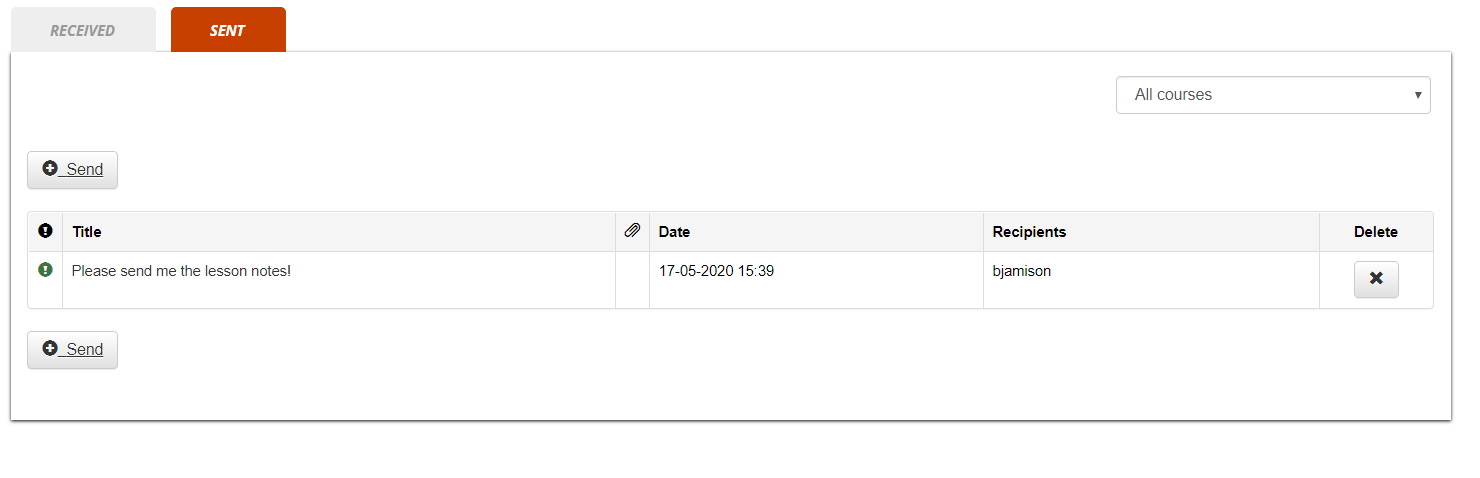](https://docs2.formalms.org/uploads/images/gallery/2024-02/dj7image.png) # Community Forums Forma provides a global “Community Forums” feature, independent of course subscriptions, and featuring: - Unlimited forums - Forum moderation - Notifications for new messages and threads - Private threadsSeparate forums with same features can be created also within each course, reserved to course users. Check the [Course Forums guide](https://docs.formalms.org/reference-guide-2/course-management-frontend/course-forum.html) for details
## Activate Community Forums You can activate / deactivate the community forums from the “[User Area LMS](https://docs.formalms.org/reference-guide-2/configuration/user-area-lms.html)” settings page: *Admin > Settings > Elearning Configuration > User Area LMS* You will be able to assign visibility over the whole community feature to: - all the platform users - only selected users / nodes The link will be visible in the frontend main menu ## Forums ### Create a Forum Forums can be created by platform administrators [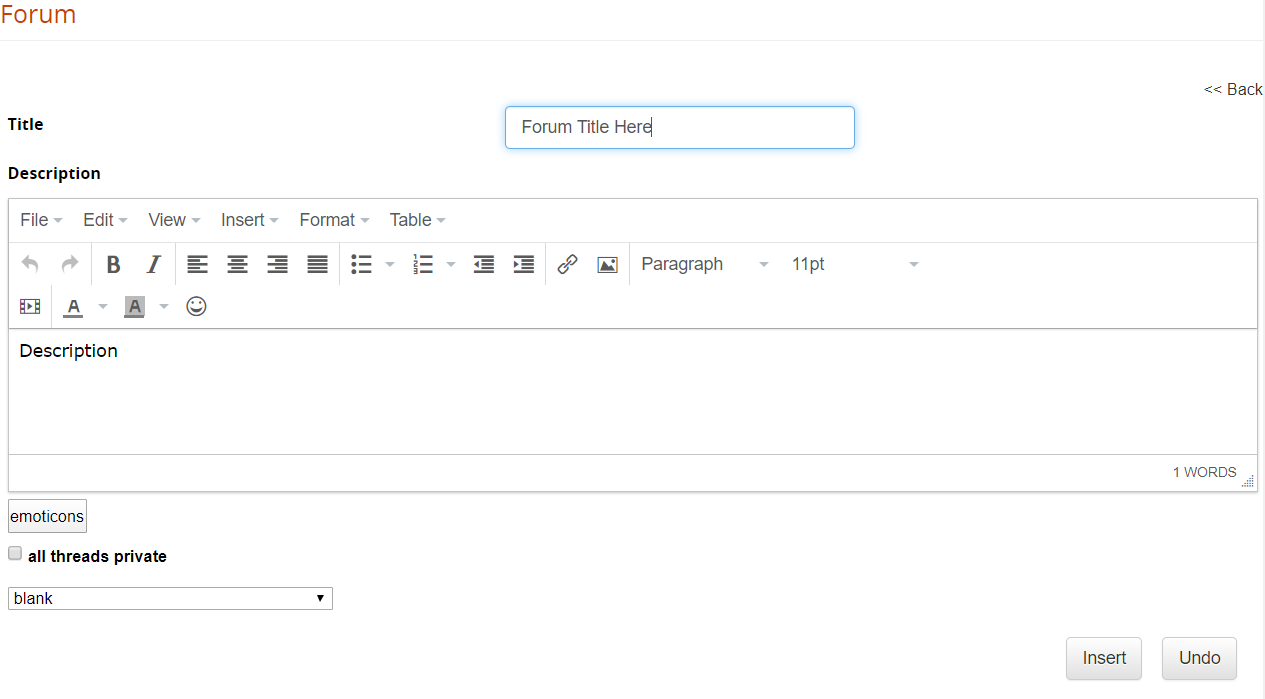](https://docs2.formalms.org/uploads/images/gallery/2024-02/zi4image.png) For each forum, you can set: - Title: the forum name - Description: a description for this discussion board - Emoticon Image: an icon to identify the forum - Private threads: define whether all the discussions in this board should be private by default.**Note** private discussion threads will be only visible to the user that opened the thread and forum moderators
**TIP** use the “private threads” feature to create a private support board for your users
### Manage Forums [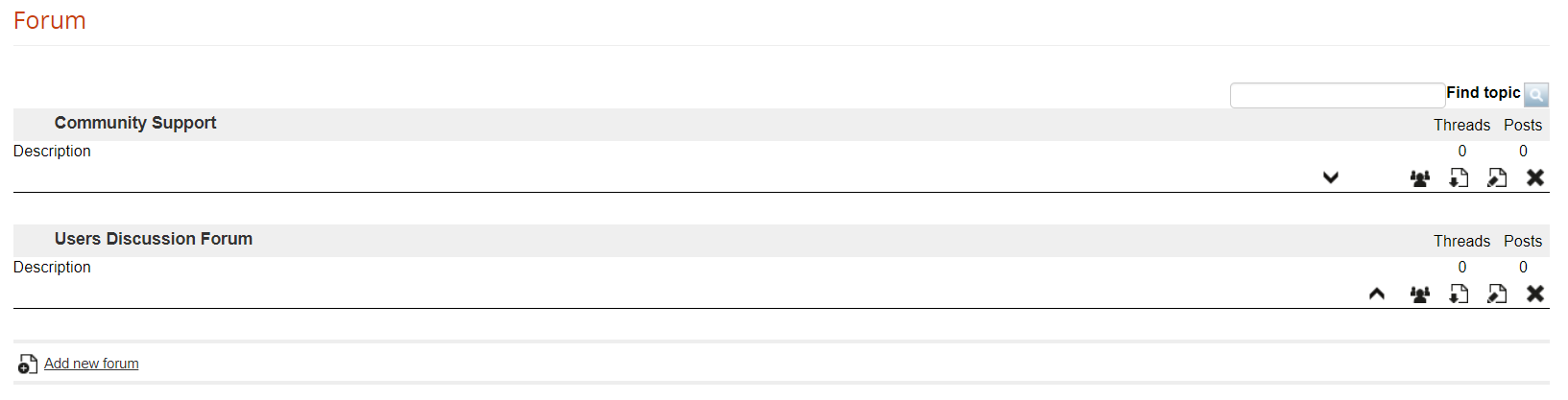](https://docs2.formalms.org/uploads/images/gallery/2024-02/HCwimage.png) Here you can: - Change the forums order - Select users that will be able to see this forum - Download the discussion board in Excel format ## Discussion threads For each forum, you can have unlimited discussion threads and messages ### Add a new thread [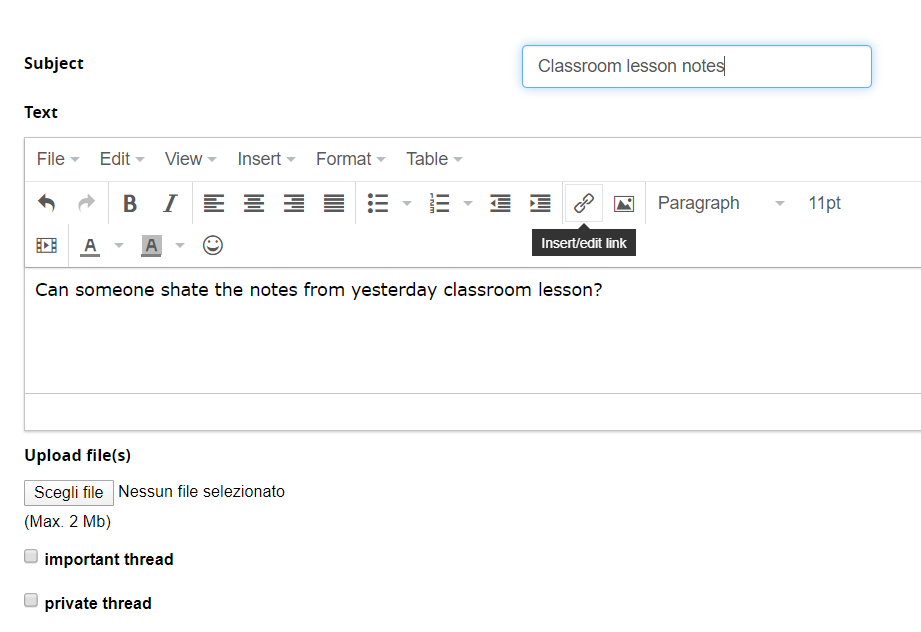](https://docs2.formalms.org/uploads/images/gallery/2024-02/FNWimage.png) ### Manage Threads [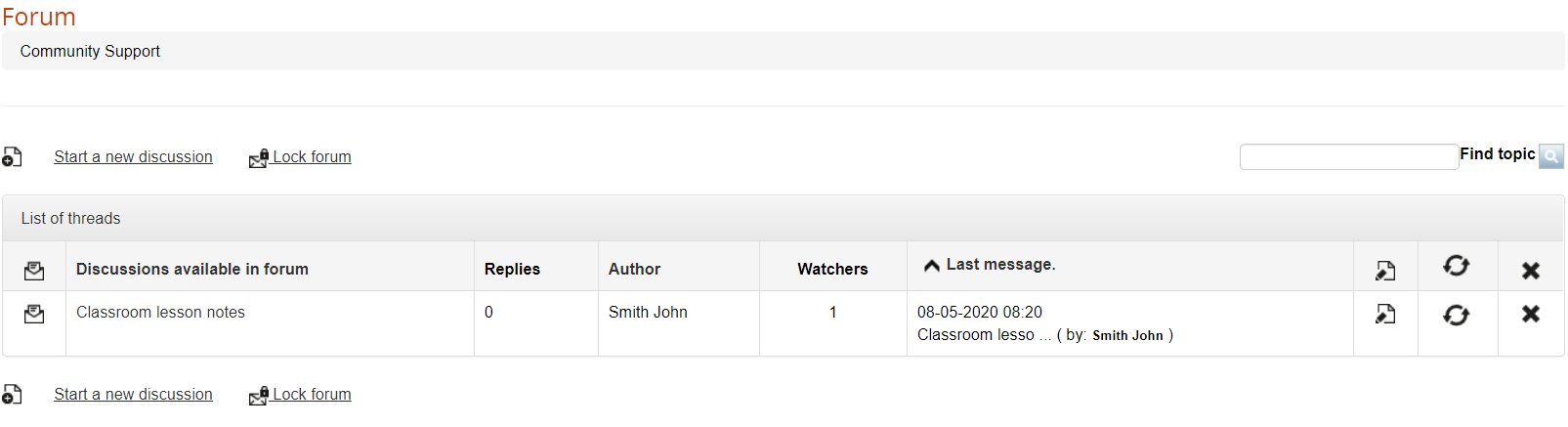](https://docs2.formalms.org/uploads/images/gallery/2024-02/QYkimage.png) ### Manage Messages [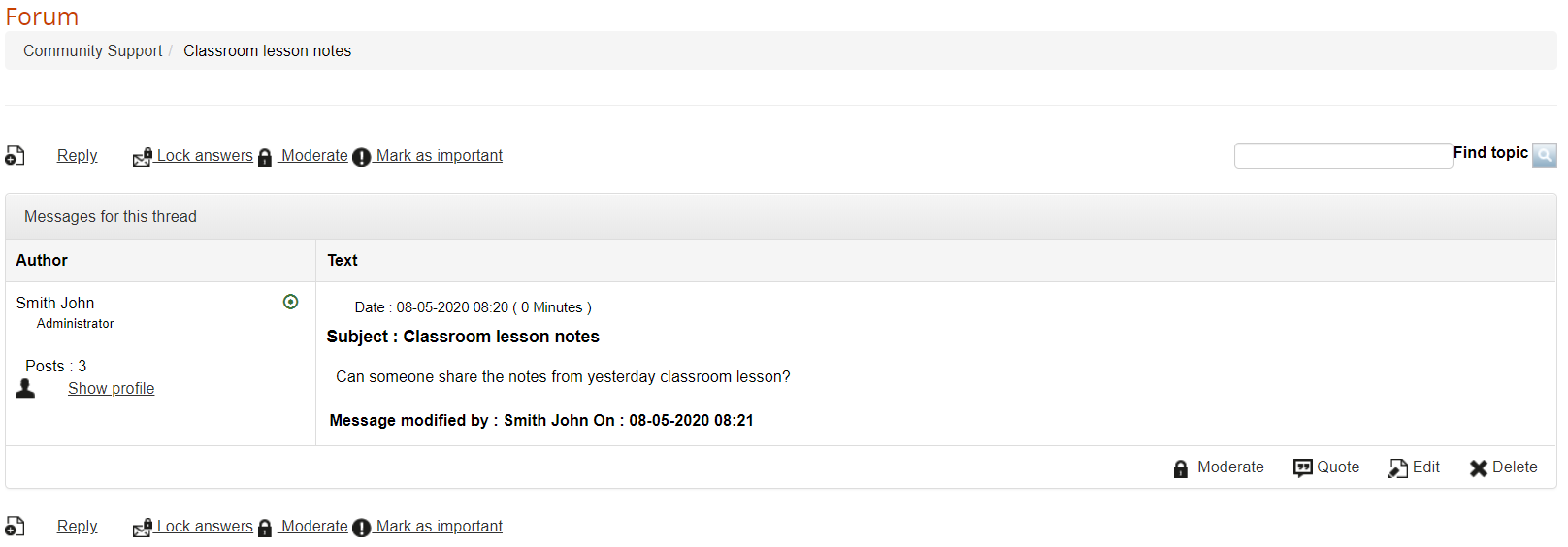](https://docs2.formalms.org/uploads/images/gallery/2024-02/tiHimage.png) # Web Pages ## Web Pages In Forma you can manage HTML pages to be displayed either on the login page or in a dedicated tab inside the “mycourses” area. Web pages can be added and managed from: *Admin > Contents > Web Pages* [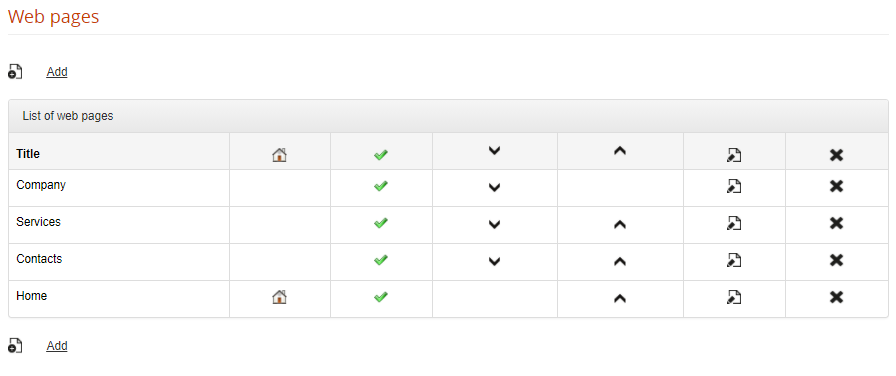](https://docs2.formalms.org/uploads/images/gallery/2024-02/eeIimage.png) Click on the “ADD” button to create a web page and set: **Title**: this is the title of the webpage, and will be used also as link text in the login menu for external pages **Language**: the page will be visible to users viewing the site in the selected language. If a different language is selected, the link to this page won't be displayed. **Publish**: Choose whether this page should be visible or not **Default page**: this page will be used as content for the MyCourses “Home” Tab, and will be hidden on the login menu **Description**: content of the page ### External Web Pages All the published web pages, unless set as default, will be automatically shown as a menu on the login page: [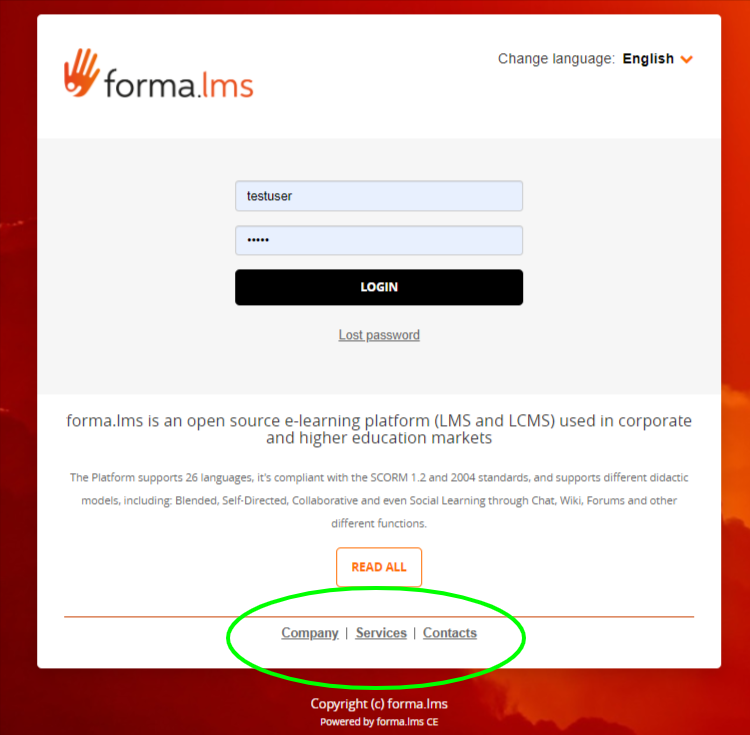](https://docs2.formalms.org/uploads/images/gallery/2024-02/3cQimage.png) ### Home Tab The page selected as “default” will be used as a content for the “Home” Tab in MyCourses area, provided that Tab is active: [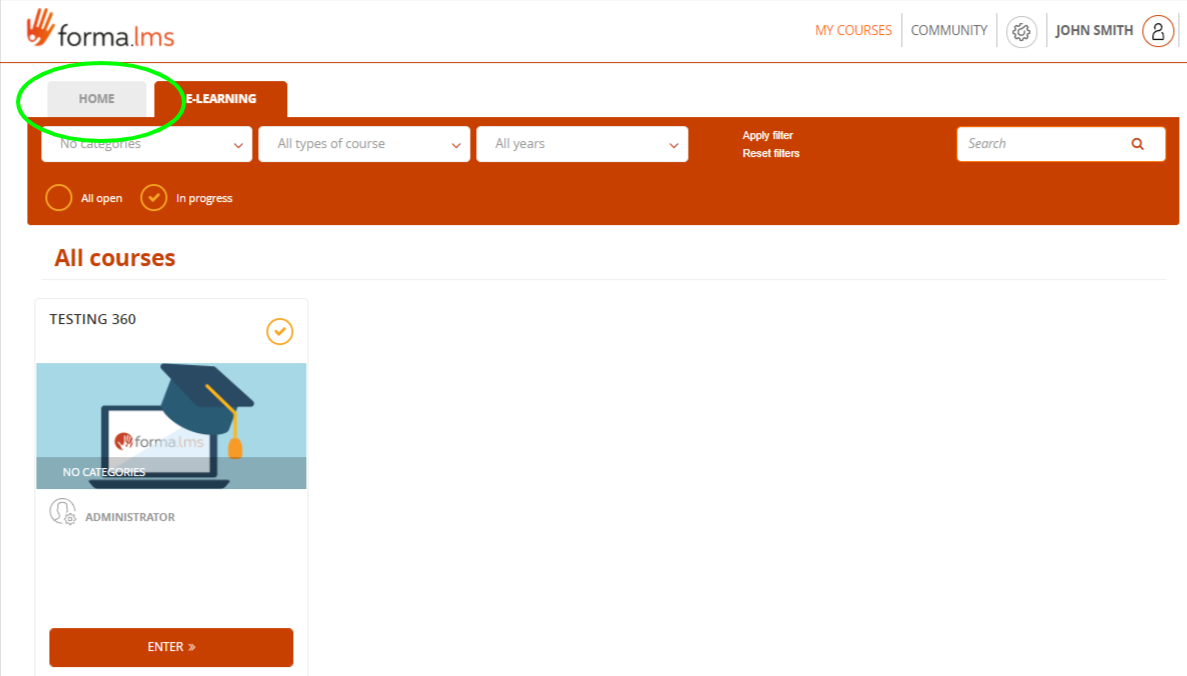](https://docs2.formalms.org/uploads/images/gallery/2024-02/stoimage.png) You can activate the home tab from the [User Area management](https://docs.formalms.org/reference-guide-2/configuration/user-area-lms.html) under: *Admin > Settings > Elearning Configuration > User Area LMS* The tab can be renamed from the standard [language management](https://docs.formalms.org/reference-guide-2/configuration/languages.html) area # Global Newsletter The “Global Newsletter” feature will let you send massive emails to all or a selected group of users. It is available under: *Admin > Contents > Newsletter* This feature is available only to platform superadministrators and administrators, and works in three basic steps: 1. Compose your email 2. Select the recipients 3. Send the email**NOTE** if you need to send email only to a specific course users, check the Newsletter and Anouncement features in course management
## Compose the email [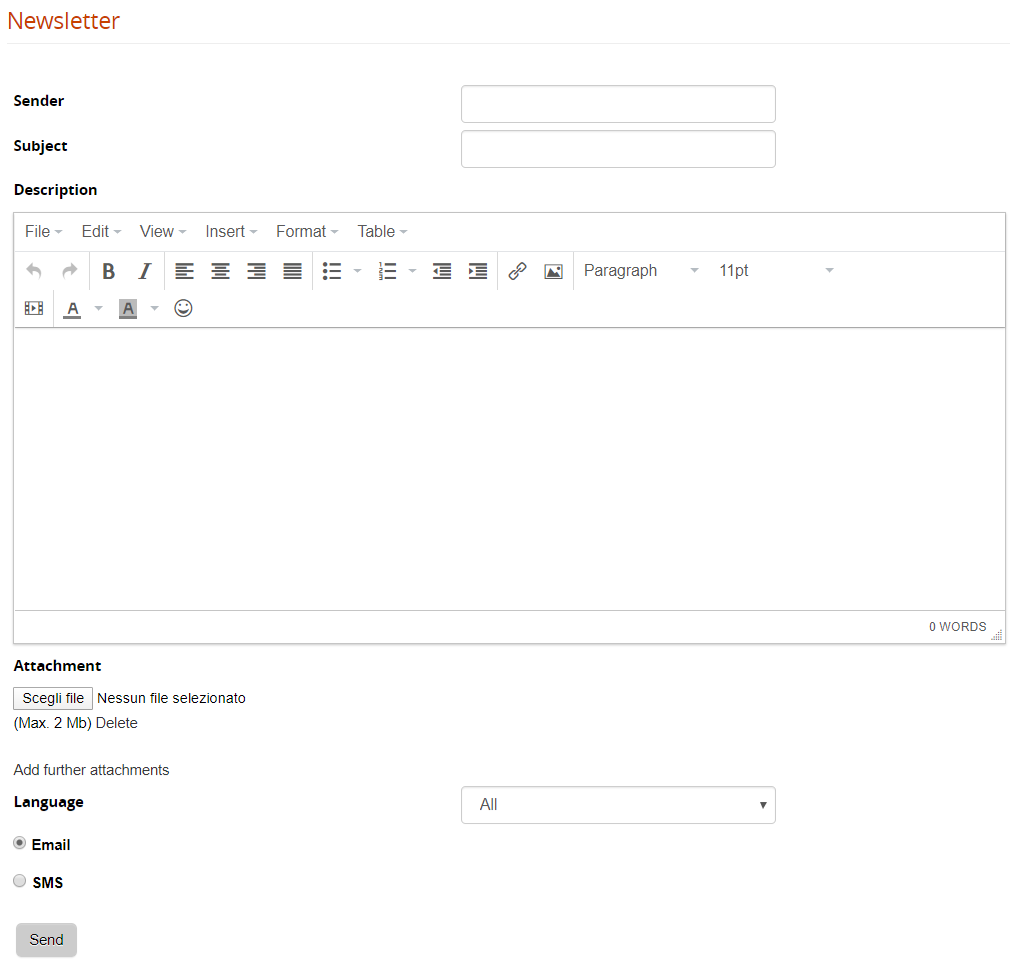](https://docs2.formalms.org/uploads/images/gallery/2024-02/c1cimage.png) **Sender**: this field will be used as “reply-to” field. To avoid anti-spam and server security systems, the platform will send the emails with the default [email and smtp setting](https://docs.formalms.org/reference-guide-2/configuration/system-configuration.html). **Attachment**: One or more attachments may be included in the newsletter. **Email/SMS**: The communication can be sent by both e-mail and SMS. For SMS, an SMS service provider must be configured through the plugin system. **Language**: choose which users should receive the email based on their profile language Once you click the “SEND” button, you will be prompted to choose which users to send the communication. ## Select the recipients The system will open the user selection page, letting you select either: - Multiple single users - Massive select all users from some org-chart nodes - Massive select all users in a group - Massive select all users by company role Click “Save Changes” to proceed to the last step ## Send the email As a last step, the system will present the number of selected users, click “SEND” button to push your communication out. [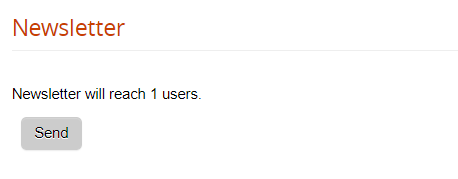](https://docs2.formalms.org/uploads/images/gallery/2024-02/k0nimage.png)To avoid server anti-spam filters, the system will automatically split the massive mailing in multiple blocks of recipients, with a pause in seconds between each block. You can configure values for blocks and pauses in [advanced configuration settings](https://docs.formalms.org/reference-guide-2/configuration/system-configuration.html)