# Configuration
List and description of the main configuration settings and features
# System Configuration
Main system configurations are available under:
*Admin > System configuration > Settings*
From each tab panel, you can access a different configuration section with different groups of options
Most of the options are self-explaining, we will describe the most important and critical.
## Main Options
[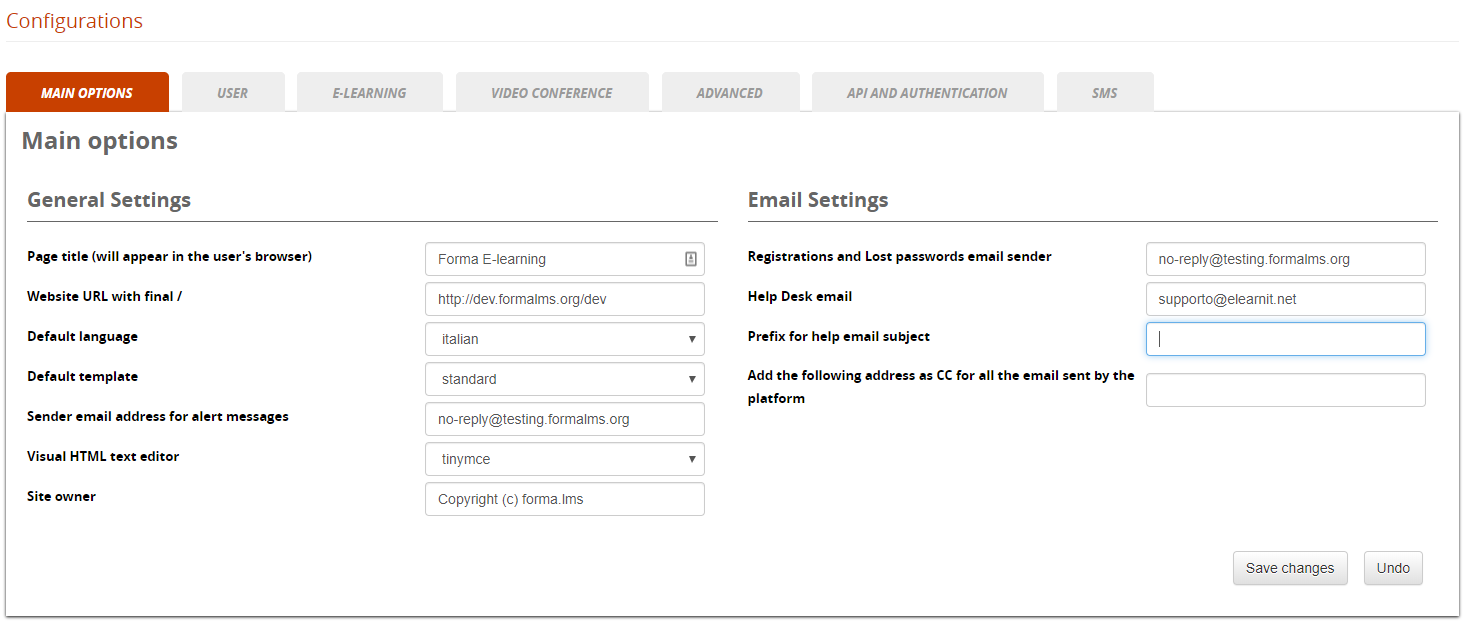](https://docs2.formalms.org/uploads/images/gallery/2024-01/QTaimage.png)
### General Settings
This group of options includes the main basic configurations for your Forma LMS installation
**Page Title**
The name that appears in the user's browser;
**Default Template**
The default template assigned to the installation;
**Website URL**
The web address of your platform (must finish with a /)
**Default language**
The default language for the platform labels, if a user specific language isn't defined
**Sender email for alerts**
The e-mail address from which notifications are sent to users
**Visual HTML Editor**
The visual editor used for text formatting
**Site Owner**
- Text to be shown as custom footer credits in your template
### Email Options
Set-ups for the general email settings for the platform
- **Prefix for helpdesk**
- Enter a text to prepend to the helpdesk email subject.
- Add CC or CCN Addresses
All the emails sent by the system will also be sent to these addresses. If you want to use multiple email addresses in those fields, please use a comma (,) followed by a space as a separator.
## User
[](https://docs2.formalms.org/uploads/images/gallery/2024-01/t1Mimage.png)
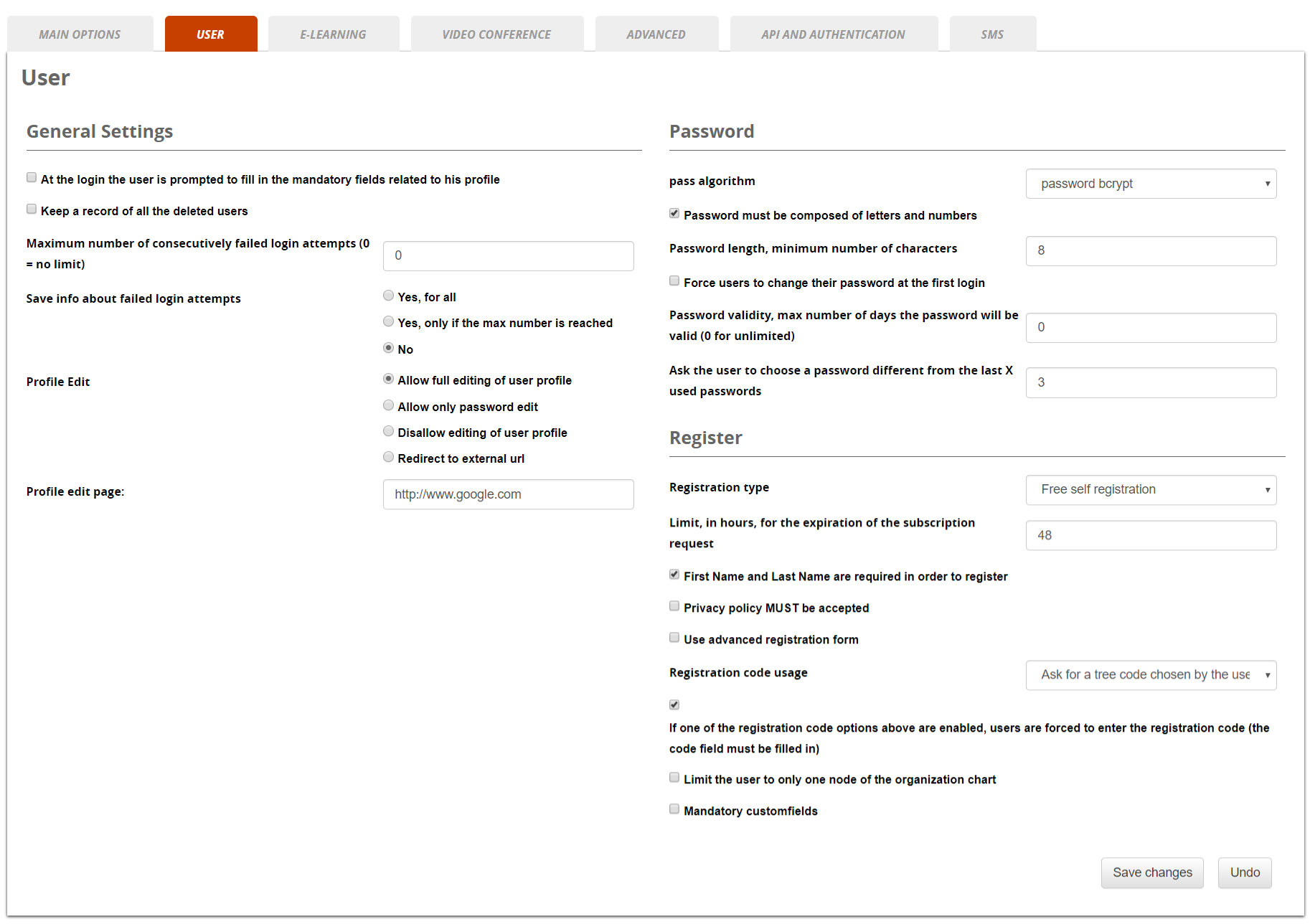
### General Settings
Main settings for user related configurations: from this section, it is possible to edit:
### Password
Main settings for password related configurations
### Register
Settings for platform registration modes and features
#### Registration Types
- **Free self registration**
- Users can self-register directly to the platform, receiving just their credentials if a notification event is enabled (Check [Event Manager](https://docs2.formalms.org/books/reference-guide/page/event-manager) for notification settings)
- **Free registration with double OPT-IN**
- Users will receive an email with a confirmation link upon self-registration
- **Moderated self registration**
- User registration must be approved by an administrator
- **Only administrators**
- Only administrators can register new users. Registration link on login page is disabled
#### Advanced Registration
Select the option “Use advanced registration form” to:
1. **Split registration for custom fields**: users will be asked first to fill the main registration fields, while all the custom fields will be prompted on a following page
2. **Enable self registration to Groups**: upon registration, users will be prompted with a list of groups and will be automatically added to the selected groups
#### Registration Code Usage
This feature extends the registration form, asking the user to select or insert a code.
This will:
- automatically insert the user in an orgchart node
- automatically enroll the registering user to some course
- both of the above
#### Other Options
- **Limit the user to only one node**
- Select to avoid users to be registered in multiple nodes
- **Mandatory customfield**
- mandatory customfields will be required also in administration user edit
- ## E-Learning
This section includes some configuration options for frontend LMS and courses
[](https://docs2.formalms.org/uploads/images/gallery/2024-11/settings-elearning.JPG)
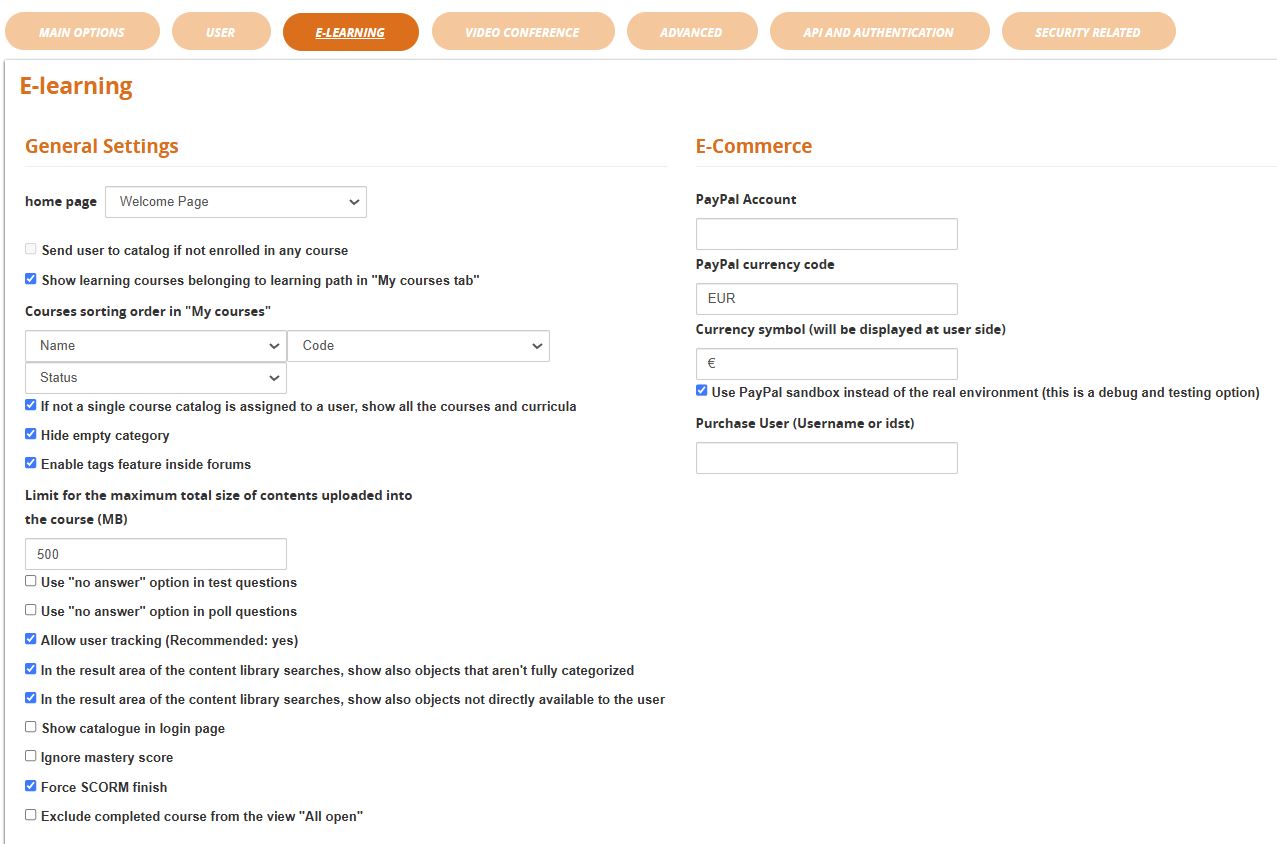
### General Settings
- **Home Page**
- Select the page to be shown to users after login
- **Send user to catalog if not enrolled**
- Redirect user to catalog if MyCourses page is set as home page but is empty
- **Hide Empty category**
- In the catalog page, empty categories are not listed in the side tree categories listing
- **Show login catalog**
- A button to the courses catalog will be shown on the login page
- **Exclude completed courses from the view "all open"**: in the MyCourses page, the "All Open" filter will hide course already completed by the users. Useful if you have too many courses and need to filter the completed ones for better bage browsing
### Ecommerce
Settings for the ecommerce features. You just need to enter your PayPal account and, if you actually want to sell courses, unflag the “sandbox” option. The sandbox would be used to run tests without actually completing the transaction, obviously when you are ready to sell your courses you don't need a sandbox anymore.
**Important:** if you want to use the ecommerce functions, you also have to do 2 more things
- enable the course catalog
- flag the “sell course” option when you create or edit your course, and put a price on it.
## Videoconference
[](https://docs2.formalms.org/uploads/images/gallery/2024-01/Ielimage.png)
## Advanced
[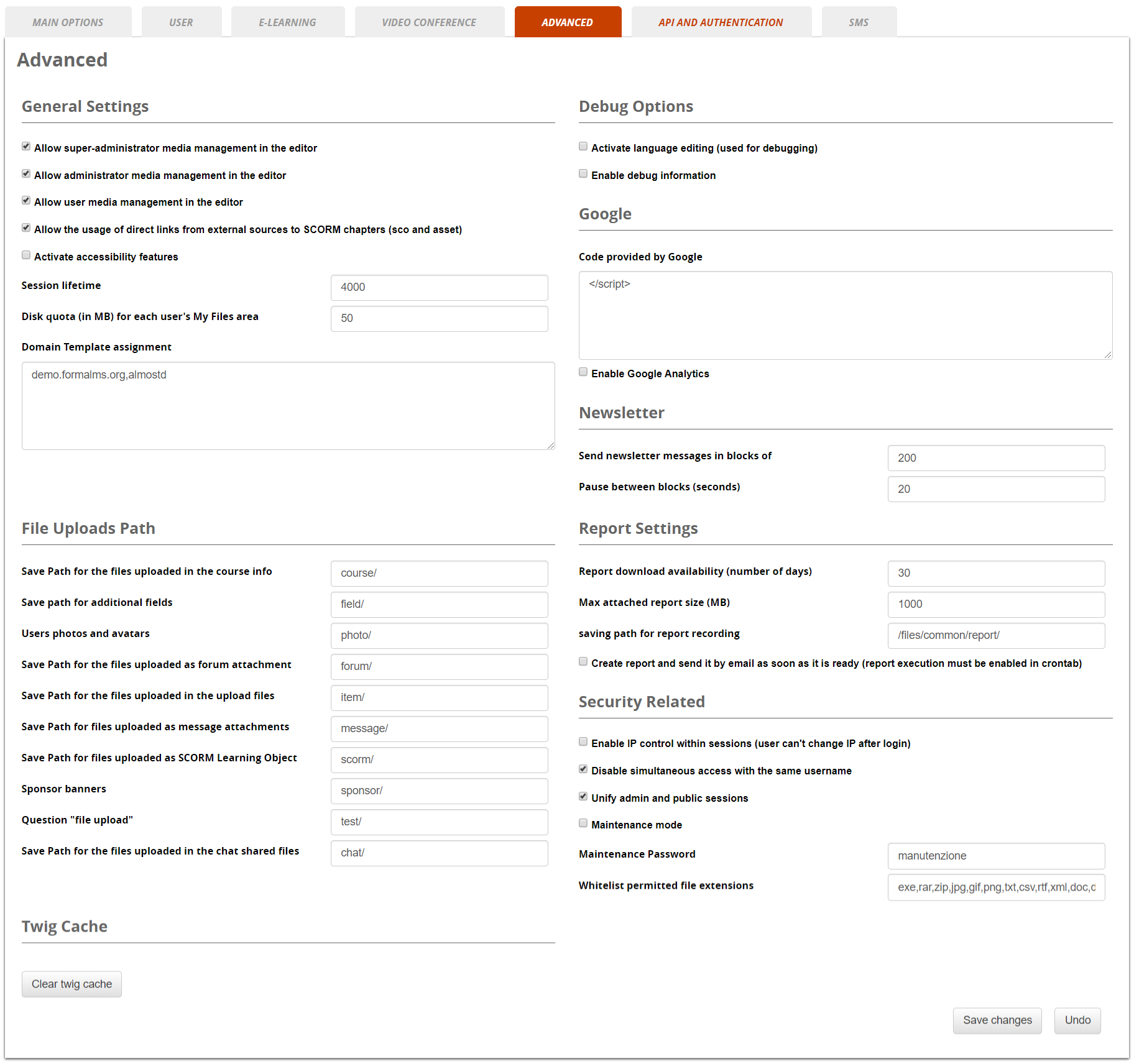](https://docs2.formalms.org/uploads/images/gallery/2024-01/b7himage.png)
### General Settings
- **Session**
- The period of inactivity, after which a user is disconnected (session length)
- **Domain template assignment**
- Set the template to be assigned to specific domains. Add one domain per row, like: \[www.yourdomain.com\],\[template\]
- ### File uploads
Set the default folders for different types of asset.
Caution. Changing these paths may lead to link and display errors.
### Twig Cache
Use this button to empty the Twig Cache folder in case of visualization problems after plugin install or template changes.
### Debug Options
Options to enable code and language debug features
### Google
Settings for Google Analytics integration
### Newsletter
Settings to avoid blacklisting and antispam issues when sending emails with the newsletter feature
### Report Settings
Use these settings to configure automatic report sending conditions
### Security Related
Some security related options:
- **IP control**
- If this option is selected and the user changes connection during the same login session, he will get an error
- **Disable simultaneous access**
- The same user cannot be logged from different devices at the same time
- ## API & Authentication
[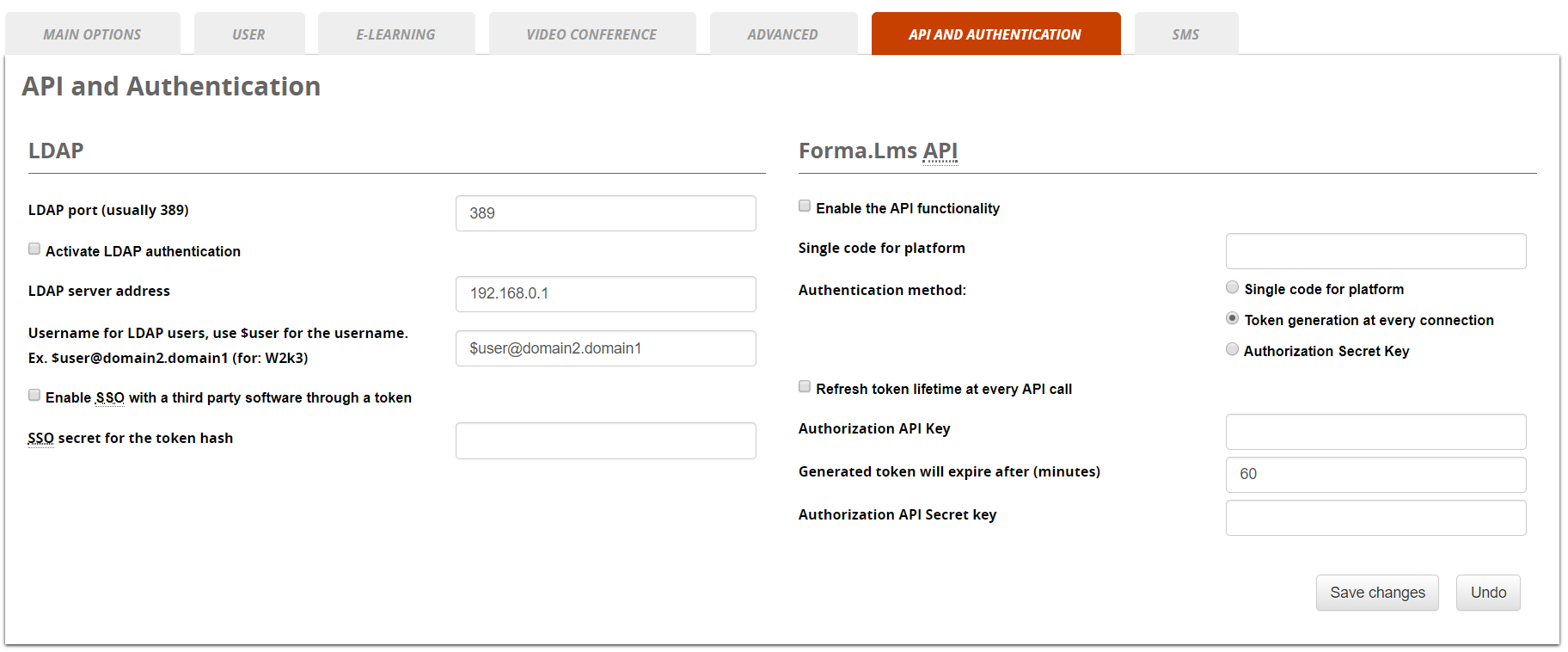](https://docs2.formalms.org/uploads/images/gallery/2024-01/4zeimage.png)
Check the **[API & Integration](https://docs2.formalms.org/books/api-integration)** documentation for details
## Security Related
This section was introduced with Forma 4.0
[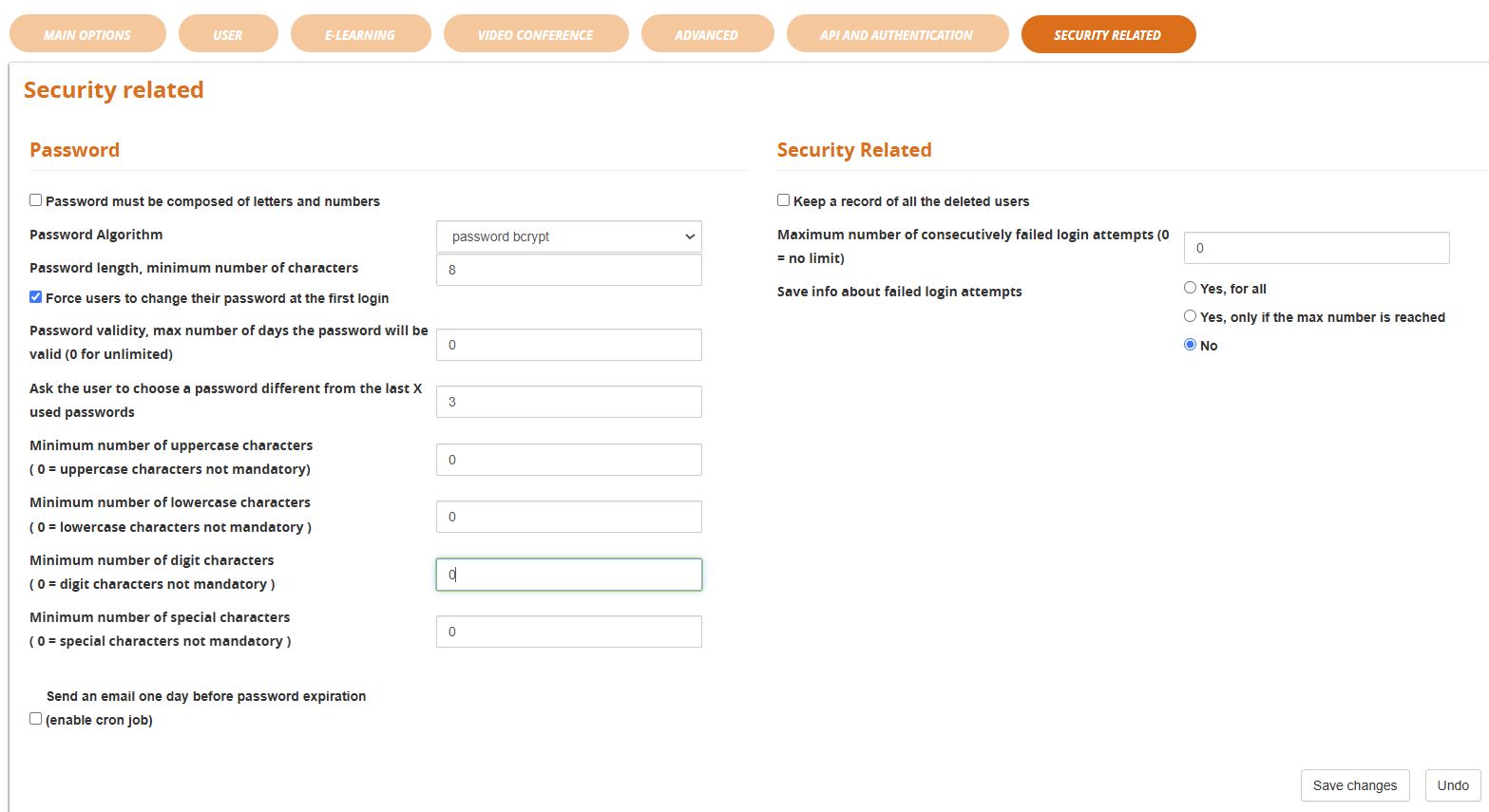](https://docs2.formalms.org/uploads/images/gallery/2024-11/settings-security.JPG)
The option "Security Related > **Keep a list of deleted users**" has been removed since Forma 4.2 and will be automatically active
## SMS
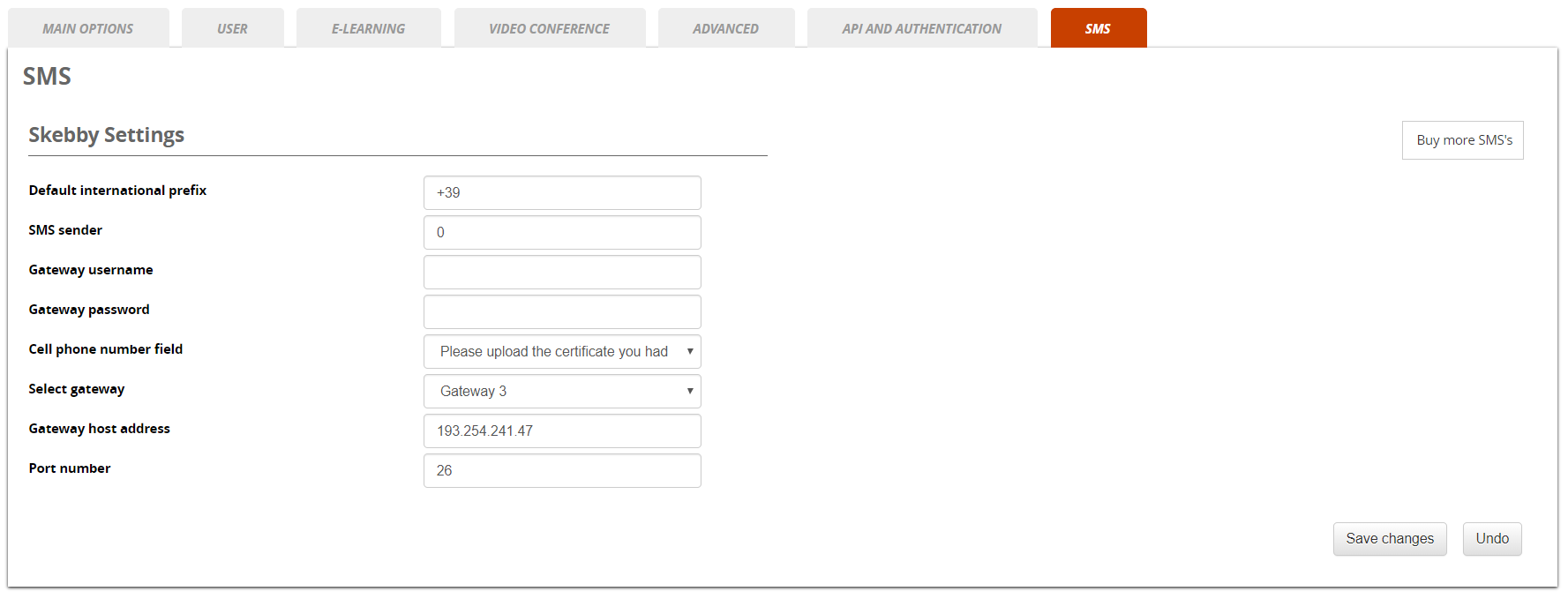
This feature has been **REMOVED SINCE FORMA 4.0**
You can also send SMS from Forma. We have an integration with the popular Skebby service. Just create an account with them (click on the button), purchase credit from them and fill the required fields with the account information you will receive from Skebby.
Then you'll be able to send Forma notifications with an SMS instead of an email. Every automatic event can be configured with email or SMS from the event manager. For the manual communications, you can decide what to use from time to time.
Of course, you need to have the mobile phone number of your users in an additional field, and you need to set the correct field for the mobile number in this section.
[](https://docs2.formalms.org/uploads/images/gallery/2024-01/SsMimage.png)
## SMTP settings
SINCE FORMA 4.0 this feature has been **MOVED** under settings > system configuration >mail settings
If you want to send trusted and authenticated emails with one of your email accounts, remember to set these **2 parameters** as “**on**” during the installation of Forma Lms
```php
$cfg['use_smtp_database'] = 'on';
$cfg['use_smtp'] = 'on';
```
If you select that you will use the SMTP, a new tab will appear in your general settings, and you'll be able to insert your account information in your User Interface (host, port, password, username, security…).
[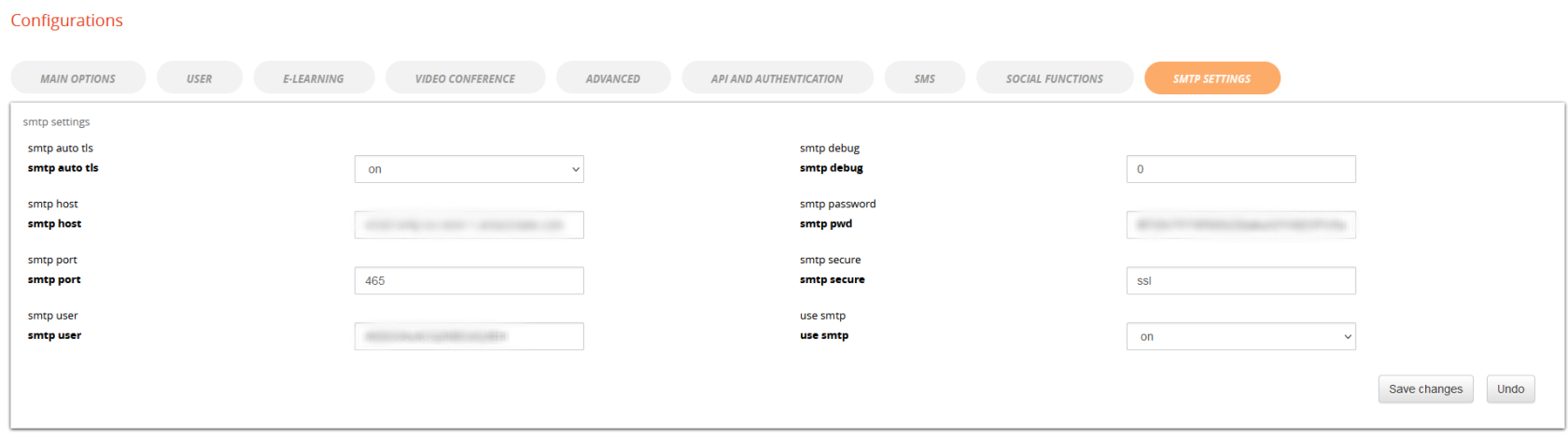](https://docs2.formalms.org/uploads/images/gallery/2024-01/2ytimage.png)
# Plugin Management
## Plugin Manager
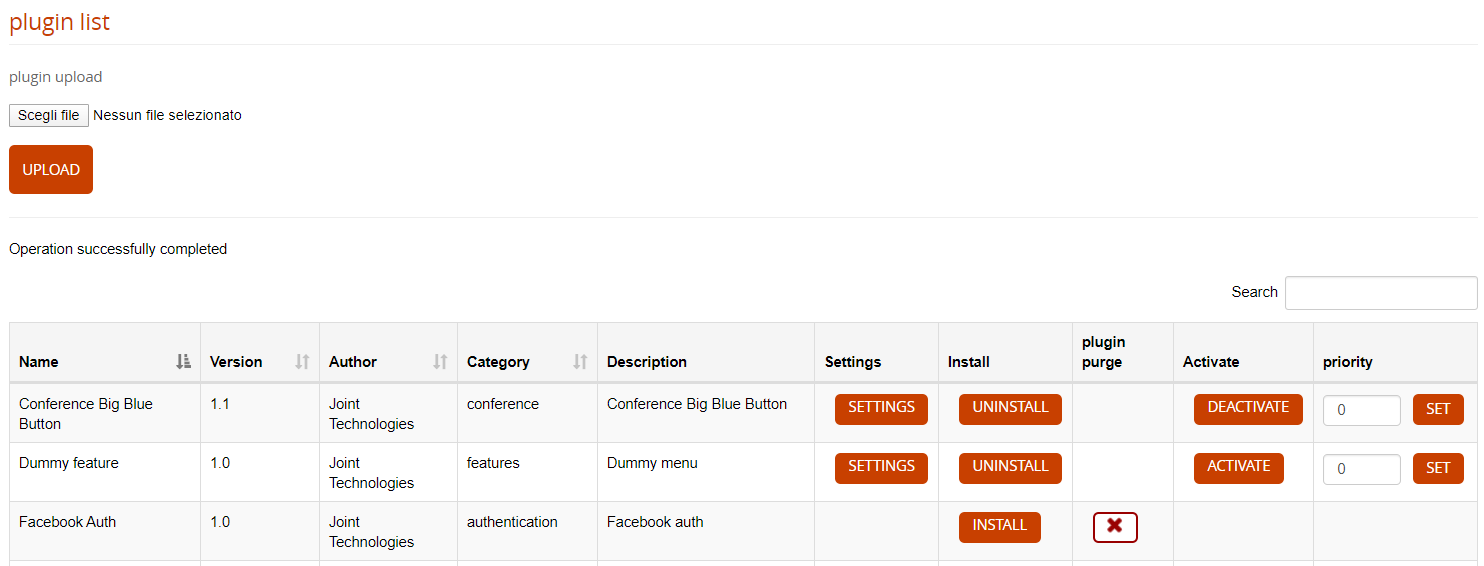
From this page, you can manage available plugins and install new ones
[](https://docs2.formalms.org/uploads/images/gallery/2024-01/qTVimage.png)
#### ACTIONS
- **Settings**
- Edit plugin settings, if available
- **Install**
- Here you can install or uninstall available plugins
- **Purge**
- Completely removes the plugin from the installation
- **Activate**
- While installed, a plugin can be activated or deactivated. When deactivated, plugins will be ignored by the system
- **Priority**
- In case of conflicts here you can set the load priority for the plugins
- ## Install a new plugin
The steps to add new plugins are:
1. Upload: upload a plugin package directly from your computer. After upload the new plugin will be added to the available plugin list
2. Install: this will actually install the plugin features
3. Activate: to make the plugin features really effective
# Time Periods (Course credits)
Forma allows the creation of time periods related to course credits:
*Admin > Settings > E-Learning Configuration > Time periods*
Click add button to insert a new period:
[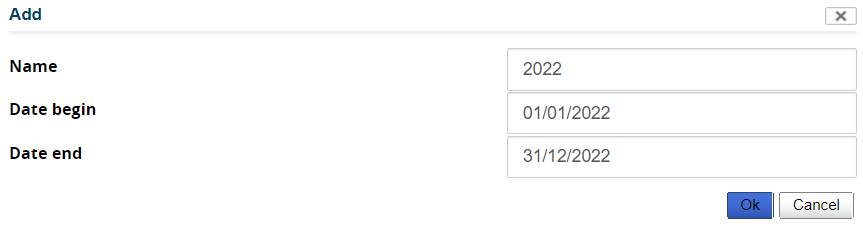](https://docs2.formalms.org/uploads/images/gallery/2024-01/Y35image.png)
The period is shown in the list:
[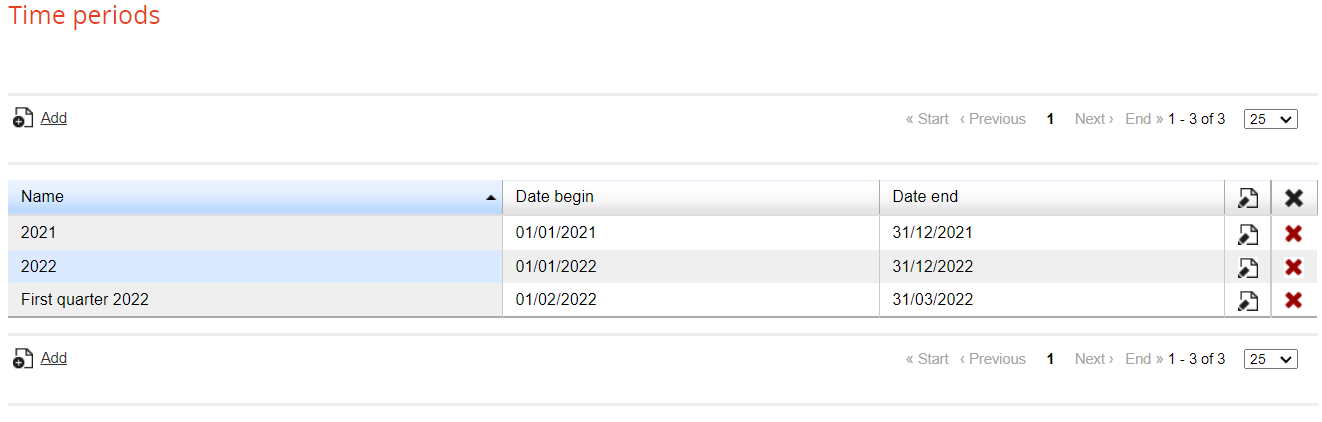](https://docs2.formalms.org/uploads/images/gallery/2024-01/yVEimage.png)
In order to use time periods, enable Credits
*Admin > Settings > E-Learning Configuration > User area in LMS*
Click on 'Credits' and be sure that the tick is green:
[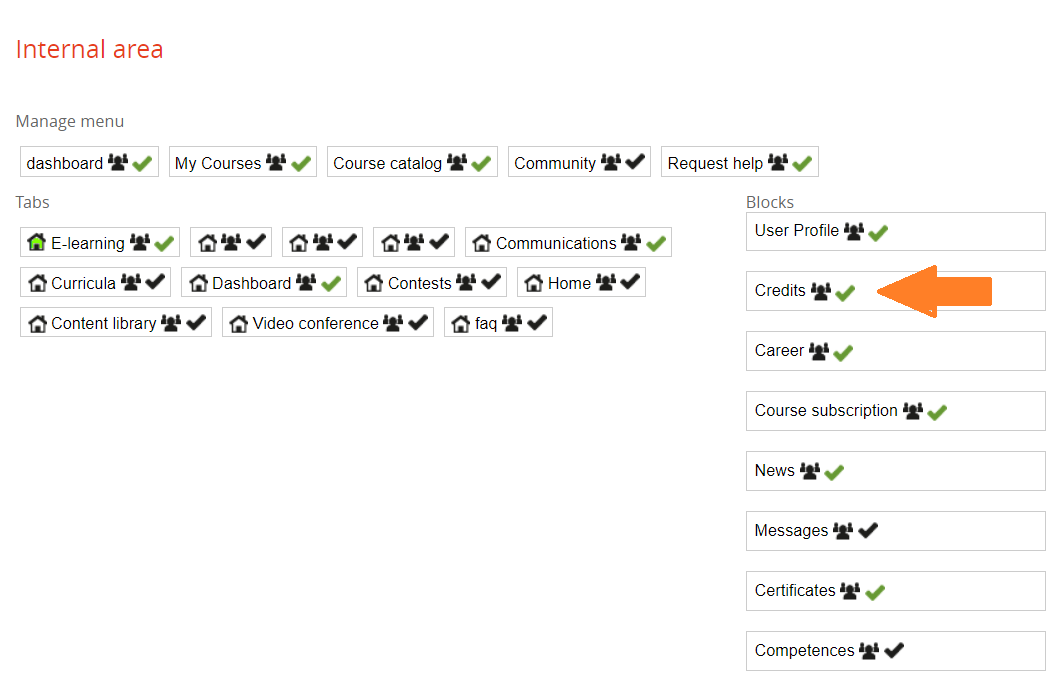](https://docs2.formalms.org/uploads/images/gallery/2024-01/Tk8image.png)
Insert credits in a course:
*Elearnig > Courses > Courses > Edit a course*
In the section 'Details' you can assign the number of credits
[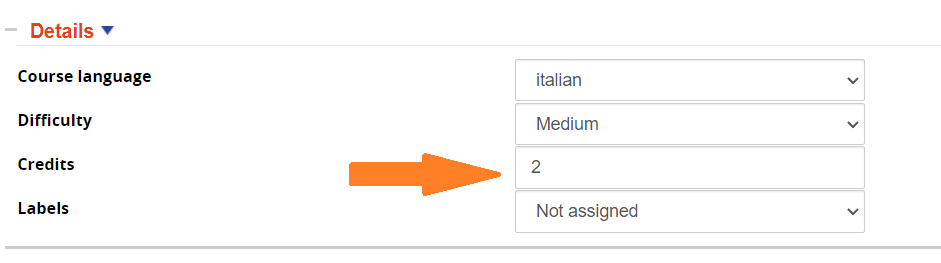](https://docs2.formalms.org/uploads/images/gallery/2024-01/vWfimage.png)
Users can check their credit balance in the log in frame in the tab 'Time Periods'
[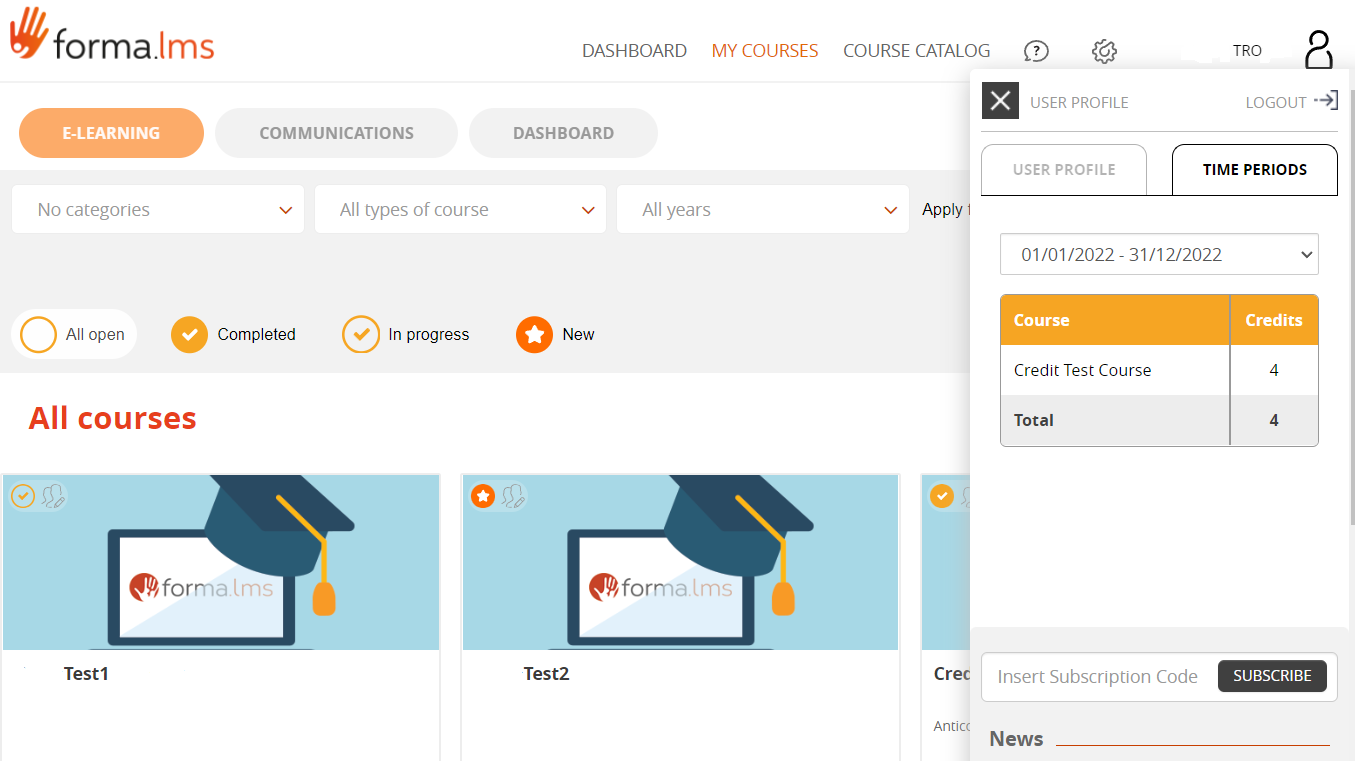](https://docs2.formalms.org/uploads/images/gallery/2024-01/XV2image.png)
# Codes
Forma allows the creation of subscription codes:
*Admin > Settings > System configuration > Code*
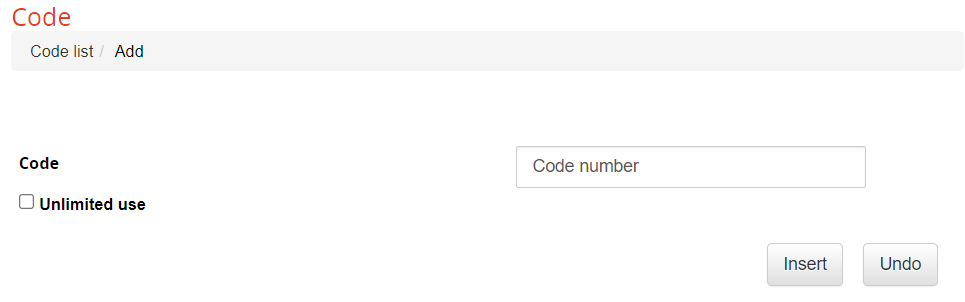
Click add button to insert a new Code:
[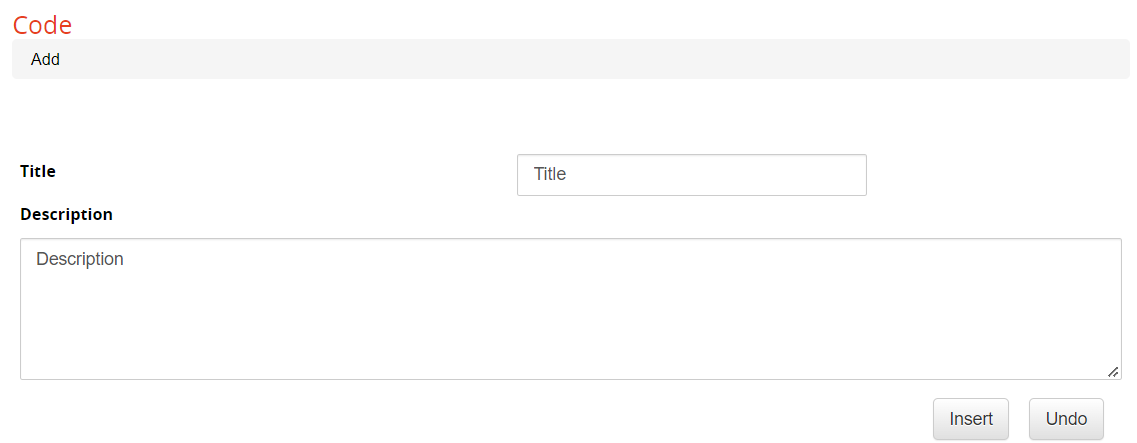](https://docs2.formalms.org/uploads/images/gallery/2024-01/mxSimage.png)
### Code features
[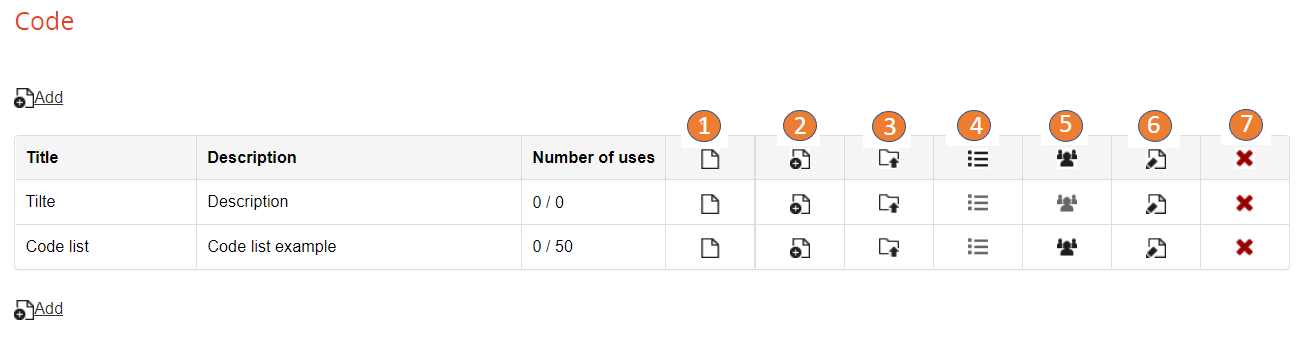](https://docs2.formalms.org/uploads/images/gallery/2024-01/BABimage.png)
1 - Code list: Administrator can add new codes and set an unlimited use.
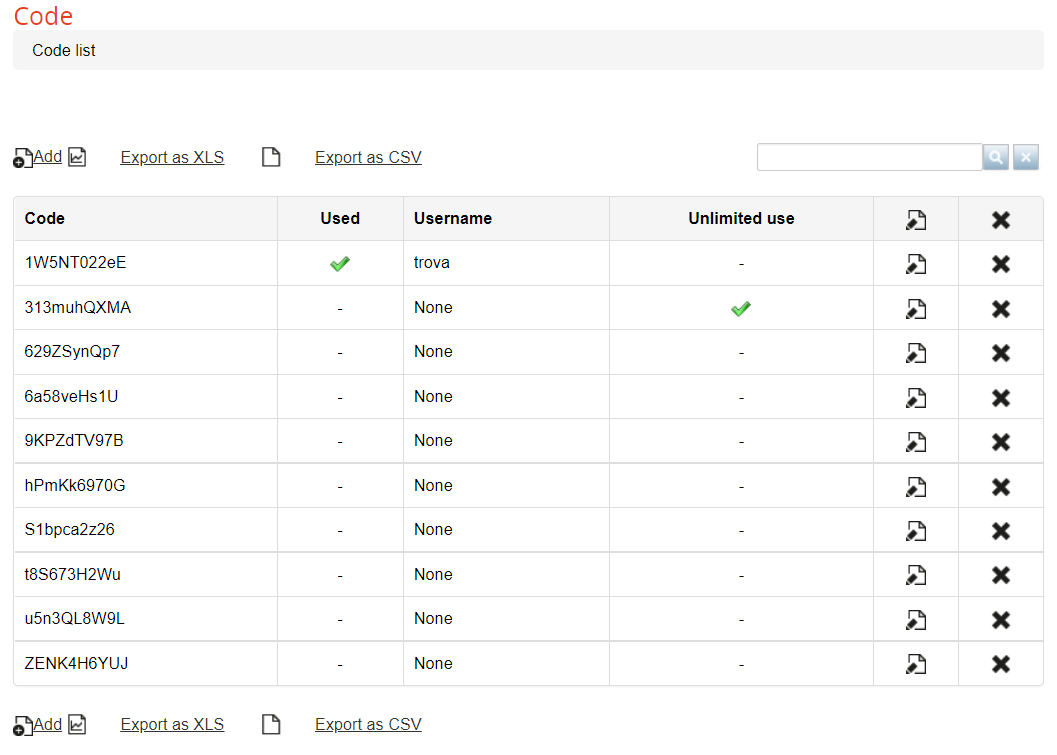
[](https://docs2.formalms.org/uploads/images/gallery/2024-01/wIcimage.png)
Code list shows used codes, username and unlimited use. Used codes cannot be redeemed anymore.
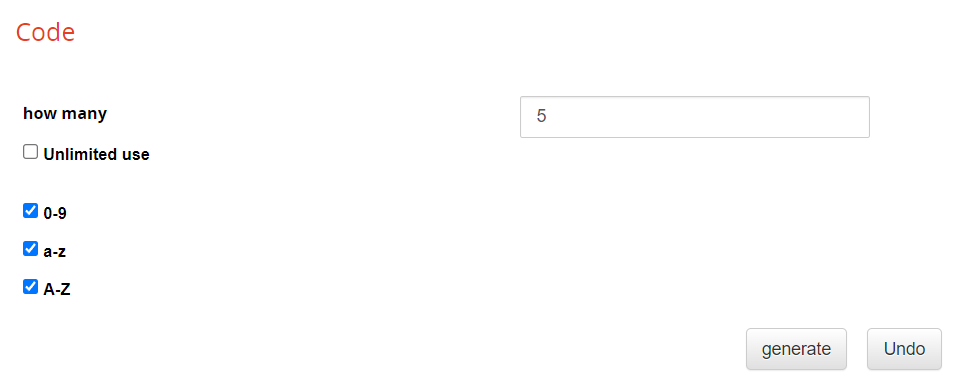
[](https://docs2.formalms.org/uploads/images/gallery/2024-01/talimage.png)
2 - Generate new codes : Administrator can generate new codes, insert the number and selecting unlimited use, 0-9, a-z or A-Z
[](https://docs2.formalms.org/uploads/images/gallery/2024-01/1Xtimage.png)
[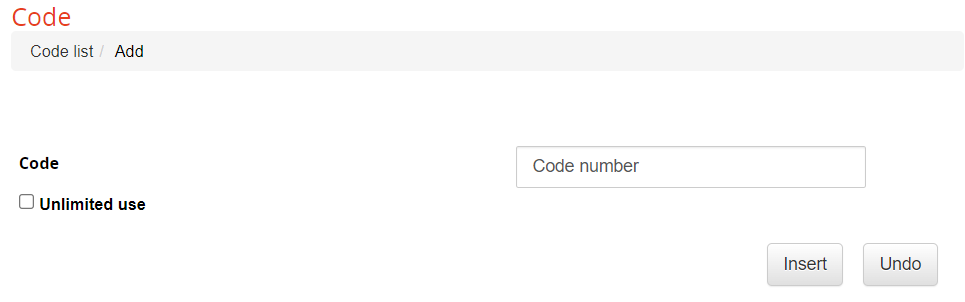](https://docs2.formalms.org/uploads/images/gallery/2024-01/c2Wimage.png)
3 - Import code from a CSV file
[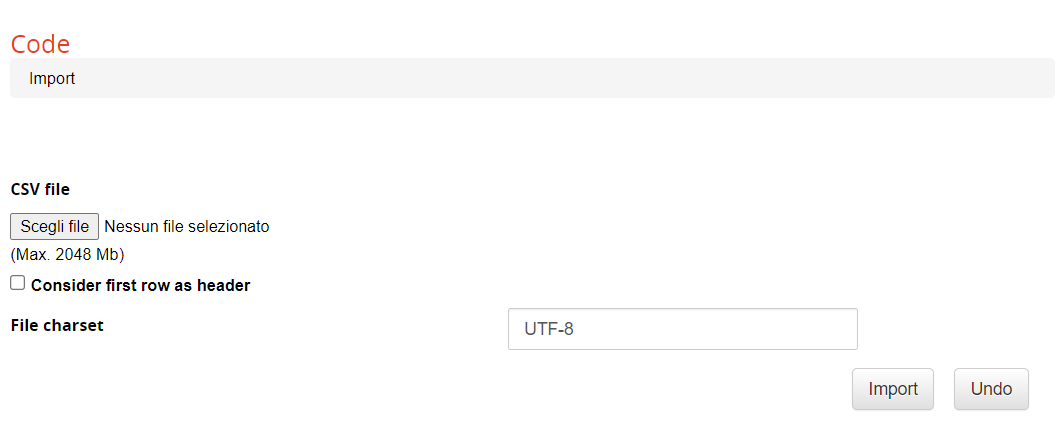](https://docs2.formalms.org/uploads/images/gallery/2024-01/lkZimage.png)
4 - Course selection
[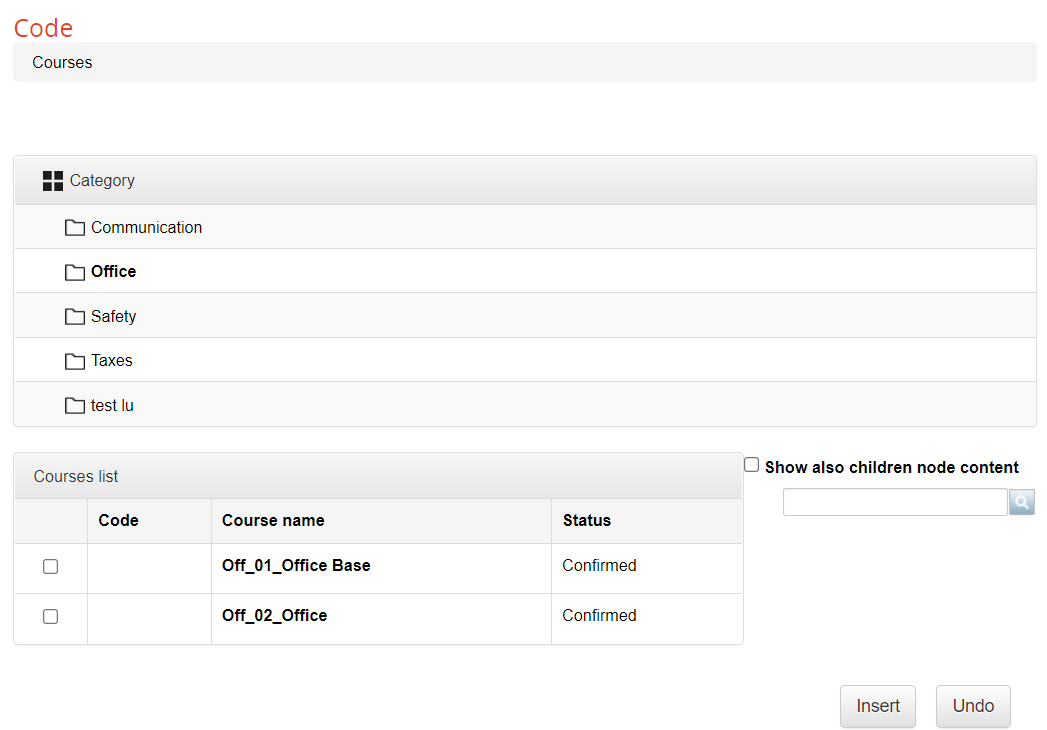](https://docs2.formalms.org/uploads/images/gallery/2024-01/HO7image.png)
5 - Code assignment: Administrator can assign code to the users using the organization chart and company roles
[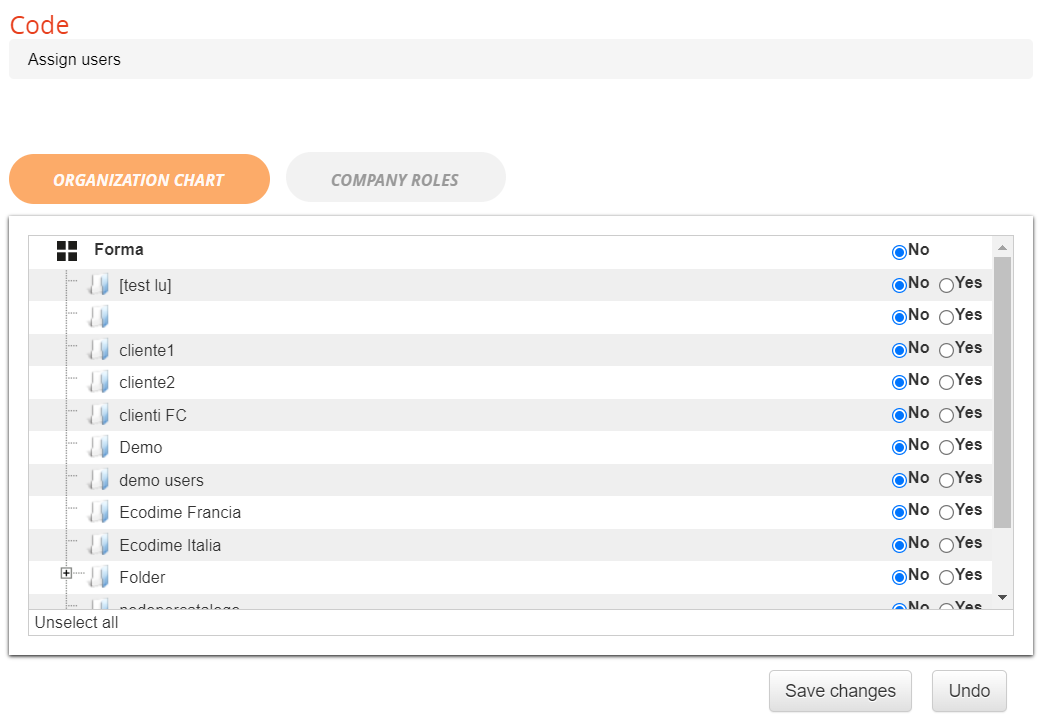](https://docs2.formalms.org/uploads/images/gallery/2024-01/SXAimage.png)
6 - Administrator can edit code title and code description
[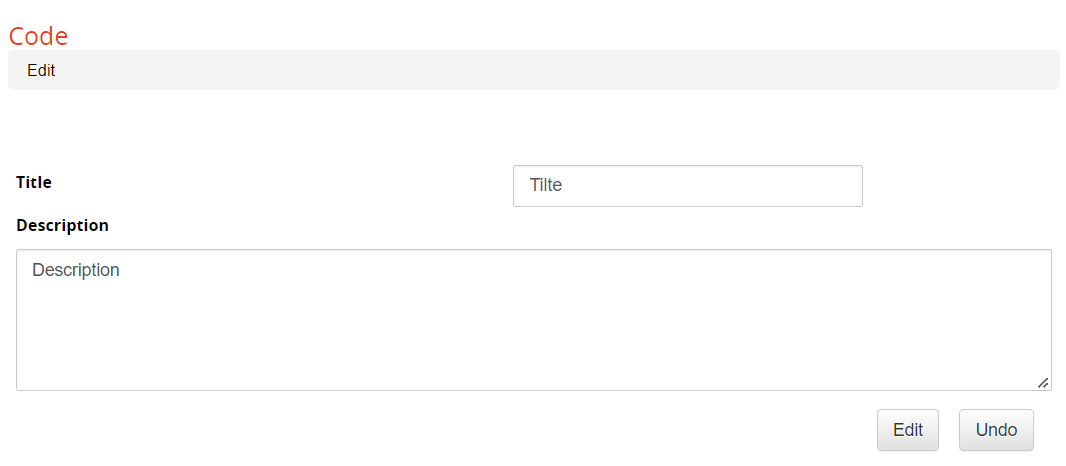](https://docs2.formalms.org/uploads/images/gallery/2024-01/CjHimage.png)
7 - Administrator can delete the codes
[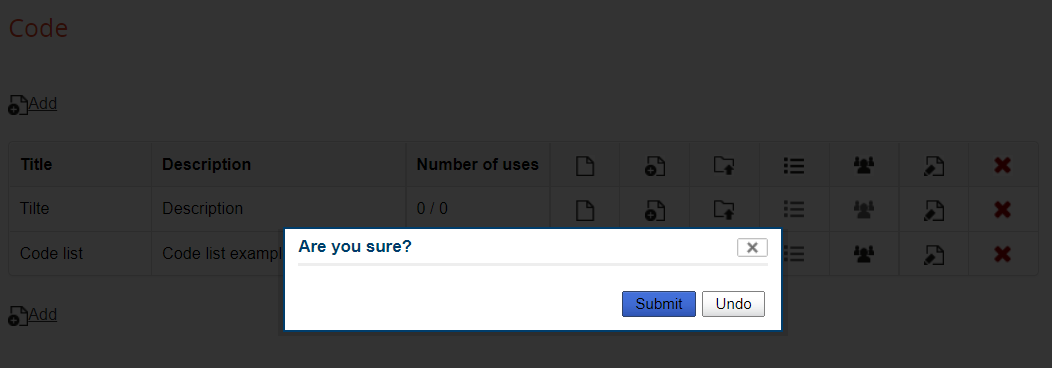](https://docs2.formalms.org/uploads/images/gallery/2024-01/Isnimage.png)
Once the code has been created and assign, the user can redeem it from the login frame:
[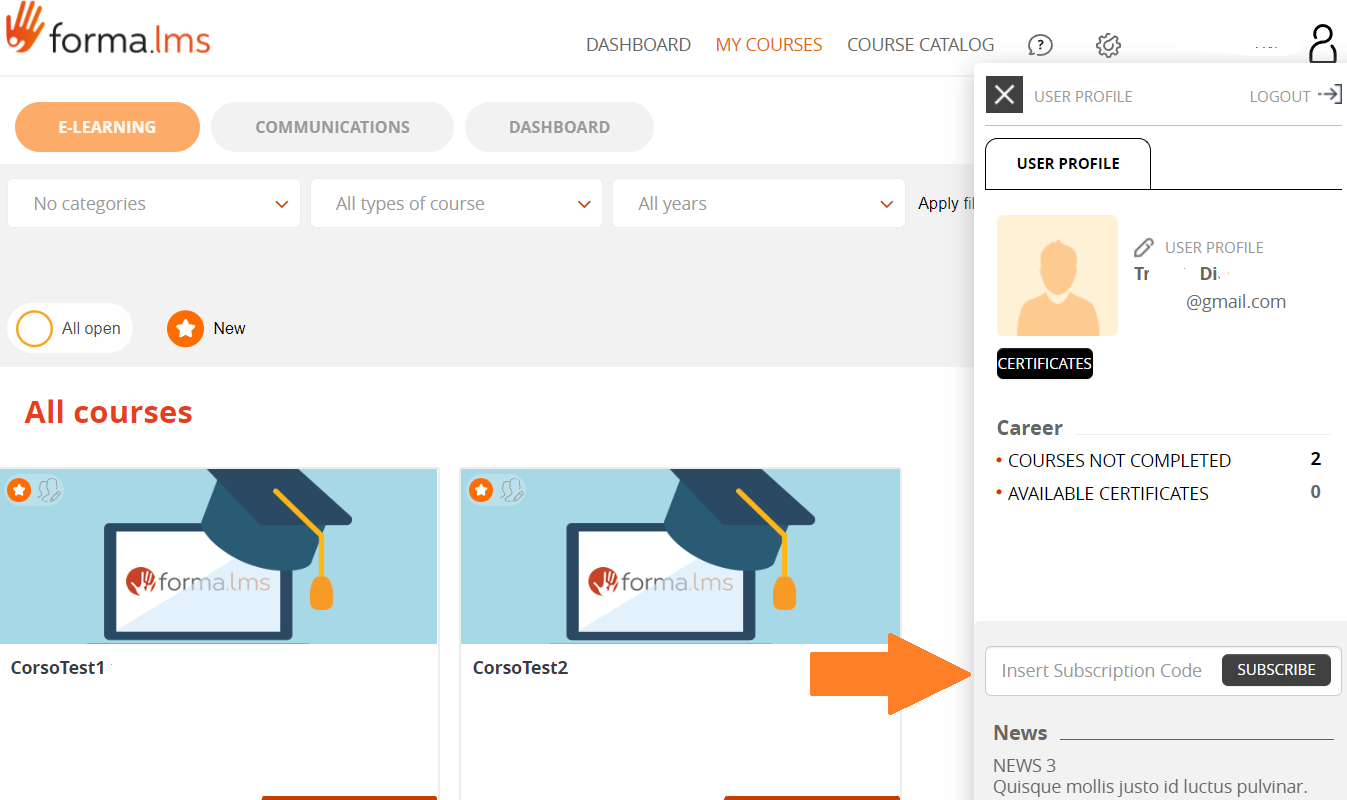](https://docs2.formalms.org/uploads/images/gallery/2024-01/iJ7image.png)
# Event Manager
Forma LMS allows notifications to be automatically sent to users.
Notification events can be set from:
*Admin > Settings > System Configuration > Event Manager*
## Notifications Settings
This is the list of available notifications:
[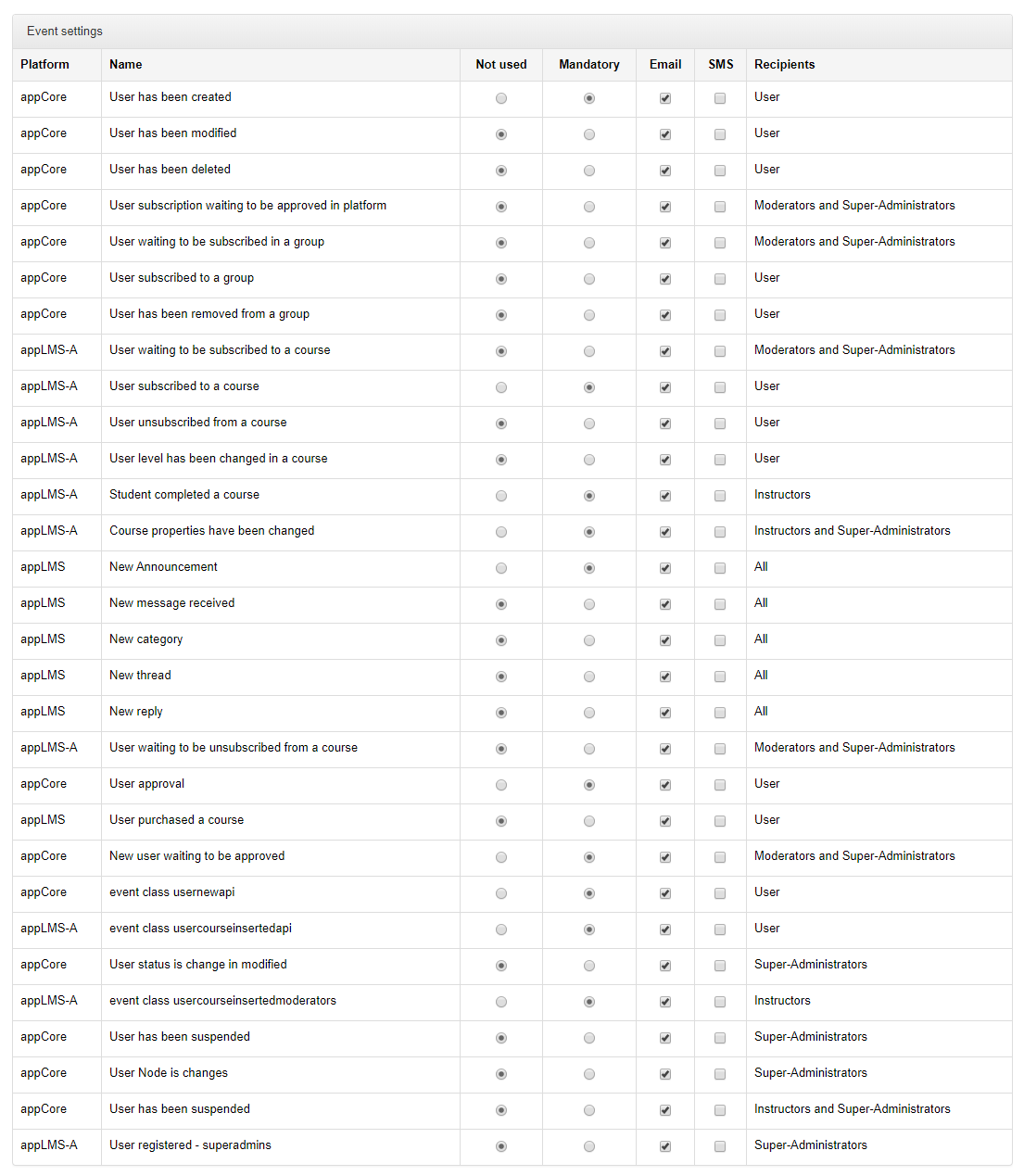](https://docs2.formalms.org/uploads/images/gallery/2024-01/jCQimage.png)
- **Platform**
- Part of the system where the notification is generated
- **Name**
- Description of the event that will generate a notification
- **Not Used**
- Notification won't be sent
- **Mandatory**
- The selected notification will be sent to involved users, based on event type
- **Email / SMS**
- Define whether the notification should be sent by email and/or SMS.
Note: for SMS to be sent, a dedicated service must be configured. Check [SMS configuration](https://docs2.formalms.org/books/reference-guide/page/system-configuration#bkmrk-sms)
- **Recipients**
- Description of the type of recipients for each notification
## Notification Text
The text of automatic notification events can be modified through the Language Management feature:
*Admin > Settings > **[Language Management](https://docs2.formalms.org/books/reference-guide/page/language-management)***
Just search for part of the text you need to edit
# I/O Tasks Connectors
The I/O (Input Output) system allows Forma LMS data to be exported to and imported from other applications.
It is available under:
*Admin > Settings > System Configuration > I/O Tasks*
It provides the functionalities to configure and schedule a set of tasks for reading and writing .csv or .xml files to be exchanged in a shared FTP folder.
Basic workflow for managing import/export of data in automatic mode:
- Activities are scheduled in the administration area using the I/O (input/output) module, which is located in admin/main/configuration/IO task
- .csv files are placed in the files/common/iofiles directory by Forma or third-party applications through FTP access
- Import or export tasks are performed using Cron or a similar scheduler
#### Examples of usage
- **Importing user lists** (e.g. filename users\_aaaammdd.csv) User ID, Passwords (e.g. “john.doe”, “pippo”). Many other cataloguing fields can be added. If these are to be managed through “drop-down menus” then the fixed fields must be “preloaded” in the LCMS system. If authentication is managed through systems such as LDAP, it is not necessary to import the passwords.
- **Importing course lists** (e.g. filename courses\_aaaammdd.csv) Course code, Course name (e.g. “001”, “Maths”). Other fields can be added to the .csv file, such as: Difficulty, Course status, Subscription policies, Course language, Start date, End date, Course duration and Estimated time.
- **Importing a list of users to be enrolled in courses** (e.g. filename AAAMMDDusercourses\_data.csv) User ID, Course code (e.g. “john.smith”, “001”). An optional field may also be added for the user level in the course. If this is not specified, the user will be listed as a student. 1 Ghost, 2 Guest, 3 Student, 4 Tutor, 5 Mentor, 6 Teacher, 7 Administrator.
- **Export a list of users** and their status on courses
#### Tasks configuration
Three steps to create a task and automate some activity:
1. Create a CONNECTOR
2. Create a CONNECTION
3. Create and schedule a TASK
NOTE
Here below a brief general description of the three features, for further details and examples please refer to the **[Extended Connectors Guide](https://docs2.formalms.org/books/api-integration/page/forma-integration-automation-solutions#bkmrk-i%2Fo-task)**
## Connectors
[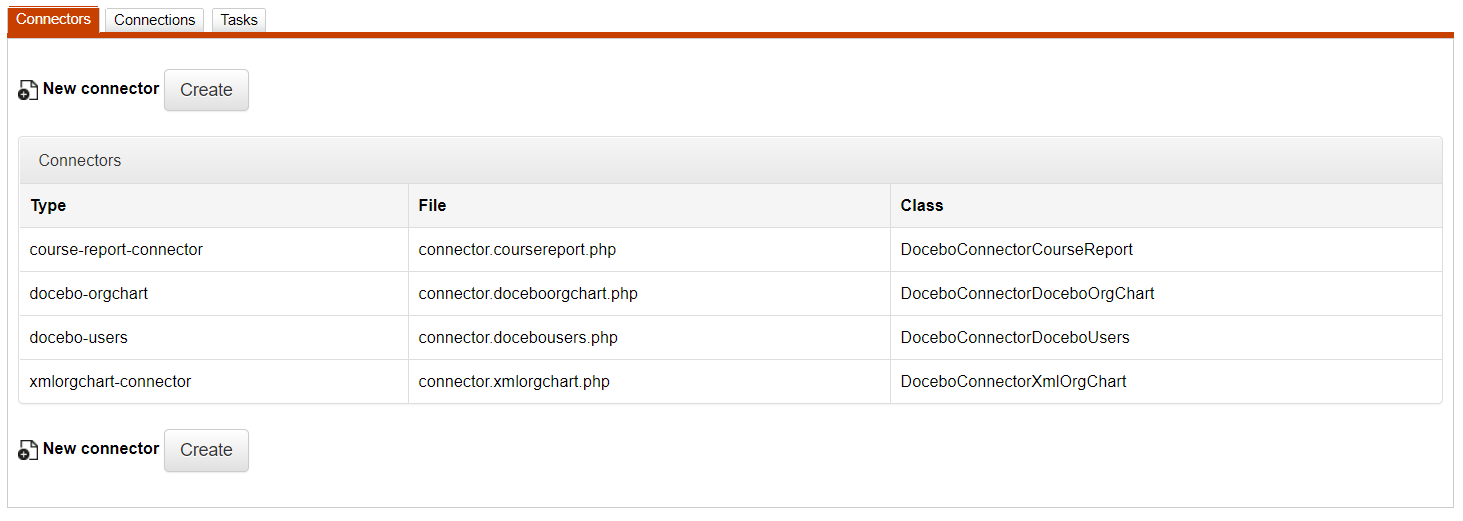](https://docs2.formalms.org/uploads/images/gallery/2024-01/r51image.png)
Creating a connector means to activate it and make it operational (there is a file that manages a certain type of data)
There are pre-programmed tasks files that perform the following activities:
- Import/Export organization chart structure (connector.doceboorgchart.php);
- Import/Export organization chart structure from a XML file (connector.xmlorgchart.php);
- Import/Export user-course relation (connector.docebocourseusers.php);
- Import/Export course list (connector.docebocourses.php);
- Import/Export SAP HR-compatible course list (connector.coursesap.php);
- Import/Export course report (connector.docebocoursereport.php);
- Import/Export CSV file (connector.csv.php);
- Import/Export Docebo users(connector.docebousers.php);
- Import/Export users report (connector.userreport.php);
## Connections
[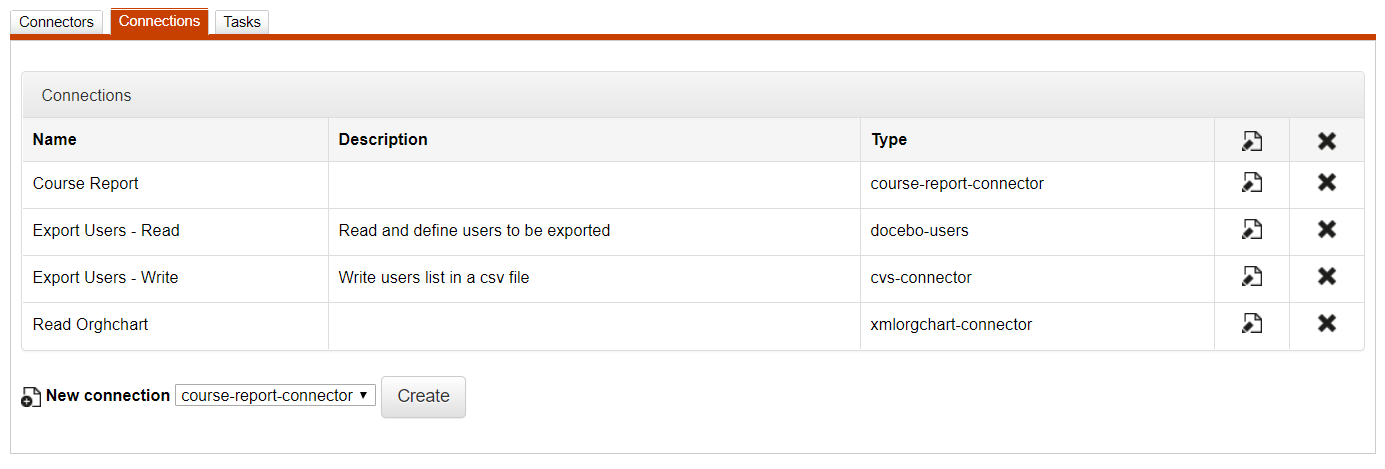](https://docs2.formalms.org/uploads/images/gallery/2024-01/wFQimage.png)
Creating a connection means to assign a certain task to a connector, namely where to write or retrieve certain data, whether these are read from a file or stored in a DB.
## Tasks
[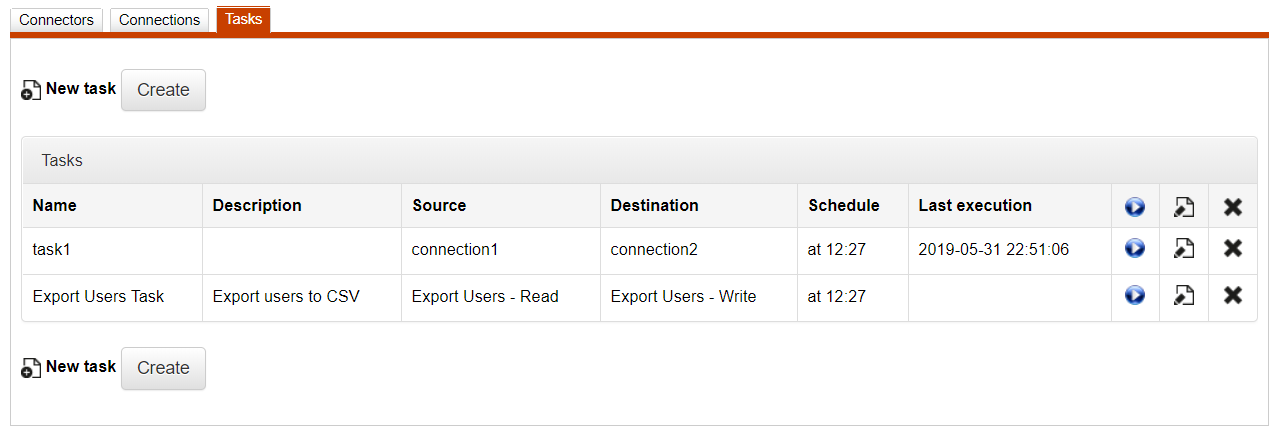](https://docs2.formalms.org/uploads/images/gallery/2024-01/k3nimage.png)
To create a task means to associate the source connector to a destination connector and explain where to store (importing or exporting) certain data. For instance, writing data on a CSV file or a database beginning with data in another database or CSV file.
# Question Category
You can create an unlimited number of categories that can be used globally to categorize any question in any test or in the question bank.
This feature is available for administrators under:
*Admin > Settings > Elearning Configuration > Question Category*
[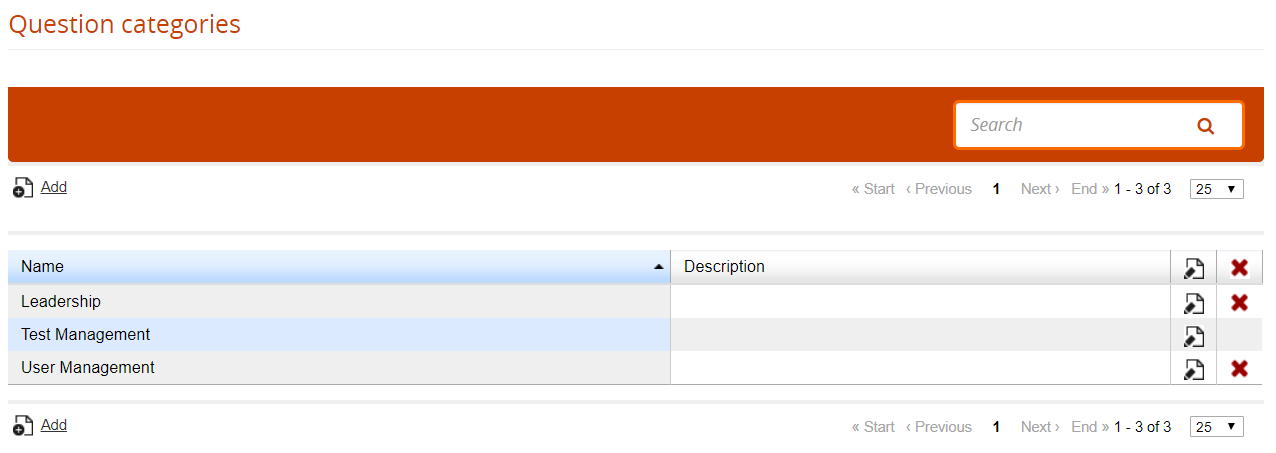](https://docs2.formalms.org/uploads/images/gallery/2024-01/spmimage.png)
# Additional Fields
Additional fields can be associated to users, or to other platform entities such as org-chart nodes, courses and learning objects
## Additional Fields (Users)
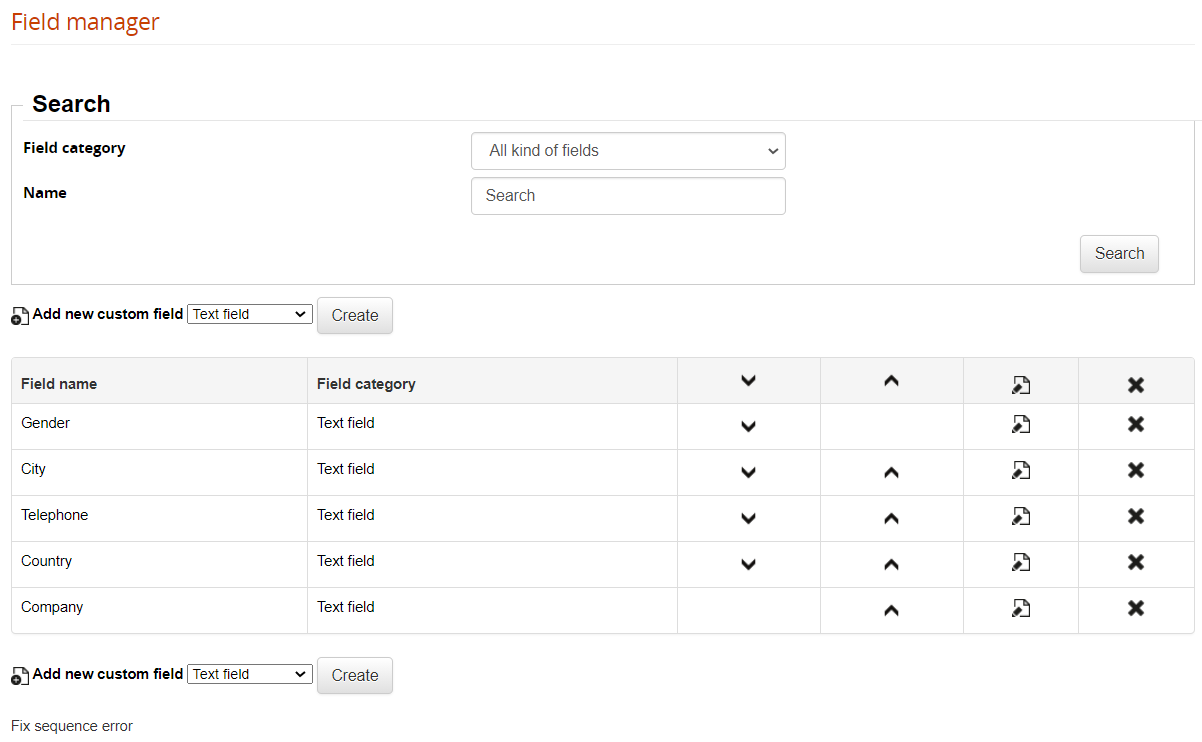
User additional fields can be created and managed under:
*Admin > Settings > Additional Fields > Additional Fields*
[](https://docs2.formalms.org/uploads/images/gallery/2024-01/EVIimage.png)
Different field types are available:
- Text Field: create a standard text input field
- Free text Field: create a textarea
- Date: allow inserting a date
- Dropdown: create a list of options the user can choose from
- Upload: user will be able to upload a file upon registration
- Textlabel: add a static description text inside the registration form
- Fiscal Code: text field for Italian fiscal code
- Yes/No: creates a radio button select field
Tip:
You can assign different fields to different [orgchart nodes](https://docs2.formalms.org/books/reference-guide/page/users-and-organization-chart#bkmrk-assign-field-to-node), and create custom registration forms using the [advanced registration](https://docs2.formalms.org/books/reference-guide/page/system-configuration#bkmrk-register)
## Custom Fields (Other items)
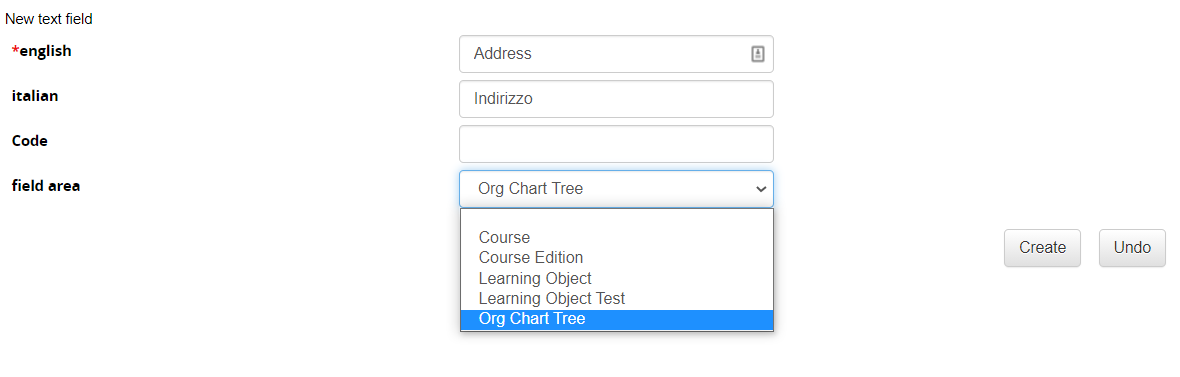
Can be configured under:
*Admin > Settings > Additional Fields > Custom Fields Manager*
[](https://docs2.formalms.org/uploads/images/gallery/2024-01/b4Yimage.png)
Two kinds of field are available:
- Text Field: create a standard text input field
- Dropdown: create a list of options the user can choose from
You can associate custom fields to different platform items to extend their configurations:
- Courses
- Learning Objects
- Organization Chart Nodes
These fields will be then available in reports
# Privacy Policies
## Default Privacy Policy
By default, users will be required to accept a privacy policy statement both on login and registration.
The default privacy policy text is defined in language management:
*Admin > Settings > Language Management*
The language key to be edited is: \_REG\_PRIVACY\_POLICY
This option can be disabled from:
*Admin > System configuration > Settings > User > Register*
## Privacy Management
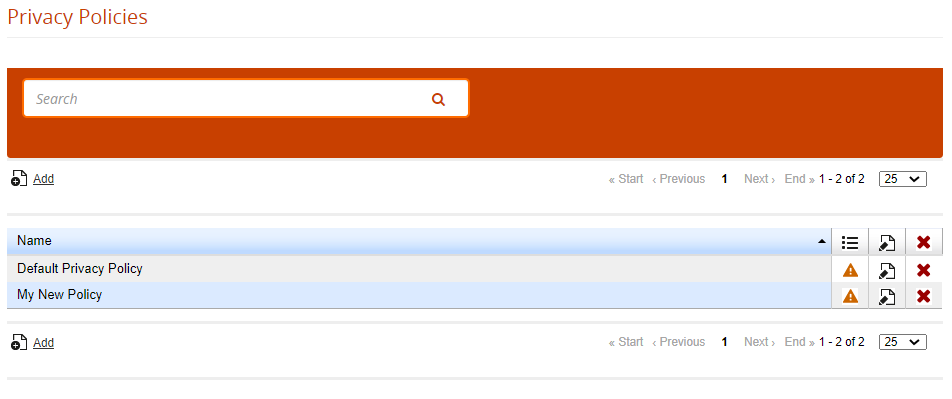
Alternatively, you can set a new Privacy Statement from the Privacy Management:
*Admin > Setting > System configuration > Privacy Policy*
[](https://docs2.formalms.org/uploads/images/gallery/2024-01/Viximage.png)
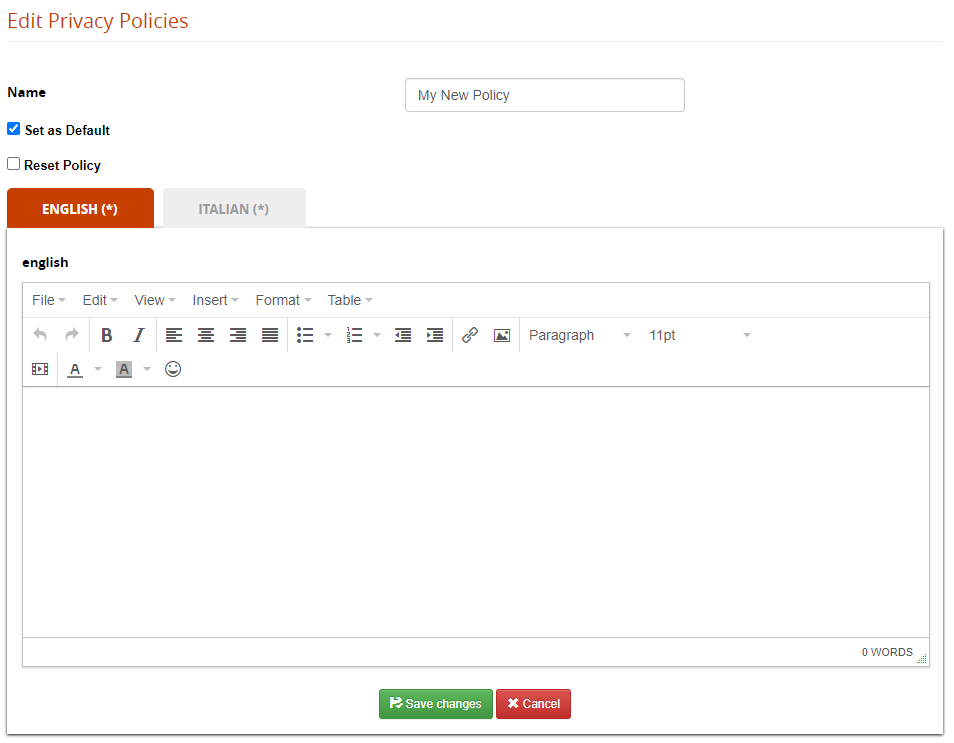
Edit the default page and flag it as default:
[](https://docs2.formalms.org/uploads/images/gallery/2024-01/OEDimage.png)
### Multiple Policies
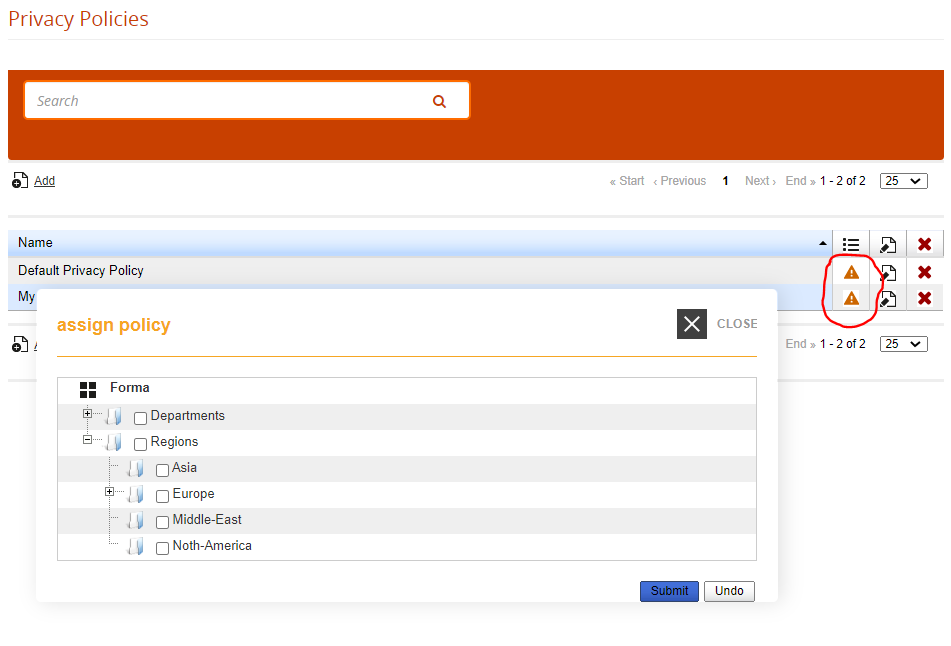
It is possible to manage different Privacy statements and assign it to one or more orgchart nodes:
[](https://docs2.formalms.org/uploads/images/gallery/2024-01/Scoimage.png)
# Manage Menu
You can create and manage menu templates from:
*Admin > Settings > Elearning Configuration > Manage Menu*
Menus are “templates” applied upon course creation, so changes applied here won't affect existing courses. To **apply changes to existing courses** use the [**course management**](https://docs2.formalms.org/books/reference-guide/page/course-management) features
It is possible to edit menu configurations also from within each course, affecting only the course specific menu: this will give you maximum flexibility with menu management and customization.
**TIP**: create just the menu template that you most commonly use to differentiate coure types, i.e. you coud have a menu for elearning and another for classroom courses, and only when needed add further customizations directly in the course
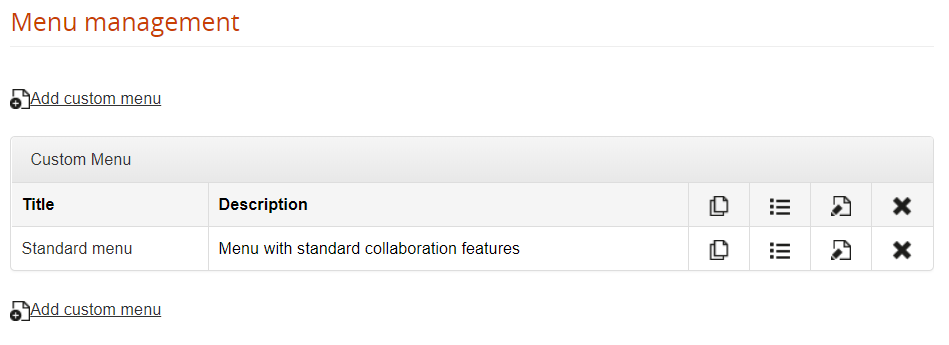
## Manage Menus
[](https://docs2.formalms.org/uploads/images/gallery/2024-01/4sEimage.png)
## Manage Areas
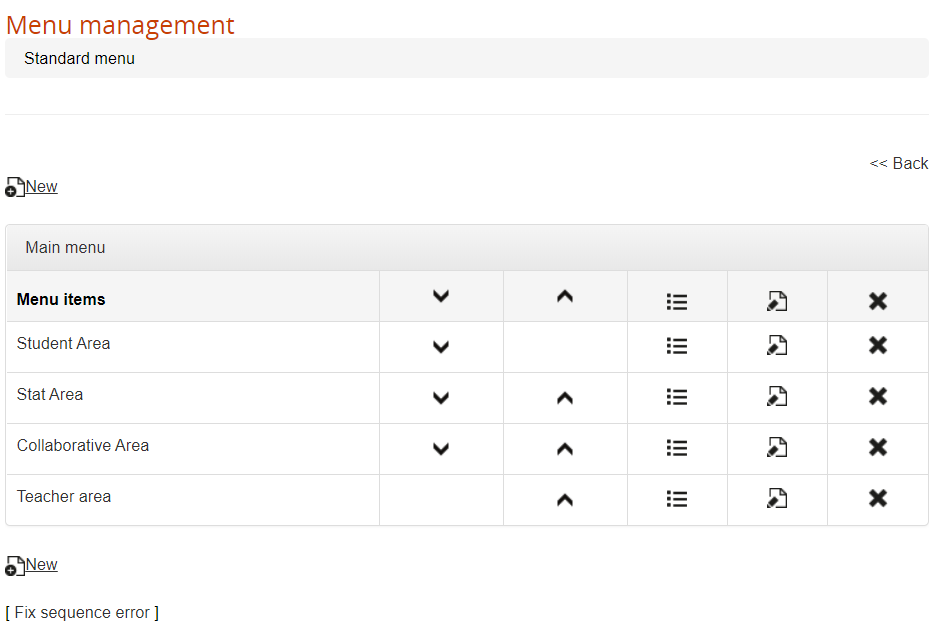
Menu items are grouped in “areas”, that you can create, order, rename and delete:
[](https://docs2.formalms.org/uploads/images/gallery/2024-01/w7Gimage.png)
## Assign Modules
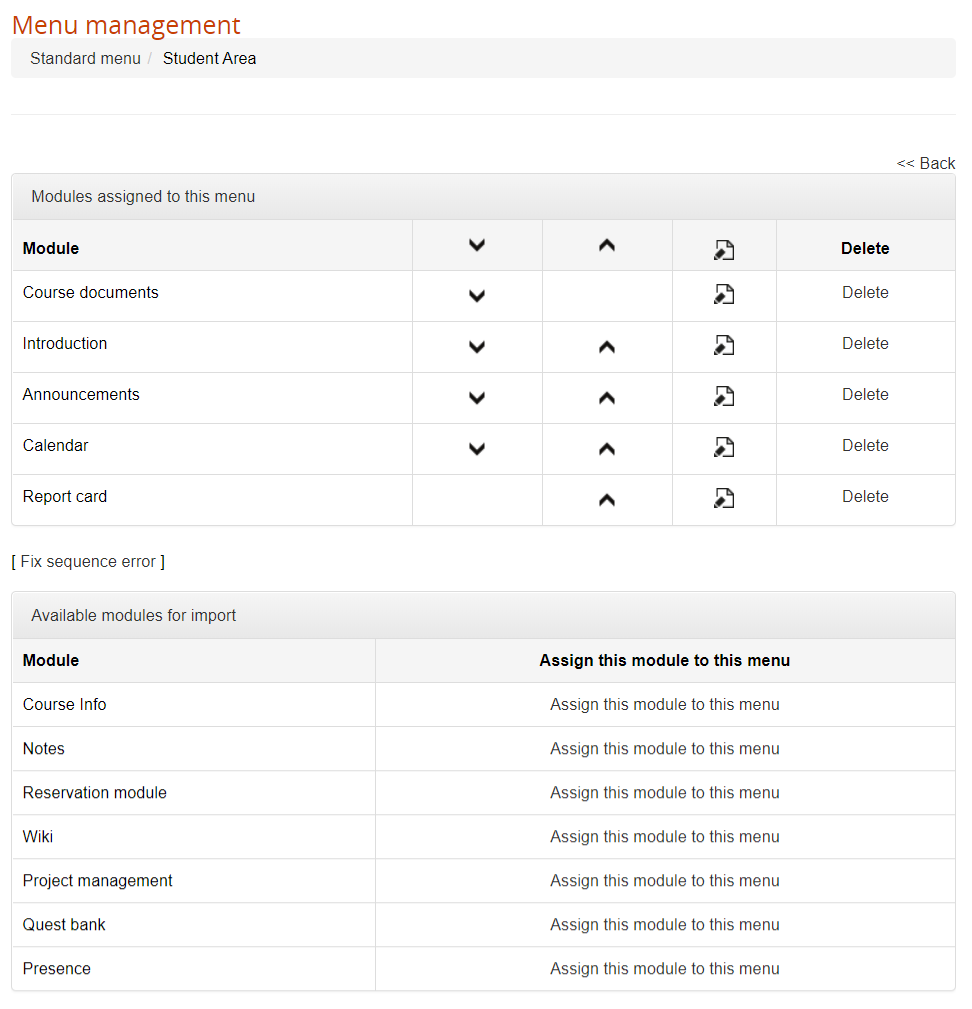
Within each area, you can assign or remove modules.
At the bottom of the page, you can see the list of available modules to assign to the selected area.
When you delete a module from the menu, it will appear again in the available modules list.
[](https://docs2.formalms.org/uploads/images/gallery/2024-01/Fizimage.png)
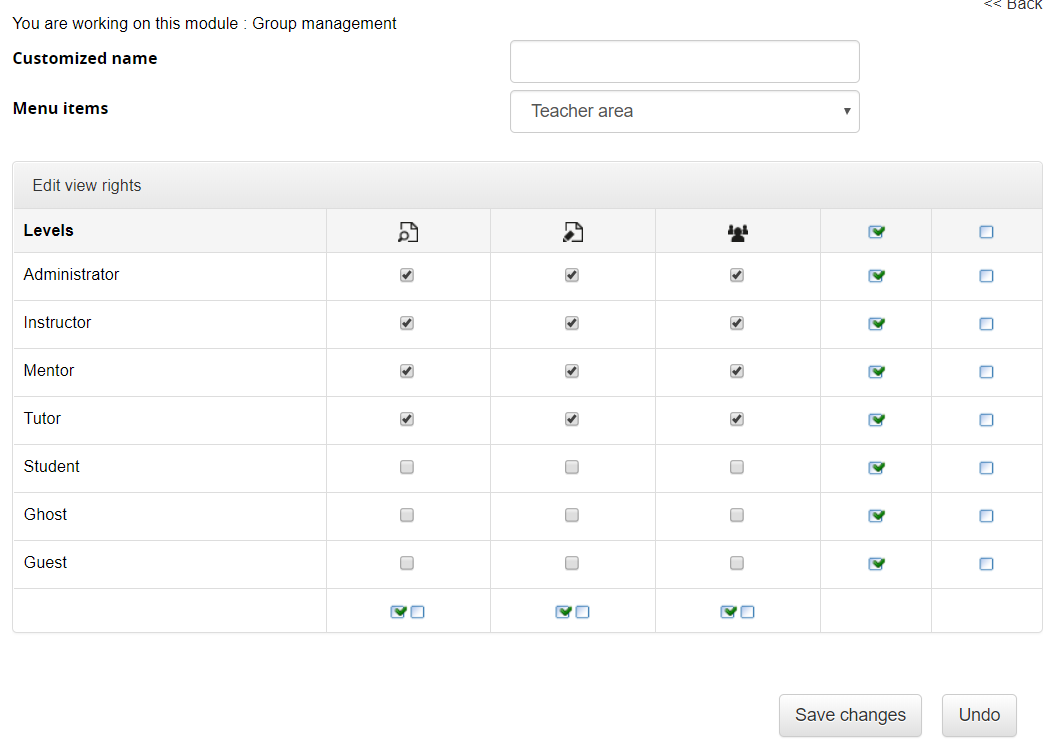
## Set role permissions
Click on the edit icon for each module to:
1. Edit the menu item name
2. Assign the available permissions for all the user subscription roles
[](https://docs2.formalms.org/uploads/images/gallery/2024-01/R5zimage.png)
### View Permission for administrators
Some modules presenting a list of users have a special “view all” permission checkbox, that applies only for users of level “administrator”:
- Unchecked: the administrator will see only his assigned users
- Checked: the administrator will see all the subscribed users
Superadministrators and standard users will see all users in any case.
# Language Management
## Language manager
You will find the language management features under:
*Admin > Settings > Language Management*
Here you will find a list of the available languages in your platform
[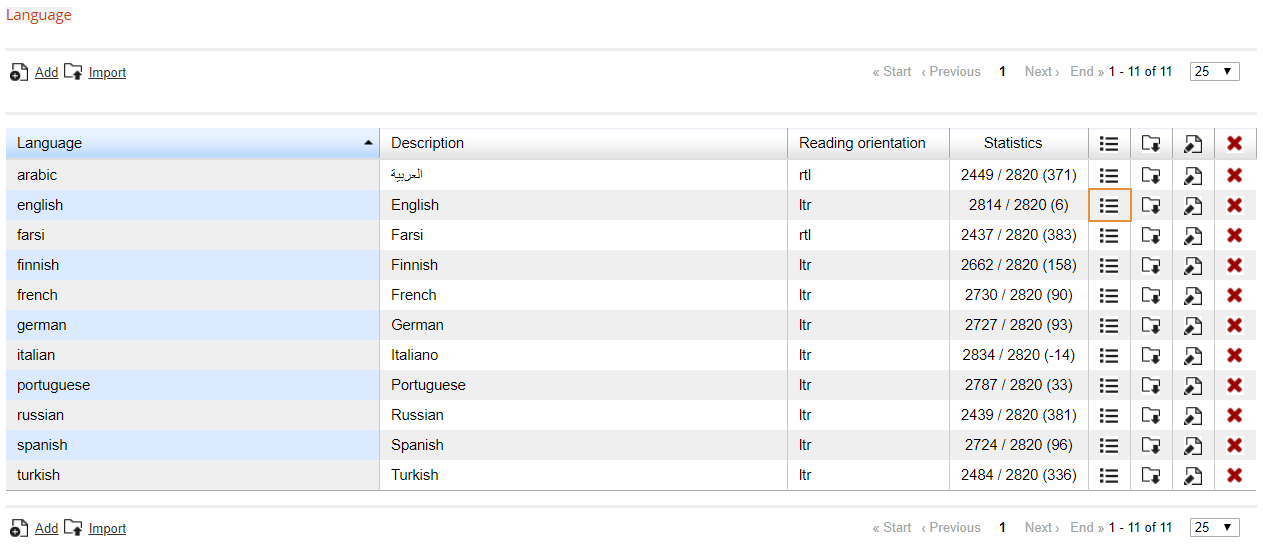](https://docs2.formalms.org/uploads/images/gallery/2024-01/Utximage.png)
From this panel it will be possible to:
1. Edit existing languages
2. Import language files
3. Add new languages
## Edit existing languages
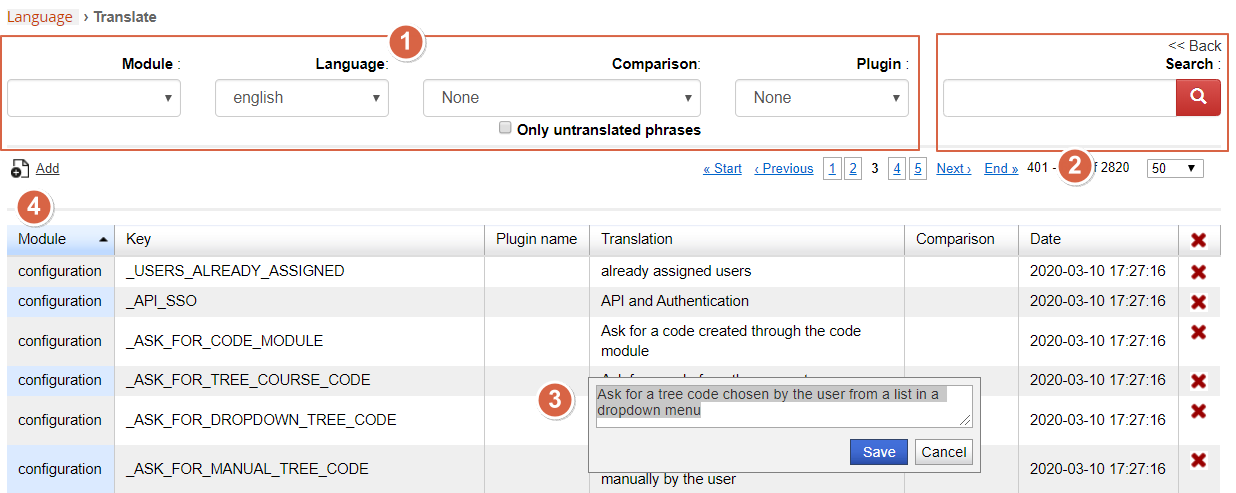
To edit existing language translation keys, click on the highlighted icon in the previous image to get to the language editing page:
[](https://docs2.formalms.org/uploads/images/gallery/2024-01/b9Bimage.png)
In this page you will find a list of all the available translation keys
1\. **Filter** the language keys:
- **Module**: the area or feature of the platform where the language key is user
- **Key**: the code placeholder for the language key to be translated
- **Plugin**: select the language keys created by a specific plugin
- **Only untranslated**: shows only keys without local translation
2\. **Search** language translations: search any text in all the listed key translations (doesn't search in key names)
3\. **Edit** any translation, just by clicking on the translation text
4\. **Add** a new translation key for all the available languages
## Import language files
[](https://docs2.formalms.org/uploads/images/gallery/2024-01/aaEimage.png)
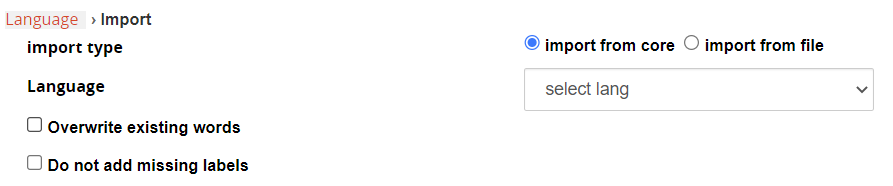
**Import Modes**:
- Import from core: select from a list of the available languages
- Import from file: import an XML language file exported from another format installation
**Options**:
- Overwrite existing words: if the language is already installed in the system, it will override all the customizations
- Do not add missing labels: if the language is already installed in the system and some translation key is missing, it will leave it empty
## Add a new language
Create an empty new language